Agentic Chat
Where: top navigation → Agentic Chat.
Agentic Chat is the unified runtime where Spring AI Playground combines documents, tools, models, and conversation state. It is also where everything you assemble elsewhere - system prompts, built-in and authored tools, proxied MCP servers, and indexed documents - comes together as the live context for a single conversation.
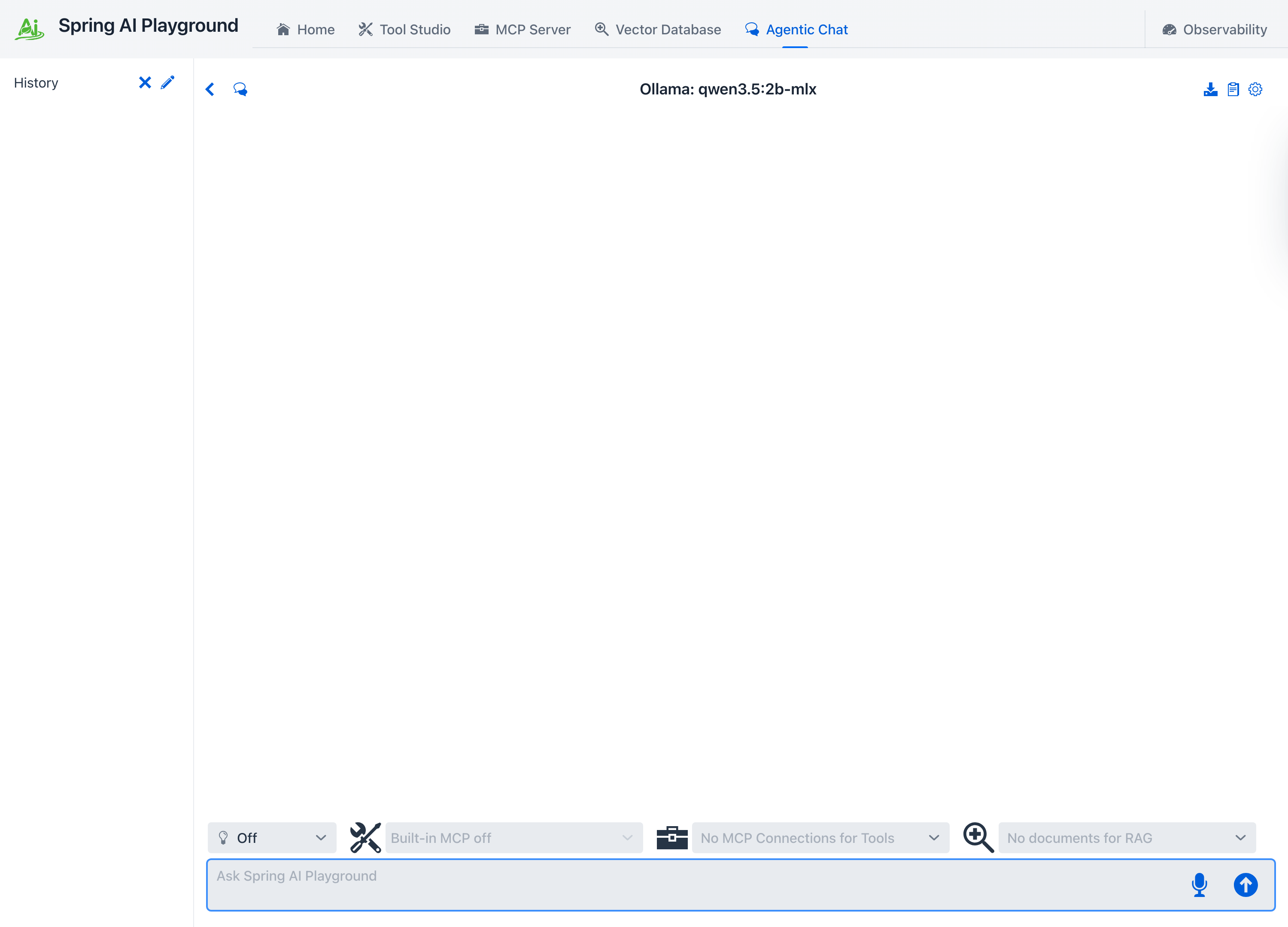
This unified interface lets you:
- run RAG workflows grounded in indexed documents
- execute tool-enabled agent flows through MCP
- steer the model with reusable system-prompt presets and templates from the Prompt Library
- attach images for native multimodal input to vision-capable models
- dial reasoning effort up or down per turn
- read responses with syntax-highlighted code, rendered math, and diagrams
- test complete agent strategies by combining documents and tools in a single chat session
Key Features
- RAG source selection for grounding - a saved retrieval pipeline or a single indexed document
- MCP connection selection for tool-enabled execution
- manual tool selection or dynamic tool discovery - the model searches a large catalog on demand
- per-turn reasoning effort and provider-aware generation options
- system-prompt presets and variable-driven templates
- real-time visibility into retrieved context, reasoning, and tool usage
- one conversational surface for both chain-style and agentic patterns
This area is closely aligned with Spring AI's workflow and agentic guidance. If you want the conceptual background behind these two modes, see Building Effective Agents. For how the Playground assembles the full model context - system prompt, retrieved documents, tools, memory, and options - see Context Engineering.
The chat workspace
The screen has three regions:
- Header actions (top right): New Chat, Export conversation (download icon), Prompt Library (clipboard icon), and the Settings cog - the cog stays the right-most action, an app-wide convention.
- Conversation area: the running exchange. User turns render as plain text; assistant turns render as Markdown and carry collapsible process panels (THINK, MCP TOOLS, RAG) when those stages run.
- Selector row + prompt input (bottom): the reasoning control and the tool and RAG source selectors sit directly above the text box, so what the model can reach is always one glance from where you type.
Composing a request
Reasoning effort
The lightbulb dropdown on the selector row sets how hard the model thinks on the next turn - Off, Low, Medium, or High. It is dynamic: change it between turns without starting a new chat.
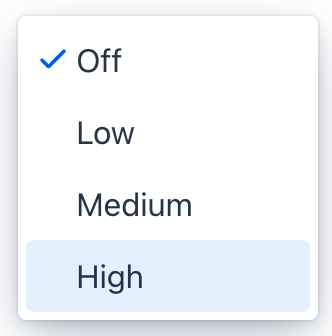
The control is provider-aware and only appears for models that support it. The level maps to each provider's own knobs - on OpenAI it becomes reasoning_effort; on Ollama it toggles thinking and its depth. Off sends no reasoning option at all, which is the safe default for non-reasoning models. See Context Engineering → Reasoning effort for the mapping.
Choosing tools and a RAG source
The tools icon on the selector row opens the tool popover. It is the per-chat switch for what the agent may call, and it offers two mutually exclusive ways to decide:
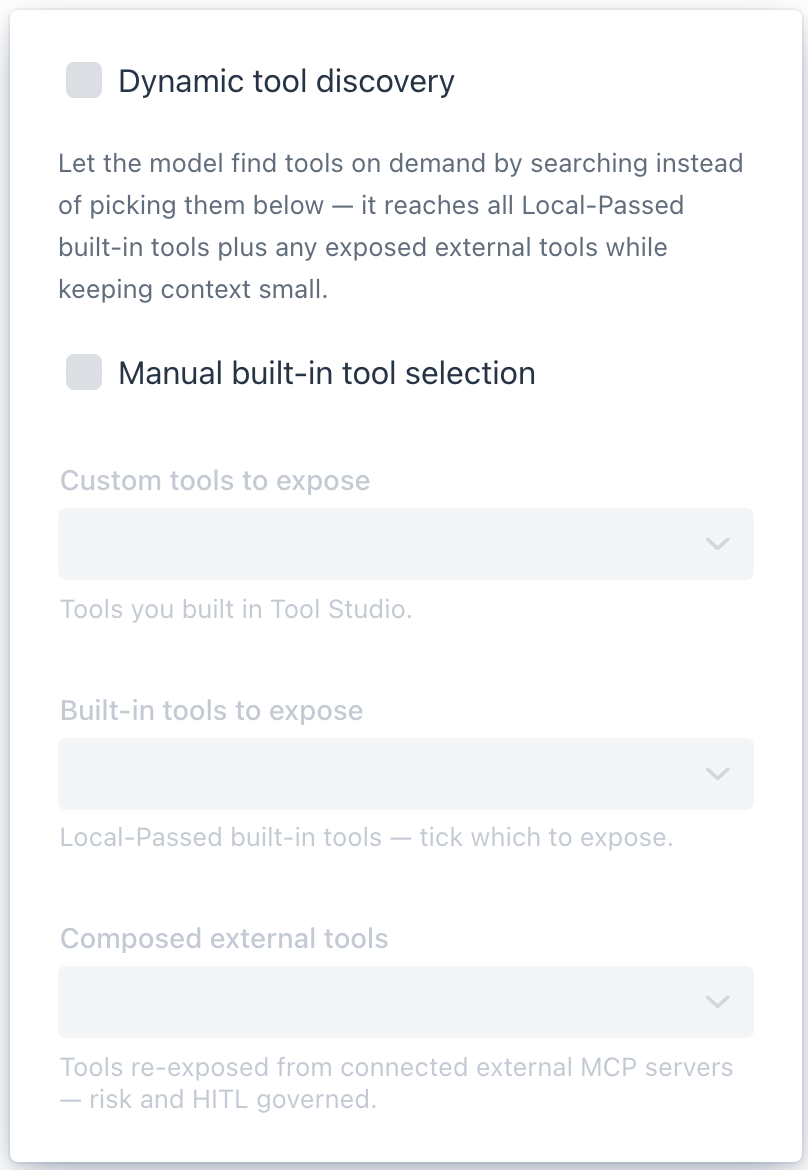
- Dynamic tool discovery - let the model find tools on demand instead of choosing them by hand (see below).
- Manual built-in tool selection - the master toggle for picking exactly which in-process tools this chat exposes. When it is on, the three selectors below become active:
- Custom tools - tools you built in Tool Studio.
- Built-in tools - the Local-Passed built-in tools; tick which ones this chat may call.
- Composed external tools - tools re-exposed from connected external MCP servers, each risk-scored and human-in-the-loop governed.
Ticking one mode unticks the other. Beside the popover, the MCP servers selector picks which connected external servers feed the chat - it reads No MCP servers connected until you connect one, and Select MCP servers for tools once a server is connected. It is independent of the two modes above: a selected server's tools are bound to the chat directly, and while Dynamic tool discovery is on they also join the searchable set. The RAG source selector grounds the conversation, taking one source at a time: either a saved retrieval pipeline (its row shows the stage count and the extra LLM calls it costs) or a single indexed document (retrieval only). See Runtime: RAG in Chat. All of these selections are remembered per conversation.
Dynamic tool discovery
By default a chat sends the model the full schema of every tool you expose - fine for a handful, but a broad agent setup can push tens of thousands of tokens of definitions into every turn. Dynamic tool discovery removes that cost: the chat hands the model a single toolSearchTool, and the model searches the catalog on demand instead of receiving every definition up front. Tick it at the top of the tool popover (the exposed-tools box then reads Dynamic - searching all tools); it stays disabled until the searchable pool clears the tool-search.min-tools floor (default 10), so add more in Tool Studio if it is greyed out.
It is also how the built-in Self-equipping agent preset works. For the full picture - why it matters for agents, the 34-64% token-savings experiment behind it, how it lets a small local model drive a large toolbox, and the configuration - see Dynamic tool discovery.
Document attachments
The paperclip by the prompt box attaches documents - or drop a file onto the prompt. Attached files show as chips above the prompt and are routed by size rather than by a wizard: a small file is kept as full text, a larger one is split, embedded into a conversation-scoped slice of the built-in vector store, and summarized into an always-injected overview. The chip states the routing decision, and the chat RAG panel prints it per turn. No RAG source has to be selected for an attached document - it is used automatically in that conversation, so Summarize this and pinpoint questions both work as soon as the chip is ready. A chip can be promoted into the Vector Database so the document outlives the conversation and becomes selectable as a RAG source everywhere. The full pipeline - the size tiers, the overview transformer, scoped retrieval, and promotion - is on the Chat Attachments page.
Multimodal vision input
The same paperclip attaches images (up to five per message) - or drop a file onto the prompt, or paste a screenshot. Attached images show as removable chips above the prompt, are resized and EXIF-tagged in the browser, stored content-addressed under the playground home, and sent to the model as native multimodal input. A capability check warns when the selected model cannot actually see (including the mlx false-positive case on Apple Silicon). The full pipeline - storage, vision checks, error handling, and the describeImage re-reference tool - is on the Multimodal Vision Input page.
Voice input
The microphone icon by the prompt box dictates your message - click to start, click again to stop. Transcribed text streams into the input as you speak and keeps anything you already typed. The backend is picked automatically by where the app runs:
- Desktop app - on-device Whisper: the native desktop app transcribes your voice locally on the machine, with no cloud round-trip. It is opt-in - turn it on and download a model once in the launcher's settings (Local Speech-to-Text card). Supported on Apple Silicon Macs; Intel Macs show a short notice instead.
- Chrome browser - the browser's built-in Web Speech API: nothing to download, but recognition is handled by the browser. Safari and Firefox prompt you to switch to Chrome or the desktop app.
While recording, the mic doubles as a stop button with a countdown wedge that fills as silence builds up - it auto-stops after a few seconds of quiet, or click to stop immediately. It is the input-side complement to Read aloud.
System prompts and presets
The system prompt frames every turn. You can type one in the settings drawer, or pull a ready-made preset or a variable-driven template from the Prompt Library (clipboard icon in the header). The two are related but distinct - a preset is a complete prompt you apply as-is; a template has {{variables}} you fill in first - and each has its own page below.
The chat settings drawer
The Settings cog opens the chat model drawer - the static configuration for the conversation. Editing it and pressing Apply & New Chat starts a fresh conversation with the new settings.
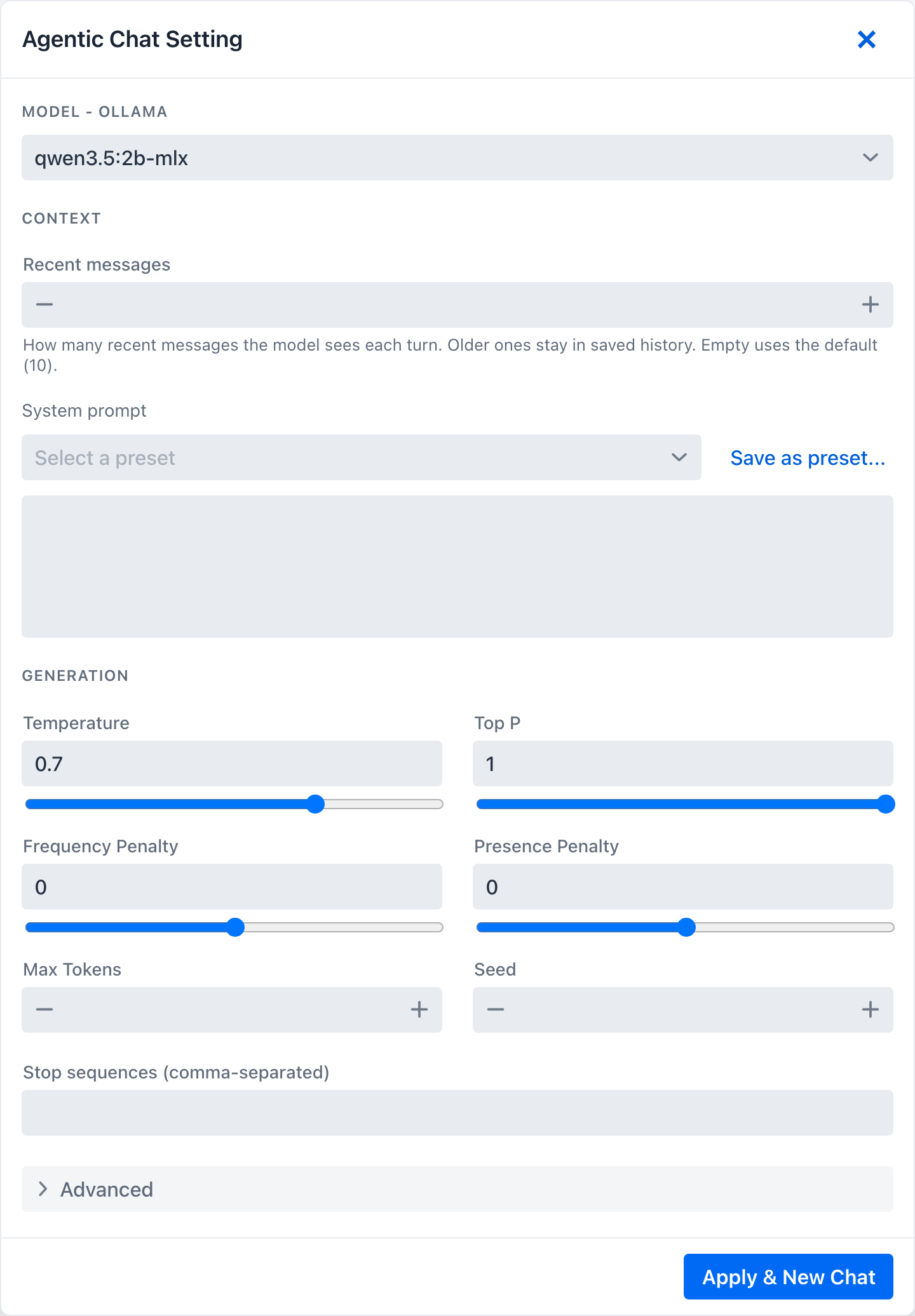
- Model - the section header names the active provider (
Model - OllamaorModel - OpenAI) and lets you switch the chat model. - Context - the per-chat Recent messages window (how many recent messages reach the model each turn; older turns stay in saved history - see Context Engineering → Conversation memory) and the system prompt (free-text, or pre-filled from a Prompt Library preset).
- Generation - temperature, top-p, frequency and presence penalty, max tokens, seed, and stop sequences (comma-separated; on OpenAI capped at 4).
- Advanced details - a raw provider-options JSON editor for any option the form does not surface. It opens pre-expanded when it already holds a value.
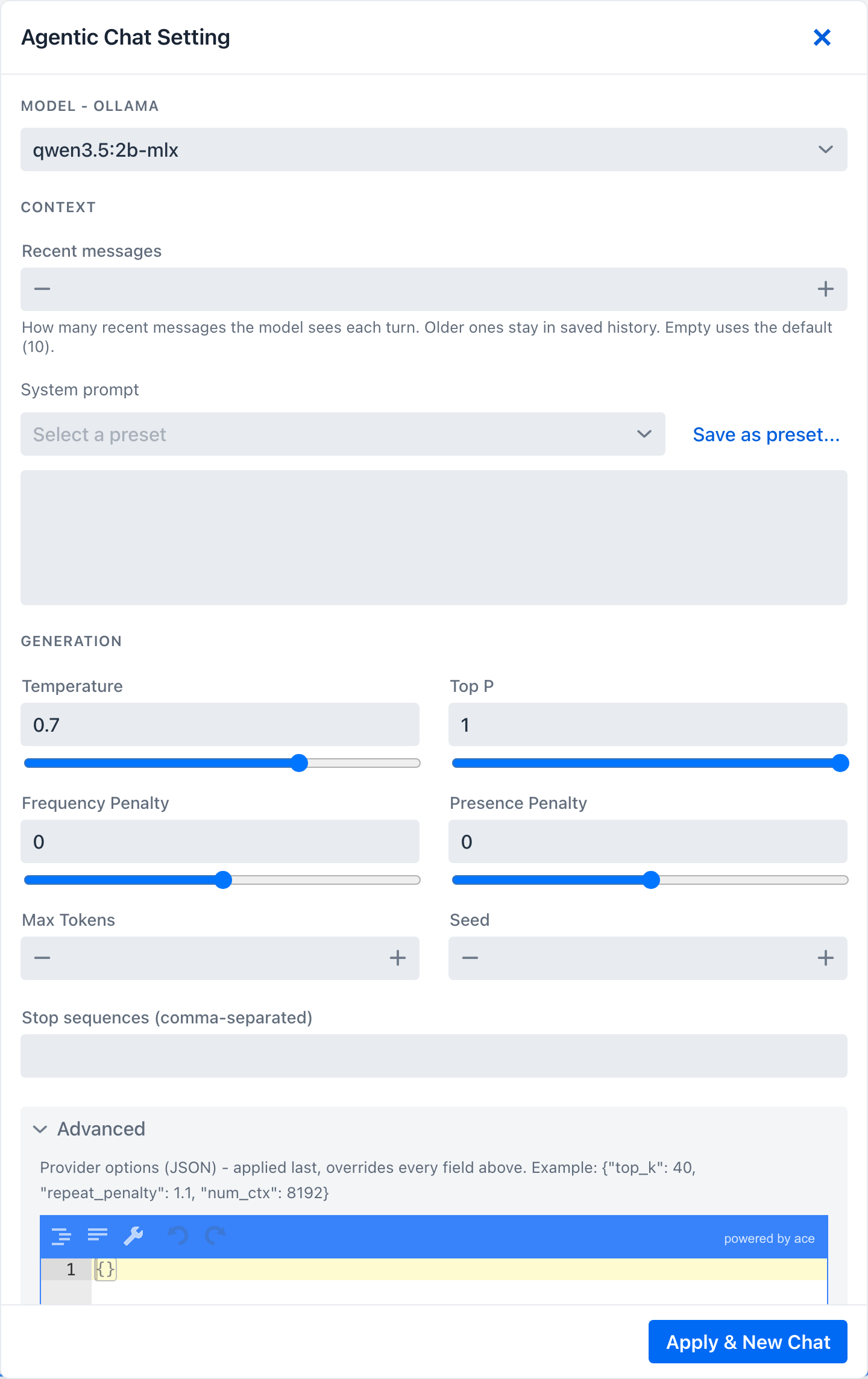
The drawer is provider-aware: the option labels, the stop-sequence cap, and the JSON placeholder change with the active provider. The full property mapping lives in Context Engineering → Generation options. Out-of-range entries (a Recent-messages or Max-Tokens below 1, or more stop sequences than the provider allows) are flagged inline; Apply & New Chat is blocked until you fix them, and the drawer stays open with the offending field highlighted.
Switching models and the download gate
The download gate applies only when the active provider is Ollama (local models you pull). With Ollama active, the model dropdown marks any model that is not yet pulled with a download indicator.
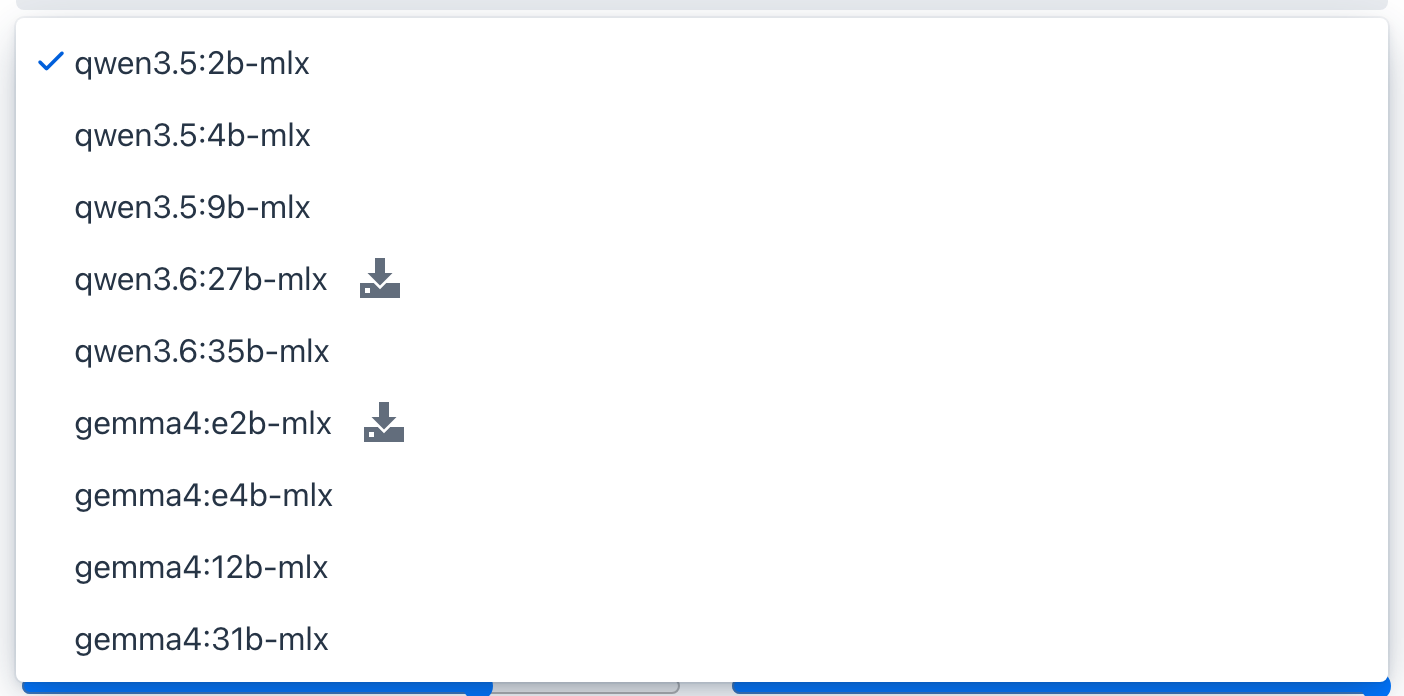
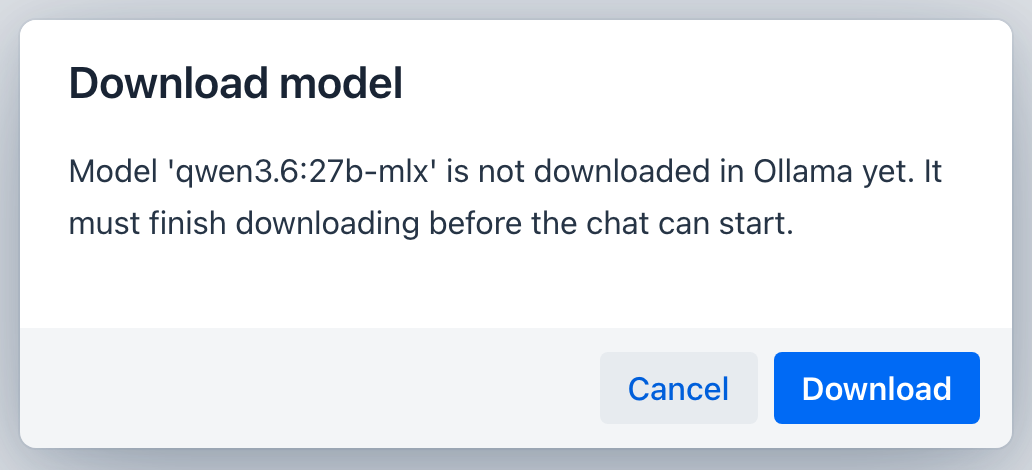
If you apply an Ollama model that is not installed, the chat does not start on a missing model. A gate dialog appears first; choosing Download pulls it with a live progress bar and a cancel option, and when the download finishes the chat starts on the new model.
For a remote provider such as OpenAI there is nothing to download, so the download indicator, helper text, and gate dialog do not appear.
Provider lock
Each conversation is stamped with the provider that created it. If you open a saved conversation while the app is running a different provider, the conversation is shown read-only with a banner, so its history stays intact but you cannot append turns that the current provider could not have produced.

Reading a response
Markdown, code, math, and diagrams
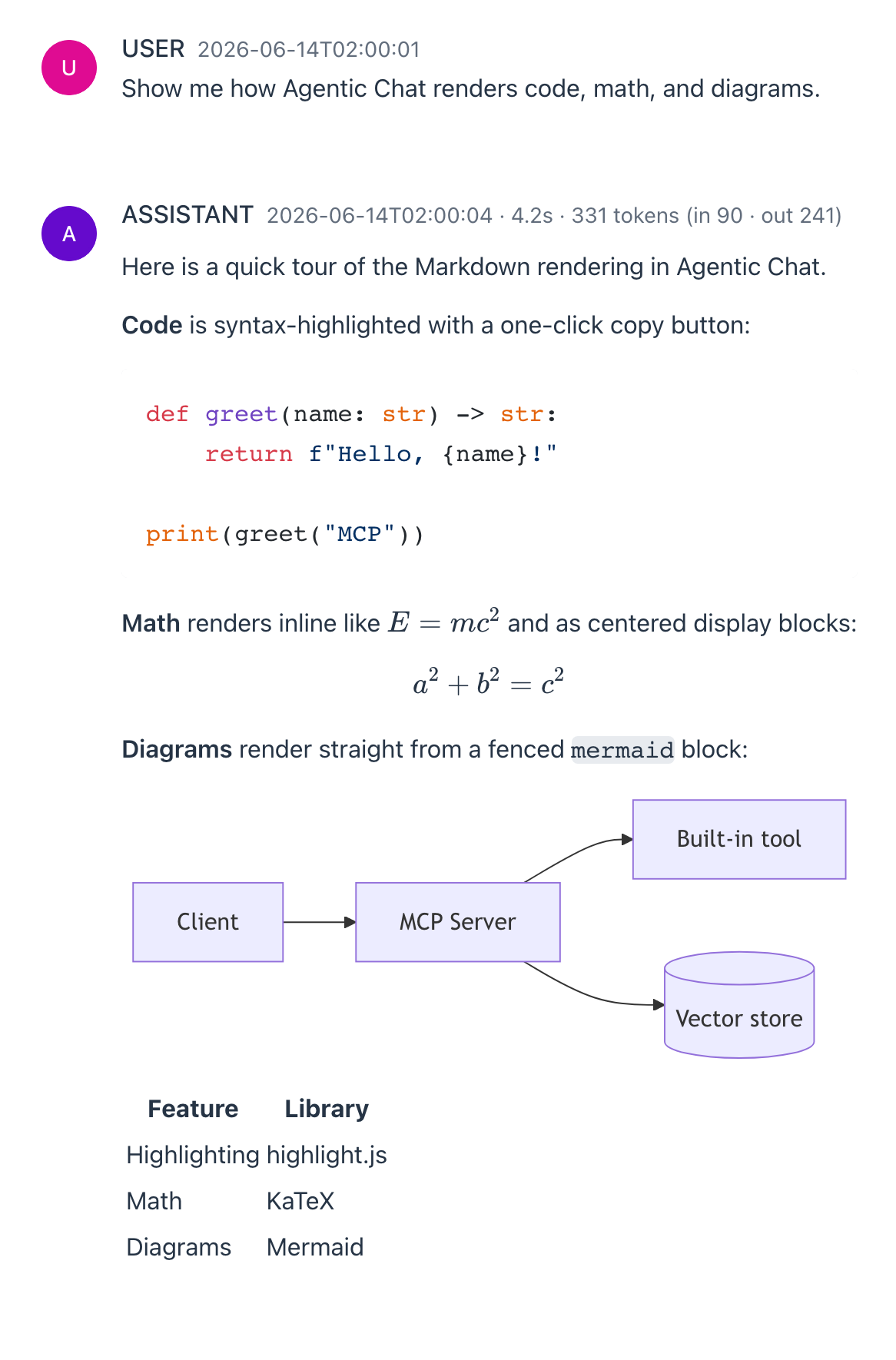
Assistant turns render as full Markdown. Code blocks are syntax-highlighted (highlight.js) with a language label and a one-click copy button; math renders with KaTeX both inline ($...$) and as display blocks ($$...$$); and fenced ```mermaid blocks render as diagrams. Links open in a new tab. Rendering runs once the turn finishes streaming.
Action cards
Some built-in tools render an interactive action card instead of plain text - a real-world action to confirm, a chart, a map, a diagram, or a structured view of data - rather than a wall of prose. Each card is emitted by a specific tool, and they fall into a few groups:
Real-world actions (review-then-act). sendEmail produces an Email draft card; addToCalendar produces a Calendar event card. Each shows the fields the model filled in plus a button to act on the draft - the email card a single Send email button, the calendar card an Add to calendar dropdown:
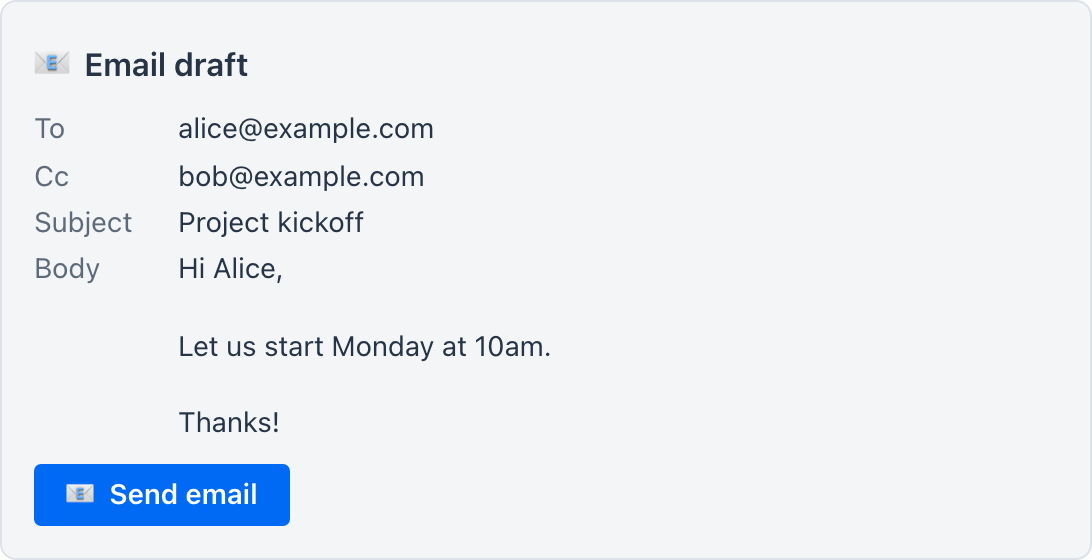
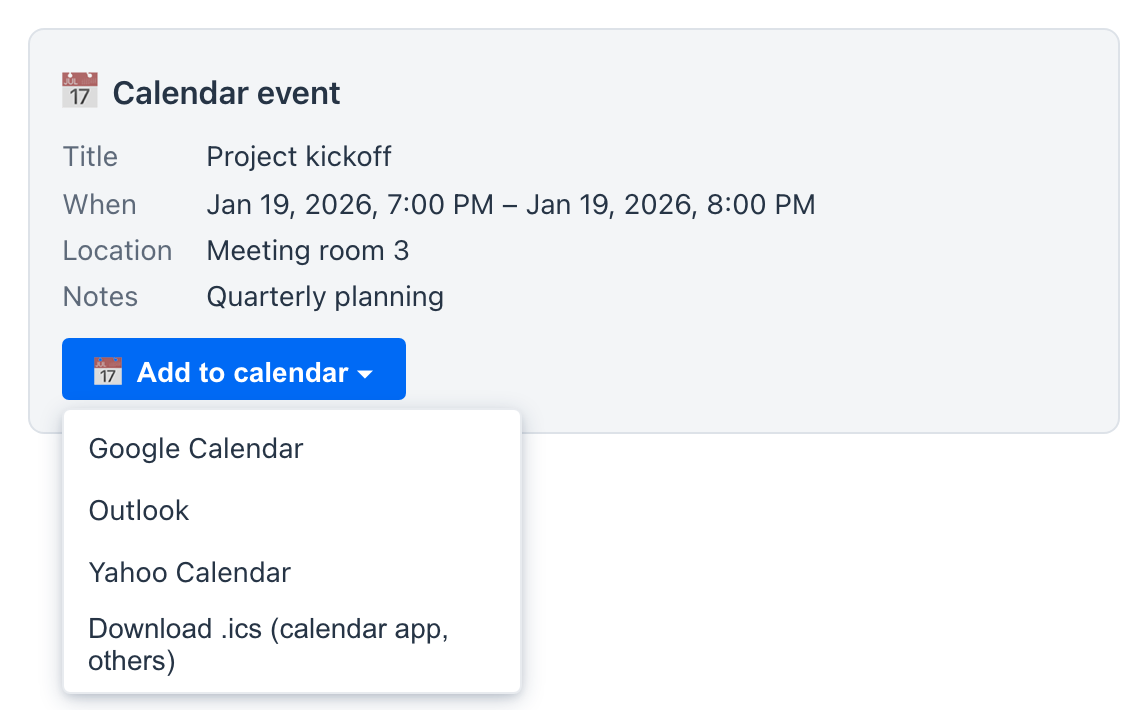
These two follow a review-then-send rule: the model only drafts, it never sends. Send email opens a prefilled mailto: link in your own mail app; Add to calendar opens a menu to add the event to Google Calendar, Outlook, or Yahoo Calendar, or to get a standard .ics file - in the desktop app the .ics opens directly in your OS calendar app, in a browser it downloads for you to import. You stay in the loop for the outward action - a sibling of the human-in-the-loop approval gate.
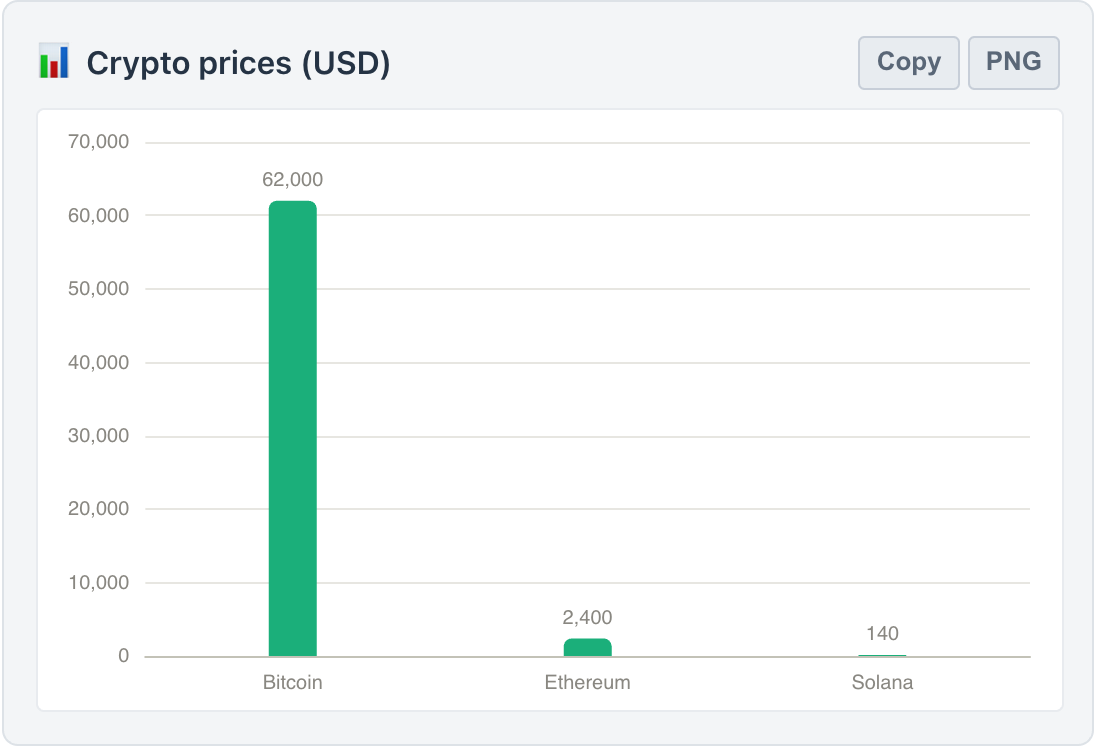
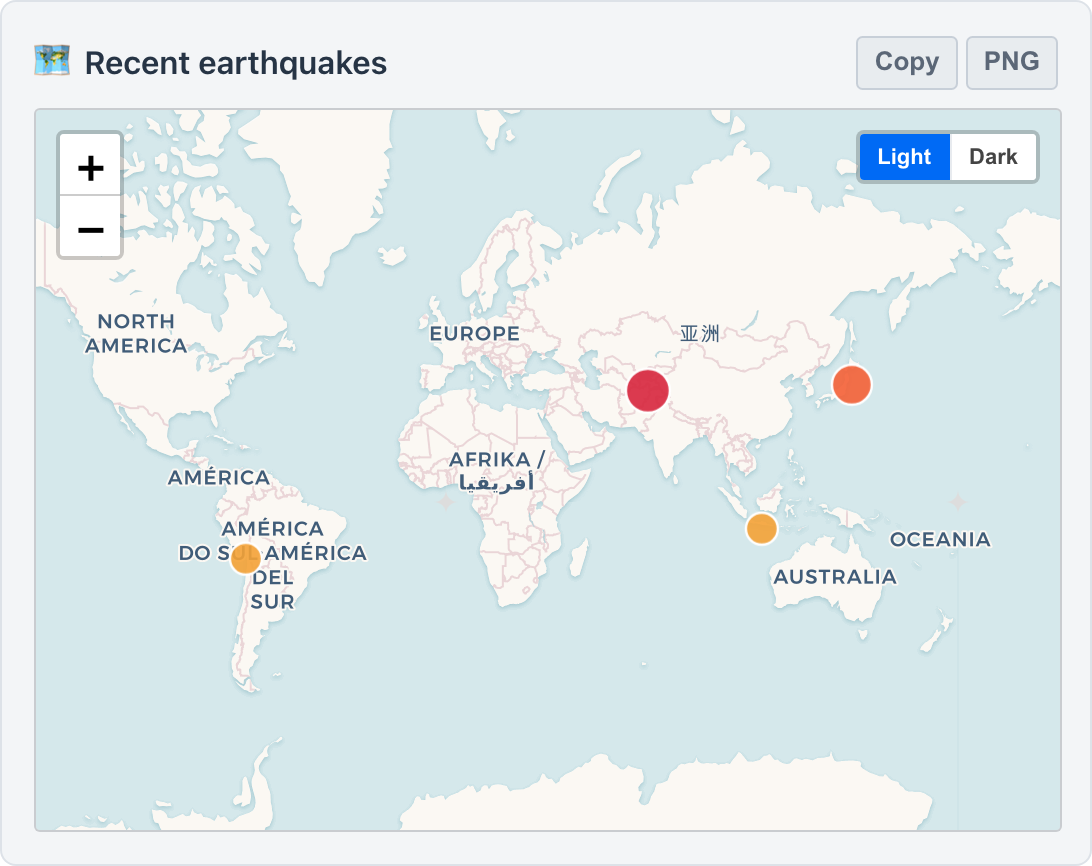
Charts and maps. renderChart draws a chart whose chartType is one of bar, line, area, pie, radar, scatter, or gauge. For richer financial and structural views there are dedicated ECharts cards: renderCandlestick (OHLC candlesticks), renderHeatmap (a 2D matrix heatmap), renderSankey (a flow / Sankey diagram), renderFunnel (a funnel), renderTreemap (a treemap), renderGraph (a force-directed relationship graph), and renderWindRose (a polar wind rose). For geographic data, plotPointsOnMap drops several places onto one multi-point Leaflet map (the pointmap card) with a Light / Dark toggle, renderChoropleth shades the regions of a supplied GeoJSON by value, and renderGeoHeat paints a density heatmap of lat/lng points over a basemap. The chart and map cards carry Copy and PNG export buttons in the card header, so any figure can be lifted out as data or an image.
Diagrams and images. renderDiagram renders a Mermaid diagram (flowchart, sequence, gantt) for a process or relationship, and showImage embeds an image from a direct URL.
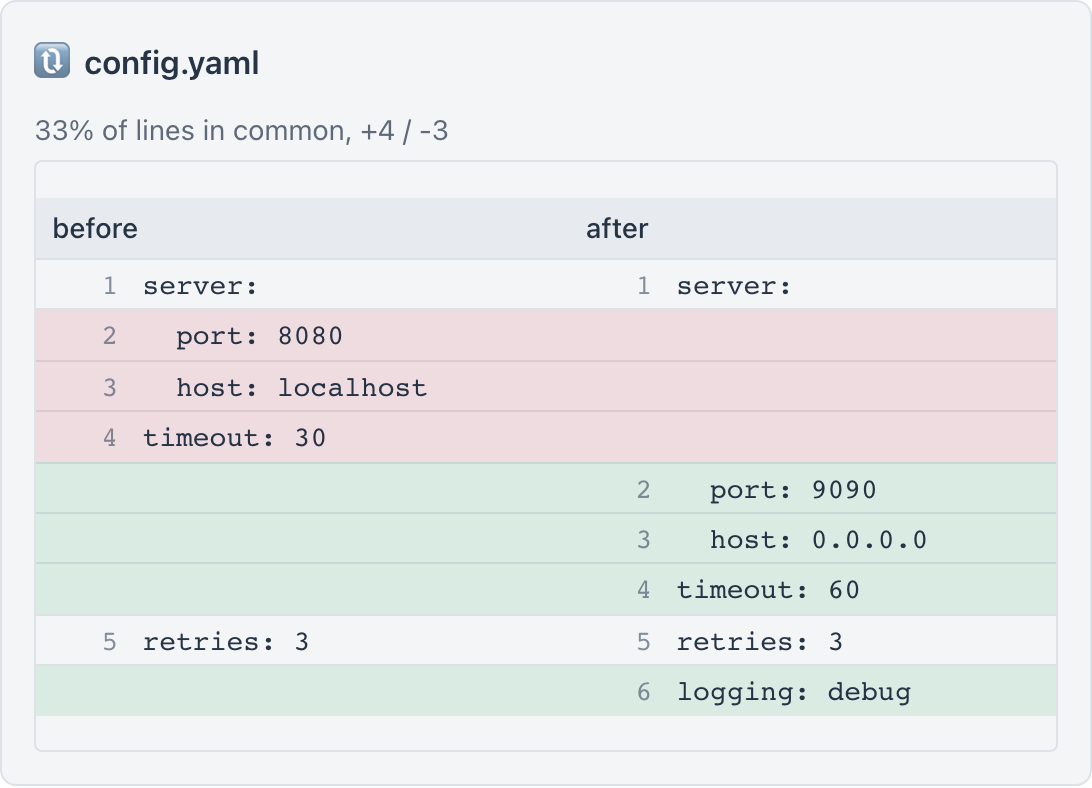
Diffs. renderDiff shows a side-by-side text or file diff - deletions in red, additions in green - and surfaces a "completely different" banner when the two sides share almost nothing.
Structured data views. renderTable builds a sortable, searchable table; renderStatCards lays out a row of KPI tiles for headline numbers; renderComparison puts two or more entities side by side; and renderTimeline lays out a vertical list of dated events.
Mechanically, any tool - including one you author in Tool Studio - whose output carries a fenced saip-action block is rendered as a card; if it emits the saip-action-return-direct variant it is also treated as the final step of the request, so the turn ends without a follow-up model reply.
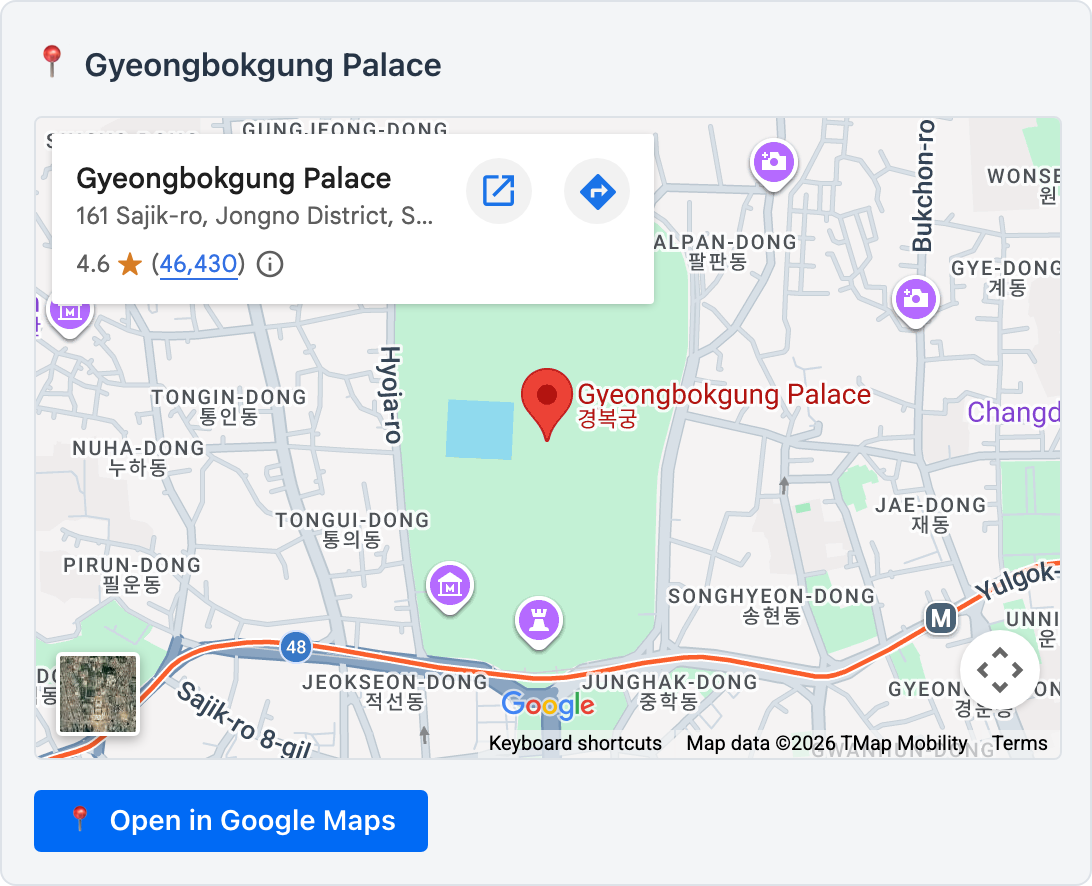
The showLocation card is display-only - it embeds a keyless map of a single place plus an Open in Google Maps link and sends nothing:
Clickable file paths
On the desktop app, a backtick-wrapped absolute path in a reply becomes clickable - click it to reveal that file or folder in your OS file browser:

It is a convenience for the filesystem tools, not a capability the model can trigger - only your click does anything. It is scoped server-side to the same readable roots (your home directory by default), and it only ever reveals a path, never opens or runs a file. In a plain browser, headless, or Docker run the path is just text.
Message actions
Hovering a turn reveals its action bar - six controls left to right:

- Collapse - fold a long turn (toggles to Expand).
- Copy - copy the raw Markdown.
- Show raw - toggle the assistant turn between rendered Markdown and its raw source (flips to Show rendered).
- Read aloud - text-to-speech via the OS voices (where available).
- Quote in prompt - drop the turn into the input as a
>quote for a follow-up. - Export - save just this message (see below).
Timing and token metrics
Every assistant turn carries its own metrics in the header line - the time, how long the turn took, and the token counts, for example 4.2s · 331 tokens (in 90 · out 241). When a turn reasons or calls tools, the tokens spent in those stages are attributed to their respective panels.
Reasoning and tool panels
When a turn thinks, calls tools, or retrieves documents, those stages appear as collapsible panels above the answer, each summarizing its duration and token cost:
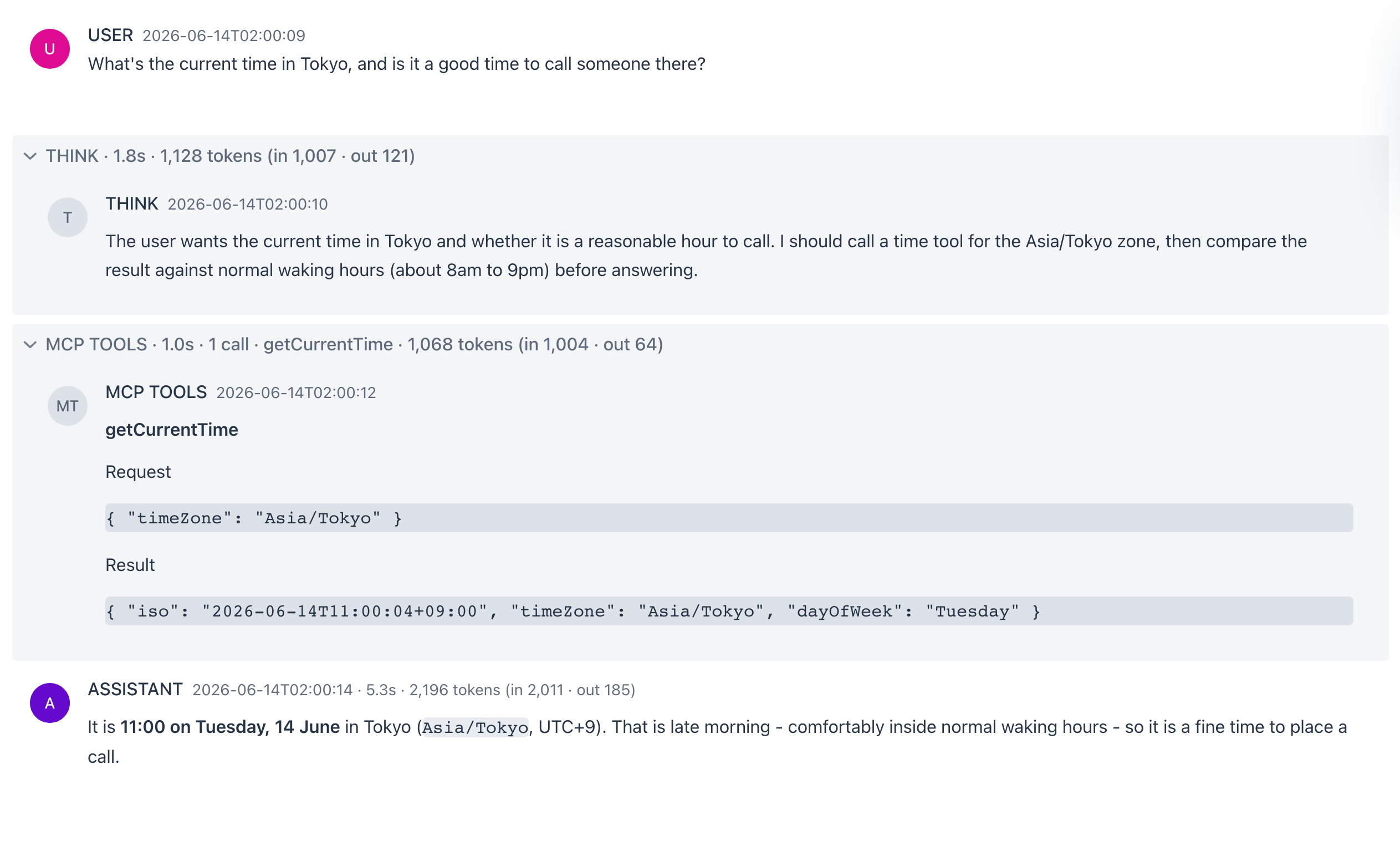
- THINK - the model's reasoning trace (when reasoning effort is on).
- MCP TOOLS - each tool call with its arguments and result, the call count, and the tool names.
- RAG - the retrieval pipeline, stage by stage: each query transformation and the query it produced, then the documents retrieval returned.
The panels collapse once a stage completes so the answer stays front and center; click any panel to reopen it. This is the same visibility the Observability dashboards capture after the fact.
Exporting a conversation
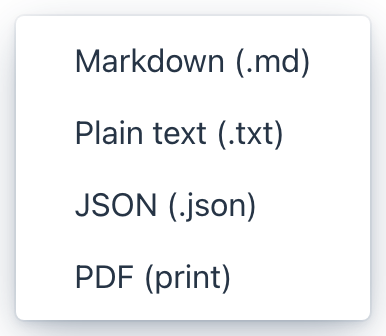
The Export conversation action in the header (and the per-message Export) writes the chat out as Markdown (.md), Plain text (.txt), JSON (.json), or a PDF (print).
Two Integrated Paradigms
1. RAG: Knowledge via Chain Workflow
When a RAG source is selected, Agentic Chat runs Spring AI's Modular RAG flow, in a fixed order that you configure but the model does not choose:
- pre-retrieval query transformation, if the pipeline enables any
- retrieval from the vector store, scoped and tuned by the pipeline
- post-retrieval re-ranking and truncation
- prompt augmentation with the grounded context, then generation from it
Every stage maps to a Spring AI component; see Pipeline Studio.
2. MCP: Actions via Agentic Reasoning
When MCP connections are enabled, Agentic Chat can behave like an agent:
- reasoning about which tools are needed
- invoking tools through MCP
- observing the result
- continuing or answering directly
When a tool requires approval, Agentic Chat pauses and asks you to approve or decline the call before it runs - the on-device half of Human-in-the-Loop Approval. Declining tells the model the call was not run, so it won't silently retry.
The loop itself is governed by the agent loop: one message may run only a bounded number of tool rounds before the model is told to wrap up, repeated identical calls are short-circuited, and a cancelled upload or image request is not re-asked within the same turn - so a small local model cannot spin on the same dialog. The bounds are configurable.
Workflow Integration
The intended end-to-end flow is:
- prepare tools in Tool Studio or connect them in MCP Server
- prepare knowledge in Vector Database
- enable the relevant documents and MCP connections in Agentic Chat
- send a request and observe how retrieval and tool use combine
This is the place where the rest of the product becomes visible as one coherent system rather than separate screens. The outputs of Tool Studio, MCP Server, and Vector Database all converge here.
Requirements for Agentic Reasoning
Basic chat can work with any supported provider. Tool-enabled agentic behavior works best with models that support function calling and stronger reasoning.
For Ollama-based flows:
- use tool-capable models from Ollama's Tool Category
- use reasoning-capable models from Ollama's Thinking Category
- validate tools in MCP Inspector before relying on them in Agentic Chat
The default playground.chat.models list features qwen3.5:4b (default, the smallest vision-capable build) plus qwen3.5:2b / qwen3.5:9b, qwen3.6:27b / qwen3.6:35b / qwen3.8:27b for stronger tool-oriented reasoning, the gemma4 family (e2b / e4b / 12b / 31b), and gpt-oss:20b / deepseek-r1:8b as alternatives. See Picking a Model in the Tutorials for the tradeoffs.
Agentic Chat Architecture Overview
The diagram below is included as a conceptual reference to the related agentic systems material in the Spring AI docs.
It is included here to explain how the Playground's Agentic Chat maps onto the broader Spring AI mental model. In this project, the diagram is not describing a separate product feature hidden behind the UI. It is a conceptual reference for understanding how the Playground combines model reasoning, retrieval, tool execution, and memory in one chat runtime. For the concrete build-up of that context in this project - system prompt, presets and templates, RAG, tools, memory, and per-request options - see Context Engineering.
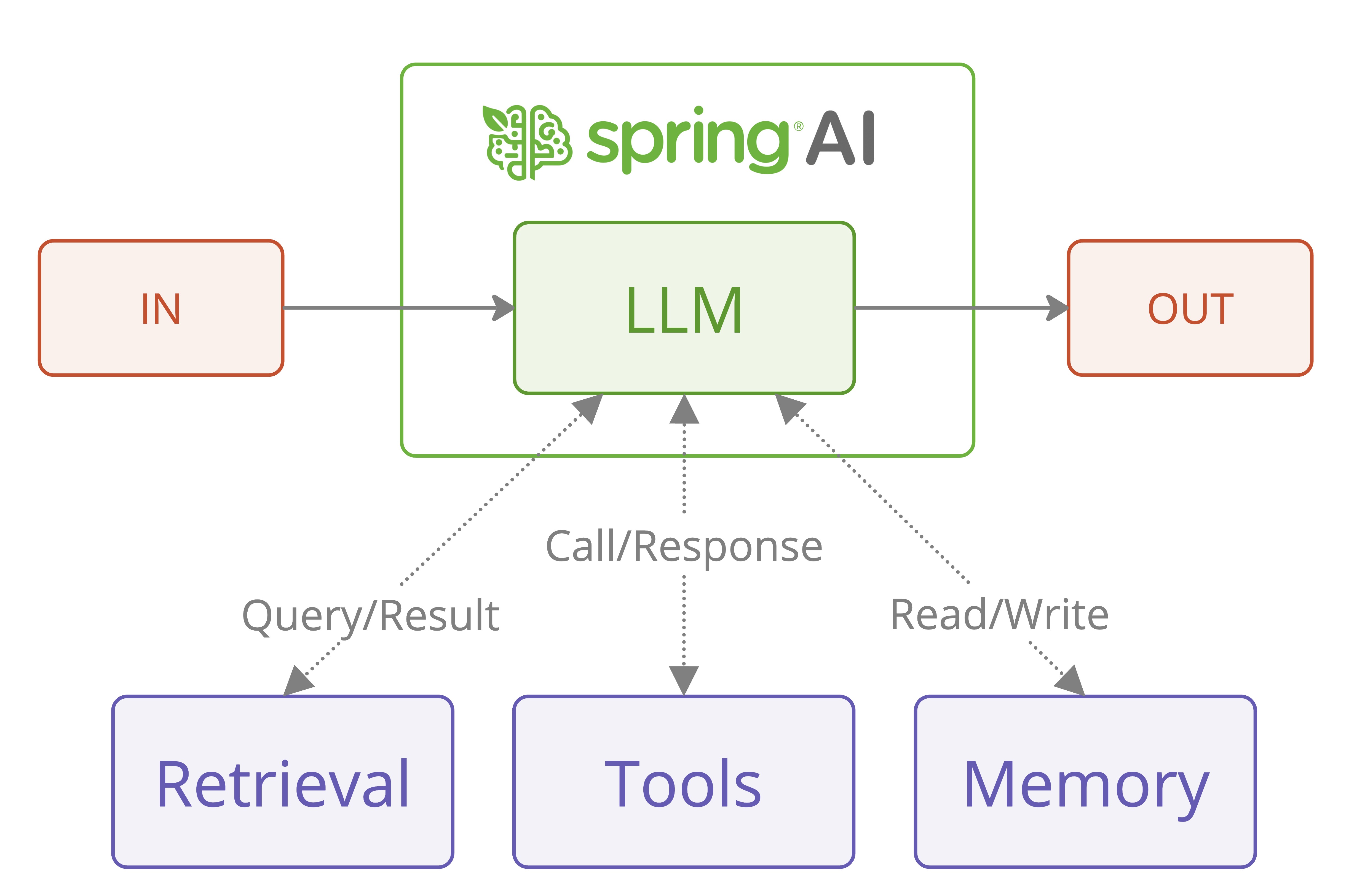
If you want the fuller conceptual background, start with Building Effective Agents. That reference explains the workflow-versus-agent distinction that this Playground makes concrete through Tool Studio, MCP Server, Vector Database, and Agentic Chat.
This Chat experience facilitates exploration of Spring AI's workflow and agentic paradigms, empowering developers to build AI systems that combine chain-based RAG workflows with agentic, tool-augmented reasoning. In practice, it follows Spring AI's Agentic Systems architecture, where grounded retrieval and dynamic tool execution coexist in one context-aware chat runtime.
| Component | Type | Description | Configuration Location | Key Benefits | Model Requirements |
|---|---|---|---|---|---|
| LLM | Core Model | Executes chain-based workflows and performs agentic reasoning for tool usage within a unified chat runtime. | Agentic Chat | Central reasoning and response generation; supports both deterministic workflows and agentic patterns. | Chat models; tool-aware and reasoning-capable models recommended. |
| Retrieval (RAG) | Chain Workflow | Deterministic Modular RAG flow: query transformation, vector search, post-processing, and prompt augmentation, composed per pipeline. | Vector Database (Pipeline Studio) | Predictable, controllable knowledge grounding; per-pipeline Top-K, thresholds, and query-transformation stages. | Standard chat plus embedding models; query-transformation stages add a model call each. |
| Tools (MCP) | Agentic Execution | Dynamic tool selection and invocation via MCP, driven by LLM reasoning and tool schemas. | Tool Studio, MCP Server | Enables external actions, multi-step reasoning, and adaptive behavior. | Tool-enabled models with function calling and reasoning support. |
| Memory | Shared Agentic State | The full conversation is kept locally; each turn the model sees a configurable trailing window, supplied through MessageChatMemoryAdvisor over an LlmWindowChatMemory decorator. |
Agentic Chat drawer (per-chat Recent messages) + spring.ai.playground.chat.memory-max-messages (default 10); history-max-messages (2000) caps the local store |
Coherent multi-turn dialogue without inflating every request; the recent-context window is tunable per conversation. | Models benefit from a longer window when the task needs more history. |
By leveraging these elements, Agentic Chat goes beyond basic Q&A and becomes a practical environment for building effective, modular AI applications that combine workflow predictability with agentic autonomy.
What the Chat can reach
Agentic Chat is a consumer of three inventories curated elsewhere in the Playground. Use these references to know what's available before composing a chat session:
- Default Tools - 116 pre-loaded built-in tools (Examples · Utilities · Filesystem · Global · Korea · Visualization) callable directly from chat without any external setup. Each carries a Risk Level (L0-L5) and
${ENV_VAR}requirements per page. - Default MCP Servers - 58 preset external MCP server connections (Gmail, Notion, GitHub, Linear, BigQuery, Stripe, ...). One-click activation from the MCP Server sidebar adds them as tool sources for chat.
- Vector Database and RAG - indexed documents and the retrieval pipelines built on them, which the RAG advisor chain runs at chat time (
SpringAiPlaygroundRagAdvisorshort-circuits when no RAG source is selected, so retrieval is opt-in per conversation).
→ Try it: Tutorials - end-to-end flows that combine Tool Studio, MCP Inspector, Vector Database, and Agentic Chat.