Tool Studio
Where: top navigation → Tool Studio.
Tool Studio is the low-code authoring environment for JavaScript-based tools. It is the part of the product that turns the Playground from a read-only testing interface into an executable tool runtime.
A tool you author in Tool Studio is a small JavaScript action plus a structured spec - name, description, parameters, optional static variables, and a sandbox capability profile. Tool Studio compiles that into an MCP-callable tool, runs it once locally against your declared test values to earn a Local Pass, and only then publishes it to the built-in MCP server.
The authoring screen has two working halves that fold into a single page:
- Tool spec form at the top - name, description, parameters.
- Tool Action below it - JavaScript code editor, test run controls, and the collapsible Sandbox & Capabilities pane that controls how the tool's runtime differs from the default.
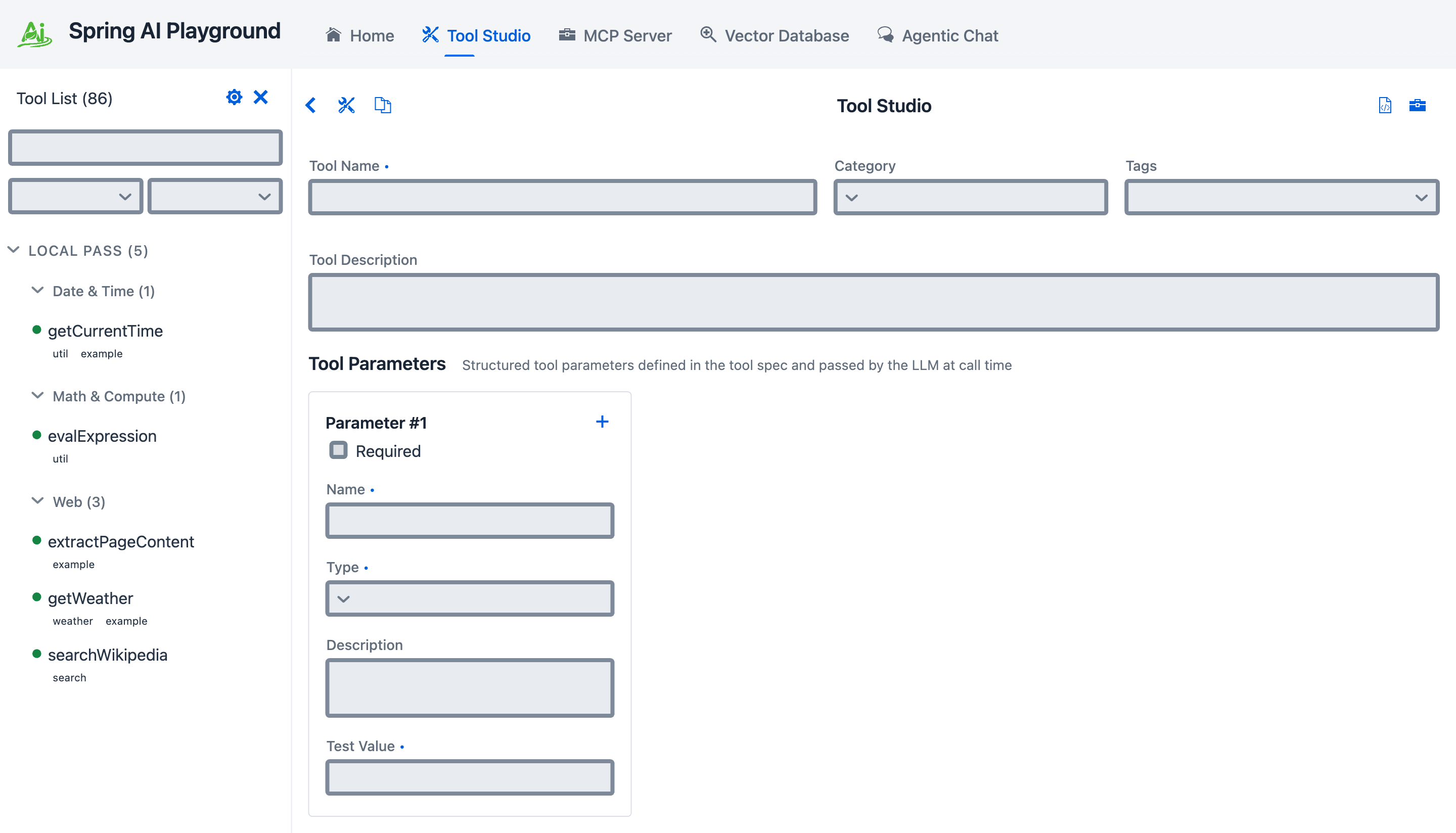 Top of Tool Studio: tool name / category / tags, free-form tool description, and structured parameters (Parameter #1 with required flag, name, type, description, and a test value the local sandbox actually executes against).
What Tool Studio Does
Tool Studio lets you:
- create tools directly in the browser
- define structured input parameters
- define static variables
- test tool execution immediately
- publish tools to the built-in MCP server without restart or redeploy
Local Pass - Test Before Publish
Spring AI Playground treats the local test-run as a gate, not a polish step. This is the rule surfaced on the Home screen as No pass, no run.
- every tool has at least one sample input (the static variables you define) used for its test-run
- the tool must pass its test locally before Tool Studio publishes it
- when the test passes, the tool earns a Local Pass and is added live to the built-in MCP server the same moment - no restart, no redeploy
- a tool that has not passed is not added to the built-in MCP server and is not callable from Agentic Chat
In practice this means the act of publishing is the act of testing. You never produce a tool whose first execution happens in front of an agent.
Every one of the 116 bundled Default Tools crossed this same gate before being shipped - they live as ready-to-fork reference for the workflow above.
Built-in MCP Server
Tool Studio is tightly integrated with the built-in MCP server.
- endpoint:
http://localhost:8282/mcp - protocol: Streamable HTTP
- default server name:
spring-ai-playground-built-in-mcp
When you publish a tool from Tool Studio, it becomes available through that MCP endpoint immediately.
Tool Action - JavaScript code editor
The lower half of the authoring page is the Tool Action area: the JavaScript code that actually runs when the tool is invoked, plus the controls and panels that surround it.
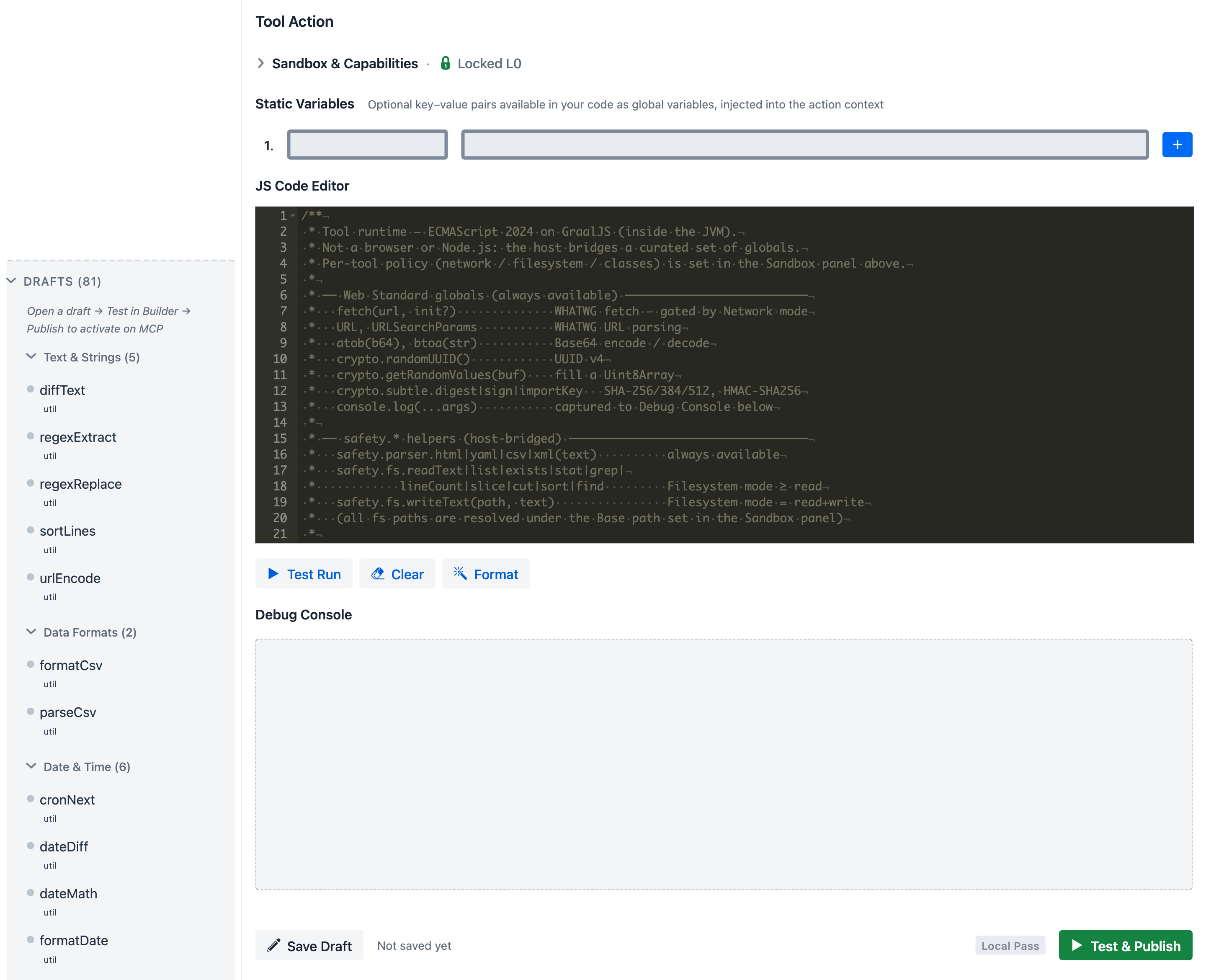 Tool Action area top-to-bottom: Sandbox & Capabilities stays collapsed by default with a Locked L0 badge so authoring focuses on the JS action itself; Static Variables sit just above the code, available to the action as globals and masked from logs if env-backed; the JS Code Editor ships with a sample that lists the cross-bridged globals (
fetch, URL, URLSearchParams, atob/btoa, crypto, the safety.* helpers) so the author has a working reference without leaving the page; Test Run / Clear / Format drive execution; Debug Console captures console.log output with env-var masking; the bottom action bar - Save Draft / Local Pass badge / Test & Publish - closes the loop. The only way to expose a tool through MCP is to make its sandboxed test run pass.
JavaScript Runtime
Tool actions run as JavaScript through GraalVM Polyglot inside the JVM, on a virtual-thread-per-task executor so a runaway tool can be hard-killed on timeout without leaking platform threads.
Runtime characteristics:
- ECMAScript 2024 with extras enabled -
temporal,iterator-helpers,new-set-methods,regexp-unicode-sets,intl-402,text-encoding(configured via GraalVMjs.*options on a sharedEngine) - controlled Java interop through a deny-first class allowlist (configured under Sandbox & Capabilities below)
- safe built-in helpers for HTTP, filesystem, and parsing - so tools rarely need raw
Java.type(...) - statement-budget and wall-clock timeout enforced outside the JS context:
max-statements: 500000(GraalVMResourceLimits) andtimeout-seconds: 30(Future.get+Future.cancel(true)). Neither is bypassable from JS.
Source of truth: JsToolExecutor, JsRuntimeGlobals.
Cross-platform by design
The JS-on-JVM design is what lets every tool in this app - both the bundled defaults and anything you author here - work the same on macOS, Windows, and Linux without per-OS packaging or native toolchains. This is the main split from typical MCP server tools, which ship one native binary per platform and need a build environment on the user's machine.
Concretely:
- One artifact runs on all three OSes - the same JAR is repackaged into the Docker image and the Electron-packaged desktop launcher, all from one
pom.xml. See Getting Started for the platform-specific launchers. - All 116 default tools are pure JavaScript executed through GraalVM Polyglot. No native dependencies, no per-OS build step, no install-time compile.
- Every cross-bridged helper resolves to a Java standard library or well-known JVM library, so platform quirks are handled at the JVM layer:
safety.fsrides onjava.nio.file.Path/Files-/vs\and case folding are normalised before any I/O.fetchuses the JDKHttpClient- same TLS stack, same redirect handling, same connection pool everywhere.safety.parser.html/xml/yaml/csvgo through jsoup /javax.xml.parsers(XXE-hardened) / SnakeYAML / Apache Commons CSV.crypto.subtlegoes through JCE - algorithms and key formats are JVM-controlled, not OS-controlled.
- Authoring a new tool needs nothing installed locally beyond the running app. No
cargo build, nonpm install, no platform-specific shell scripts. Tool Studio's editor + Local Pass is the entire build pipeline.
A pure-runtime caveat: a tool whose JS hard-codes platform-specific paths or external services (/etc/..., C:\Program Files\..., OS-only binaries) is still platform-coupled at the user-data level. The runtime is OS-agnostic; whether a specific tool you author is portable depends on what it does.
Built-in JavaScript Helpers
Tools call a small set of capability-scoped helpers instead of raw Java. These are the same helpers the bundled default tools use, so authoring a new tool typically does not require any Java.type(...) interop at all.
| Helper | What it does |
|---|---|
fetch(url, init?) |
HTTPS/HTTP request with the SSRF four-layer guard. 5 redirect cap, 10 MB body cap, 30 s request timeout, 5 s connect timeout. Restricted hop-by-hop headers (Host, Connection, Content-Length, Expect, Upgrade) are stripped before sending. 303 redirects downgrade POST → GET. init accepts method, headers, body plus maxLength / startIndex for response pagination. Returns {status, ok, statusText, url, contentType, truncated, nextStartIndex, headers: {get(name)}, text(), json(), arrayBuffer()}. Only installed when the effective egress level is not blocked. |
URL, URLSearchParams |
WHATWG URL parsing / building. |
atob, btoa |
Base64 encode / decode of strings. |
crypto.subtle |
digest (SHA-256 / SHA-384 / SHA-512 only), importKey + sign / verify for HMAC, and getRandomValues - backed by JCE. |
crypto.randomUUID() |
UUID v4. |
safety.fs |
readText, writeText (auto-creates parent directories), list, stat, exists, grep, lineCount, slice, cut, sort, find (depth-limited walk, does not follow symlinks), plus workspace() / readRoots() that report the boundaries. A relative path resolves under the working directory; reads are allowed anywhere under a readable root (the home directory by default), while writes are confined to the working directory. Per-tool override fsBasePath confines that one tool to a single base instead. |
safety.parser.html |
jsoup-backed cleaner. Returns a org.jsoup.nodes.Document host object - methods are callable from JS, but the class itself is not in the allow-list, so user code cannot construct new jsoup instances via Java.type(...). |
safety.parser.xml |
XXE-hardened DOM parser: disallow-doctype-decl=true, external general + parameter entities disabled, XIncludeAware=false, expandEntityReferences=false. Returns a plain {tag, attrs, text, children} proxy tree - no host nodes leak. |
safety.parser.yaml |
SnakeYAML Yaml().load(). Caveat: this is the regular constructor (not SafeConstructor), so YAML tags such as !!class.name will trigger class instantiation during load. Treat YAML input as trusted-source-only; do not parse user-supplied YAML with this helper. |
safety.parser.csv |
Apache Commons CSV - optional header and delimiter opts. |
console.log |
Captured into the Tool Studio debug pane and into the chat's tool-call trace. Environment-backed static variables are masked by substring replacement when their full resolved value appears in output. Only anchored full-string $ENV_VAR references are auto-collected as secrets - substring-inlined env vars are not. Log entries are capped at 1000 per execution. console.error is not installed in the current build. |
Every helper above is exercised by one or more of the 107 Default Tools - open one in Tool Studio to see the helper in working code, then use Copy And New Tool to fork it.
Sandbox & Capabilities
Sandbox & Capabilities is the collapsible pane inside Tool Action that controls how a tool's effective runtime policy differs from the global default. Every tool starts at the baseline - no network, no filesystem, deny-first class allowlist - and earns an L0 badge. Opening this pane lets you widen specific dimensions per tool, and the Risk Level badge updates live as you do so.
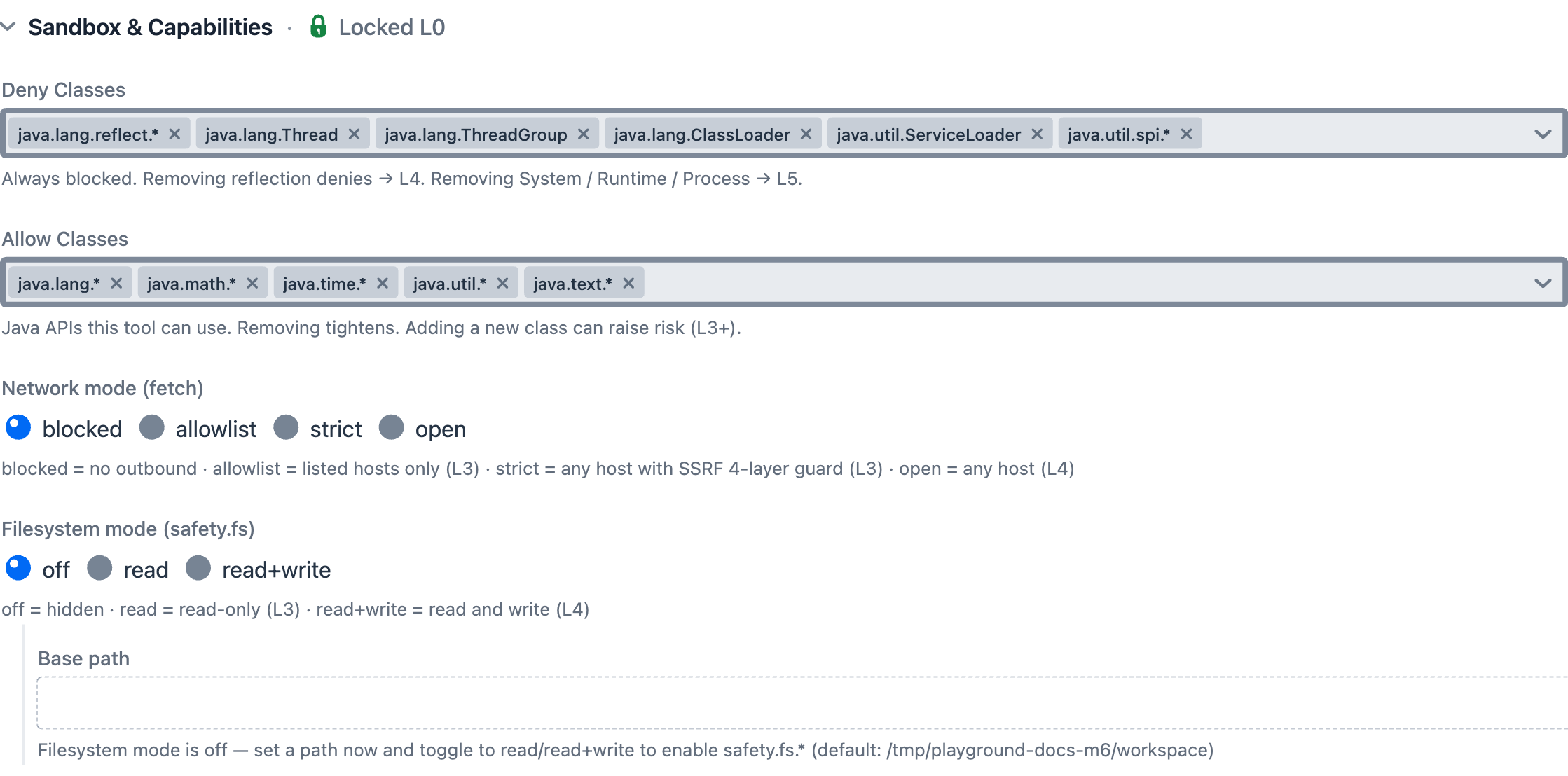 Sandbox & Capabilities expanded: Deny Classes chips list packages user JS can never touch (removing chips lowers safety - removing reflection denies → L4, removing
 System / Runtime / Process → L5); Allow Classes chips list packages user JS can use (adding new chips can raise risk to L3+); Network mode radio chooses blocked / allowlist / strict (default, with SSRF four-layer guard) / open; Filesystem mode chooses off (hidden) / read (L3) / read+write (L4) / readwrite; Base path sets the per-tool safety.fs root, default ${user.home}/spring-ai-playground/workspace.
The Sandbox & Capabilities pane reads and writes a SandboxOverrides block on the tool's spec. None of the bundled defaults touch the class lists - they only set network mode and host list - but the full surface is available. The five subsections below document the baseline, the override shape, and the per-control semantics in detail. For the normative JSON contract of the spec this pane writes - every field, JSON Schema, resolution algorithm, and Risk Level rules - see Safe Tool Specification 1.0.
Default sandbox baseline (application.yaml)
The Sandbox & Capabilities pane modifies a global baseline defined in application.yaml. The defaults are deliberately restrictive: no I/O of any kind, only pure-compute Java packages reachable through Java.type(...), and an explicit deny-list that beats any allow match.
spring:
  ai:
    playground:
      tool-studio:
        timeout-seconds: 30
        fs:
          base-path: ""    # blank -> ${user.home}/spring-ai-playground/workspace
        js-sandbox:
          allow-network-io: false
          allow-file-io: false           # single boolean - flips read and write together
          allow-native-access: false
          allow-create-thread: false
          max-statements: 500000
          deny-classes:                  # evaluated before allow-classes - deny ALWAYS wins
            - java.lang.System
            - java.lang.Runtime
            - java.lang.ProcessBuilder
            - java.lang.Process
            - java.lang.Class
            - java.lang.invoke.*
            - java.lang.reflect.*
            - java.lang.Thread
            - java.lang.ThreadGroup
            - java.lang.ClassLoader
            - java.util.ServiceLoader
            - java.util.spi.*
          allow-classes:                 # pure-compute only
            - java.lang.*
            - java.math.*
            - java.time.*
            - java.util.*
            - java.text.*
Pattern semantics for deny-classes / allow-classes: an entry is either the exact class name (java.lang.Class) or a package prefix ending in .* (java.lang.reflect.* matches java.lang.reflect.Method but not bare java.lang.reflect). Deny is evaluated first; if a class matches both lists, the deny wins.
A tool that legitimately needs raw Java network/filesystem access or relaxed network egress opts in per tool via Sandbox Capabilities - the per-tool override surface documented in the next subsection. If you need an even stricter deployment than this baseline, GraalVM sandbox policies can be layered on top in a custom source build; see the GraalVM Security Guide.
SandboxOverrides JSON shape
SandboxOverrides is the per-tool block that the Sandbox & Capabilities pane edits and the resolver applies. None of the bundled defaults touch the class lists - they only set network mode and host list - but the full shape is:
{
  "addAllowClasses": ["java.net.URL"],
  "removeAllowClasses": [],
  "addDenyClasses": [],
  "removeDenyClasses": [],
  "networkMode": "strict | allowlist | open | blocked",
  "hostsAllow": ["api.example.com", "*.example.com"],
  "fileRead": true,
  "fileWrite": null,
  "fsBasePath": null
}
- Putting the same class in both
addAllowClassesandaddDenyClassesthrows - the resolver enforces a single source of truth. networkModereplaces the baseline egress level;hostsAllowonly applies whennetworkModeisallowlist.fileRead/fileWriteare nullable - leave them asnullto inherit the baseline (which is the singleallow-file-ioflag); set them per-tool to split read and write.fsBasePathconfines that one tool to a single base directory (used for both read and write), instead of the default readable-roots + working-directory split. Use sparingly.
Egress modes (network)
The Tool Studio override form exposes four user-facing modes. A fifth (permissive, alias for open) and a sixth (custom, deny-list-based) exist inside SafeHttpFetch.enforce; custom is currently only filled in from yaml profiles, not from the per-tool form.
| Mode | What it does | SSRF guard |
|---|---|---|
blocked |
fetch is not installed at all - calling it from JS throws ReferenceError. |
n/a |
strict (default) |
Public hosts only. Both the literal host and every DNS-resolved address must not be private/reserved. | ✅ runs |
allowlist |
Host must match an entry in hostsAllow (exact match or *.suffix). |
not run |
open (= permissive) |
No host check. Use only when the tool genuinely needs open egress. | not run |
custom (internal) |
Allowed unless the host matches hostsDeny. Reachable from yaml profiles only. |
not run |
All modes enforce the rest of the contract: scheme is http or https, body cap 10 MB, redirect cap 5, request timeout 30 s, connect timeout 5 s, restricted hop-by-hop headers stripped, 303 POST→GET downgrade.
Filesystem mode
The Filesystem radio chooses how safety.fs behaves for the tool. The baseline is off (no read, no write); per-tool overrides widen the surface.
| Mode | fileRead |
fileWrite |
Risk impact |
|---|---|---|---|
off (default) |
false | false | Hidden - safety.fs calls reject with policy error. |
read |
true | false | L3 - tool can readText / list / stat / find anywhere under a readable root. |
read+write |
true | true | L4 - tool can also writeText, which auto-creates parent directories. |
readwrite |
true | true | L4 (same posture as read+write; alternate label). |
Two boundaries govern access. The working directory (default ${user.home}/spring-ai-playground/workspace, set per-app under tool-studio.fs.base-path) is the only writable location and the base that relative paths resolve against. One or more readable roots - the user's home directory by default - bound what reads can reach: SafeFs.resolveRead accepts a path only if it sits under a readable root, while SafeFs.resolveWrite accepts it only if it sits under the working directory. Both resolve symbolic links (toRealPath) before the boundary check, so a link whose real target escapes the boundary is rejected even when its lexical path looks contained; writes additionally refuse a symlink target outright. So an absolute path under your home reads fine, but ../../etc/passwd (outside every root) and any write outside the working directory are rejected. safety.fs.find walks without following symbolic links, so a link inside a readable root cannot be used to traverse out of it. Call listAllowedDirectories to see the live roots and working directory.
SSRF four-layer guard
Active only when egress is strict. From SafeHttpFetch.enforce and enforceSsrfFourLayer, in order:
- Scheme check - only
httpandhttpsaccepted. Anything else rejected asunsupported-scheme. - Egress switch - based on the resolved mode. Only
strictcontinues to the next layers. - Literal IP vs DNS branch - if the host parses as a literal IPv4/IPv6 address, check that address directly. Otherwise resolve via DNS (
InetAddress.getAllByName) and check every returned address. DNS failure or empty resolution both block - fail-closed. - Private/reserved address check - rejects:
- loopback (
127.0.0.0/8,::1) - link-local (
169.254.0.0/16,fe80::/10) - site-local (RFC 1918:
10.0.0.0/8,172.16.0.0/12,192.168.0.0/16) - any-local (
0.0.0.0,::) - multicast (
224.0.0.0/4,ff00::/8) - IPv6 ULA (
fc00::/7) - CGNAT (
100.64.0.0/10) - explicitly handled because Java'sisSiteLocalAddress()does not cover this range
- loopback (
Risk Level Reference
Computed by SandboxPostureCalculator.compute from the tool's effective policy. The badge is the max of all signals below. Only L0/L3/L4/L5 are produced by the current calculator (L1 and L2 exist as labels in the UI but no rule yields them today).
| Signal | Threshold | Level |
|---|---|---|
| Default posture (no overrides) | - | L0 |
networkMode = allowlist with concrete hosts |
non-* allow-list |
L3 |
networkMode = allowlist containing * |
wildcard everything | L4 |
networkMode = open |
any host | L4 |
fileRead = true (write false) |
file read only | L3 |
fileWrite = true |
write capability | L4 |
destructive = true |
irreversible data operation (move / delete / recursive dir removal) | L5 |
| Removed deny entry - non-critical | 1-2 entries dropped | L3 |
| Removed deny entry - non-critical | 3+ entries dropped | L4 |
| Removed deny entry - critical | any of System / Runtime / Process / ProcessBuilder |
L5 |
| Added allow entry - file-read | java.io.File*, java.nio.file.Files/Path/Paths |
L4 |
| Added allow entry - reflection | java.lang.reflect.*, java.lang.invoke.*, java.lang.Class |
L4 |
| Added allow entry - network | java.net.http, Socket, URL, URLConnection, HttpURLConnection, javax.net.ssl, org.jsoup |
L4 |
| Added allow entry - file-write | java.io.FileWriter, FileOutputStream, RandomAccessFile, FileChannel |
L5 |
| Added allow entry - critical | System / Runtime / Process / ProcessBuilder |
L5 |
| Any other class added | non-critical allow | L3 |
Practical interpretation:
- L0 = baseline defaults. Every starter tool runs here.
- L3 = narrowed network access or file-read; reviewable.
- L4 = broad network, file-write, or substantial deny-list relaxation - review carefully before exposing through MCP.
- L5 = critical class re-enabled (process spawn, reflection escape, raw file write) or a
destructive: truefilesystem tool. Treat as effectively unsandboxed or irreversible, and reserve for trusted authors only.destructiveis declared in the spec JSON, not editable in this pane - the badge reads it and the value survives an edit-and-save round trip.
Human-in-the-loop approval
The pane also sets the tool's Human-in-the-loop approval mode - Required (ask on every call) or Disabled - no prompt. It defaults to Required above L0. An optional Approval prompt customizes the question, with {toolName} and {args} substituted at call time, and lowering the mode opens a Reduce human oversight? confirmation. This is the runtime gate that pauses a call until you approve it - see Human-in-the-Loop Approval.
Safety - defense in depth
The terminology matters: this is safety in the GraalVM sandbox sense - keeping a small JavaScript action from doing things its author did not intend - not security in the sense of authenticating outside callers. The two are layered but separate, and the code makes the same distinction (safety.fs, safety.parser.* for the sandbox surface; Spring Security on top for the endpoint).
The three layers:
- Java-level sandbox (always on) - what every tool runs inside, no matter who authored it. Deny-first class allowlist, network/file I/O blocked at the JVM (helpers are the only paths), statement-budget + wall-clock timeout, secret masking on
console.logoutput. Not bypassable from JS. Configured by Default sandbox baseline above. - Per-tool overrides (visible risk) - the Sandbox & Capabilities pane widens the sandbox in declared, badge-visible ways. Each widening surfaces as a Risk Level (L0-L5) before publish, so the gate is review rather than runtime. Layer 1 still holds: the deny-list and SSRF guard cannot be turned off here, only the allow-side and network mode can be widened.
- MCP endpoint security (Spring Security) - adversarial-threat layer in front of the MCP transport. Disabled by default for the local single-user case; enabled via Spring AI MCP Security for deployed scenarios.
The first two are about safety of execution. The third is about who can talk to the MCP server. Both matter; they fail to different threats.
For the system-level reference - three-layer diagram, policy resolution flow, per-execution enforcement points, threat-to-layer mapping, and known limitations - see AI Agent Tool Safety Architecture.
Connect to the Built-in MCP Server
Once Spring AI Playground is running, the built-in MCP server can be consumed directly by MCP-compatible clients.
Claude Code
Recent Claude Code versions support Streamable HTTP directly.
claude mcp add spring-ai-playground http://localhost:8282/mcp
Restart Claude Code if needed so the new server is picked up.
Cursor
Configure a Streamable HTTP server in Cursor with:
- Name:
Spring AI Playground - URL:
http://localhost:8282/mcp
In practice, that means:
- open Cursor Settings
- navigate to Features > MCP
- add a new MCP server
- choose Streamable HTTP
- enter the name and URL above
Claude Desktop
If your Claude Desktop plan supports native remote connectors, you can add http://localhost:8282/mcp directly from the Settings UI.
For broader compatibility, one practical approach is to use mcp-remote:
{
  "mcpServers": {
    "spring-ai-playground": {
      "command": "npx",
      "args": ["-y", "mcp-remote", "http://localhost:8282/mcp"]
    }
  }
}
Restart Claude Desktop after saving the config.
This proxy-style setup is especially useful when direct remote configuration is unavailable or inconvenient, because it wraps the remote Streamable HTTP MCP server behind a local process contract that desktop clients already understand well.
Dynamic Tool Exposure
Tool Studio and the built-in MCP server are intentionally designed for a no-restart workflow:
- create or update a tool
- test it
- publish it
- inspect it through MCP immediately
When a tool is created or updated in Tool Studio, it is dynamically discovered and exposed by the default built-in MCP server. You can then inspect its schema and validate execution behavior from the MCP Server screen without restarting or redeploying the application.
Key Tool Studio Capabilities
- Built-in MCP Server Native Tools drawer (gear icon in the Tool Studio header): the single surface controlling which Local-Passed tools the built-in MCP server exposes. Three sections - Tools exposed chip summary for the confirmed setting; Custom tools selector for tools you authored; Built-in tools selector listing the Local-Passed built-in tools so you can tick which to expose. The Auto-expose newly published tools toggle controls whether newly published (Local-Passed) tools join the server automatically. Which built-in tools are Local-Passed in the first place is decided at setup (desktop launcher / CLI) and per-tool via Publish in the tool list - not here.
- Draft state + MCP exposure gate: a tool that has not earned a Local Pass stays in the Drafts section, is not exposed through the built-in MCP server, and is not callable from Agentic Chat. Only published (Local-Passed) tools cross the gate.
- Tool list sidebar: tools group under a fixed taxonomy (Text, Data, Date/Time, Math, Encoding, Crypto, Security, Files, Web, Productivity, Messaging, AI APIs, Custom) with chip-based filters. The sidebar uses the same
SidebarFilterBar+CategoryGroupDetails+SidebarItemLayoutwidgets the MCP Server view uses (search + Categories MultiSelect + Tags MultiSelect + collapsible per-category groups + status dot · name · pills row). Filters compose identically on both screens - see MCP Server → Filter bar for the same widget in the catalog context. - Sandbox Capabilities view: per-tool overrides for
addAllowClasses/removeAllowClasses/addDenyClasses/removeDenyClasses,hostsAllow,fileRead/fileWrite,fsBasePath, andnetworkMode- with a live risk-level badge (L0-L5). The spec-declareddestructiveflag is read-only here: it feeds the badge (L5, labelled Destructive) and is preserved on save. See Sandbox & Capabilities. - Tool Specification View: inspect the generated JSON schema, metadata, parameter contract, and the resulting
McpToolDefinitionenvelope (manifest hash, code hash, audit timestamps). - Copy And New Tool: clone an existing tool as a template instead of starting from scratch.
- Structured Parameters: define required inputs, descriptions, and test values for model-side tool calling.
- Static Variables: inject configuration values and environment-backed secrets - masked in logs.
- Test Run and Debug Console: validate console output, status, elapsed time, and result before publishing.
In the UI these capabilities show up as the practical authoring workflow:
- select which Local-Passed tools are exposed through MCP
- inspect the generated tool specification before publishing
- override sandbox capabilities only where a specific tool needs them, with the risk level visible
- copy a working tool into a new template instead of starting from a blank definition
- test with representative values and review the debug output before updating the runtime
You can keep many tools in your workspace, expose only a controlled subset, validate the exact contract the model will see, and update the runtime without a restart cycle.
Low-code Tool Development Workflow
- Open Tool Studio.
- Define the tool name and description.
- Add structured parameters with test values.
- Add static variables if needed.
- Write the JavaScript action.
- Run Test Run and inspect the debug output.
- Publish with Test & Publish (or Test & Update if the tool was already published before).
Pre-built Example Tools
Full inventory lives in Default Tools
Per-tool reference - name, one-line description, params, env-var deps - is on the five pages under Default Tools. This section describes the preset and curation shape - how the bundle is sliced into the Local-Passed (active) set at setup.
-
9 · starter tools - fetch a web page, look up weather, search Google, call OpenAI, post to Slack.
-
26 · pure-compute - text, datetime, math, security, encoding, crypto, CSV. No I/O.
-
11 ·
safety.fspipeline - list-roots, read, list, grep, slice, sort, find, write - over readable roots and a writable working directory. -
22 · public APIs - GitHub, Wikipedia, weather, finance, geo, search.
-
21 · Korean-domain services - Upbit, Bithumb, Naver, Kakao, KMA, KOFIC, KRX, MOLIT, MFDS.

The app ships with a bundled catalog of 116 default tools across six JSON source bundles. They are ready to call from chat the moment a model provider is connected, and they also serve as editable references when you start writing your own.
Not all of them are Local-Passed (active) by default. A preset decides the starting Local-Passed subset, and include / exclude rules layer per-tool tweaks on top. Each preset stands on its own - Dev Essentials, Korea Toolkit, and File Toolkit do not automatically inherit Starter 5 (only getCurrentTime and evalExpression carry through deliberately).
| Preset | Tools exposed | Notes |
|---|---|---|
Starter 5 (default) |
getCurrentTime, getWeather, searchWikipedia, extractPageContent, evalExpression |
No setup, no API keys - works on a fresh install |
Dev Essentials |
getCurrentTime, evalExpression, uuid, hash, base64, jwtDecode, regexExtract |
Everyday local utilities |
Korea Toolkit (free) |
getCurrentTime, evalExpression, getUpbitTicker, getBithumbTicker, searchKpopOnItunes, searchKBeautyProducts |
Free Korean services |
File Toolkit |
getCurrentTime, evalExpression, listAllowedDirectories, readTextFile, listDir, grepFile, findFiles, sliceFile, sortFile, cutFileFields |
Filesystem read pipeline - reads anywhere under home, writes to the working directory; set spring.ai.playground.tool-studio.fs.base-path to relocate it (default ${user.home}/spring-ai-playground/workspace) |
Everything |
All 116 default tools | Heavy MCP catalog |
Per-tool include / exclude rules layer on top: name-add → tag-add → category-add → name-remove → tag-remove → category-remove. These rules are configured at setup - the desktop launcher's Default MCP Tools card (include-by-tag / -category / -name, exclude-by-tag / -name) or CLI / yaml; exclude.categories is data-supported but currently only reachable via CLI / yaml override.
Some default tools depend on environment-backed secrets - OPENAI_API_KEY, GOOGLE_API_KEY + GOOGLE_PSE_ID, SLACK_WEBHOOK_URL, the data.go.kr keychain, and the Korean provider keys - and stay inert until those are set. The consolidated list lives in Default Tools → Environment variables; per-page details are on each reference page. The File Toolkit preset additionally honours spring.ai.playground.tool-studio.fs.base-path (defaulting to ${user.home}/spring-ai-playground/workspace) for safety.fs. The desktop launcher's environment-variable workflow exists exactly to make this configuration ergonomic.
Where preset choices live
The preset + rules shape decides which built-in tools are Local-Passed (active). It is chosen at setup - not from inside the running app's MCP drawer:
- Default MCP Tools card inside the desktop launcher's config editor - pick the preset on first launch and adjust it on any later configuration session. See Desktop App → Default MCP Tools Curation.
- CLI / yaml override - pin the preset and include/exclude rules at boot (below).
Both write the same default-tools-preference.json under the home dir (managed by the persistence layer, not a hand-edit target), which the app reads at startup to set the Local-Passed set. After startup you Local-Pass or unpublish individual built-in tools from the Tool Studio tool list (Publish / Draft), and choose which Local-Passed tools the MCP server exposes from the Built-in MCP Server Native Tools drawer.
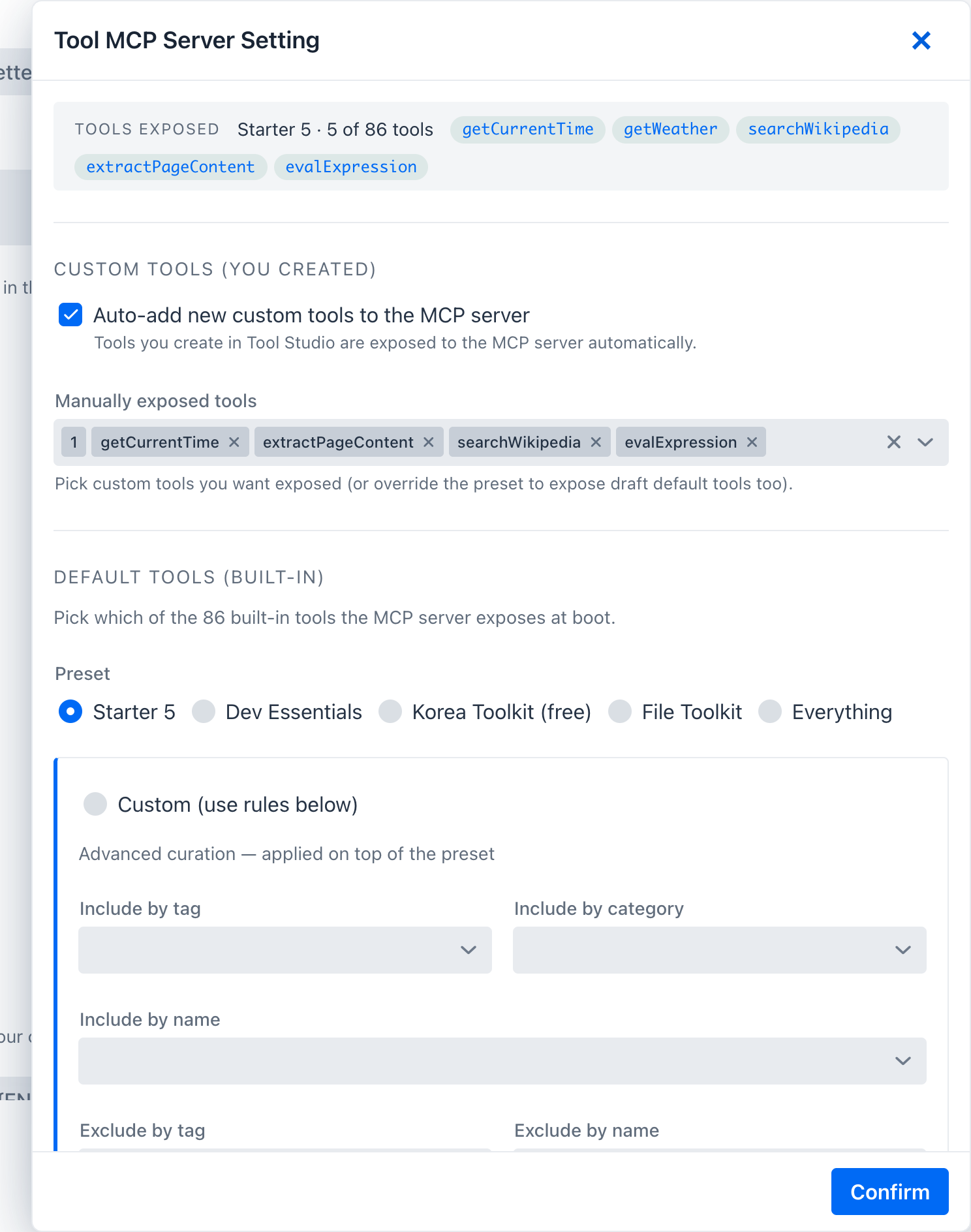 Built-in MCP Server Native Tools drawer, top to bottom: Tools exposed confirmed-summary chips; Auto-expose newly published tools; Custom tools selector for authored tools; Built-in tools selector listing the Local-Passed built-in tools - tick which to expose. Confirm writes the exposure change and updates the live MCP server without a restart.
CLI / yaml override
You can pin the preset at boot time without touching the preference file:
./mvnw spring-boot:run -Dspring-boot.run.arguments="\
  --spring.ai.playground.tool-studio.default-tools.preset=dev-essentials \
  --spring.ai.playground.tool-studio.default-tools.include.tags=korea"
CLI / yaml properties take precedence at boot but are not persisted back to the preference file; clearing them on the next launch reverts to whatever the file says.
Migration note
If a defaultToolOverrides.json file from an earlier milestone (≤ M5) exists, the current build renames it to defaultToolOverrides.json.deprecated on startup once. The new file is default-tools-preference.json in the same tool/save/ directory.
Using Tools in Agentic Chat
Tool Studio tools can be used in Agentic Chat through MCP integration. With a tool-capable model and Manual built-in tool selection enabled, the model can call the tools exposed by the built-in server during agentic workflows.
Agentic Chat can also call tools exposed by external MCP servers that you explicitly connect and trust.