Tutorial 9 - MCP Everything: All 8 Primitives in One Walkthrough
Time 12 min · Difficulty ★★☆ · Surfaces MCP Server (catalog + Inspector)
Goal
Activate MCP Everything from the Default MCP Servers and drive every Inspector primitive - Tools, Resources, Prompts, Ping, Notifications, Roots, Sampling, Elicitation - against a single server in one sitting. No credentials, no tenant setup; everything in this tutorial runs against a server that has no auth surface.
Why MCP Everything
MCP Everything is the official MCP working group's reference test server. It is the only publicly available server that intentionally implements every protocol primitive - including the inverted client-side ones (Sampling, Elicitation) that real-world servers usually skip. If a primitive doesn't light up here, the bug is almost certainly on the client side (the playground), which is exactly why it's catalogued in the first place. For the per-primitive matrix and the catalog template, see Default MCP Servers → Examples → MCP-Everything. For the spec-level "what each primitive is" explanation, see MCP Inspector.
Prerequisites - Node.js 18+ (or Docker)
The catalog template ships per-OS STDIO commands that fetch and spawn @modelcontextprotocol/server-everything via npx (npx.cmd on Windows). You either need Node.js 18+ on the host, or you can switch to the Docker variant in one form edit.
# Homebrew (recommended)
brew install node

# or the official installer
# https://nodejs.org/en/download
npx -y @modelcontextprotocol/server-everything and works once npx is on PATH.
# Distro packages - quick path
sudo apt update
sudo apt install nodejs npm

# Or nvm if you need a specific Node version
curl -o- https://raw.githubusercontent.com/nvm-sh/nvm/v0.40.1/install.sh | bash
nvm install --lts
node --version (must report v18.x or newer).
sudo dnf install nodejs npm
# or for a specific stream:
sudo dnf module install nodejs:20/common
# winget (PowerShell, recommended)
winget install OpenJS.NodeJS.LTS

# or the official installer
# https://nodejs.org/en/download
npx.cmd) when it detects the host OS.
If you'd rather not install Node, keep the transport on STDIO and switch the activation form's fields after clicking the catalog row:
| Field | Value |
|---|---|
| Command | docker |
| Arguments | run, -i, --rm, mcp/everything |
Use the official mcp/everything image - it speaks the protocol over the container's stdin/stdout, which is what a STDIO connection needs, and Test Connection reports Connection OK - discovered 8 tool(s).
The Docker image is an older build with a smaller surface
mcp/everything publishes 8 tools and 3 prompts under different names - add, annotatedMessage, echo, getResourceReference, getTinyImage, longRunningOperation, printEnv, sampleLLM, and simple_prompt / complex_prompt / resource_prompt. The npx path pulls the current release and publishes 15 tools and 4 prompts (get-sum, get-annotated-message, trigger-sampling-request, trigger-elicitation-request, completable-prompt, ...). Sections 3, 5, 8 and 9 below name the current tools, so use the Node path to follow this walkthrough; the container is fine as a quick smoke test that the playground's stdio client works at all.
The tzolov/mcp-everything-server:v2 image is the HTTP packaging of the same server: it prints MCP Streamable HTTP Server listening on port 3001 and writes nothing to stdout, so a STDIO connection to it never initializes. To reach that one, publish the port (docker run -p 3001:3001 tzolov/mcp-everything-server:v2) and set the transport to Streamable HTTP against http://localhost:3001 with endpoint /mcp.
MCP Everything needs no credentials
Unlike the other catalog entries (Gmail, Slack, GitHub, ...) that wrap a real account, MCP Everything is a synthetic server - every tool is implemented internally with mock data. You won't be asked for a token, a tenant ID, or an OAuth grant. That makes it the right first stop for verifying that the playground's MCP client wiring works end-to-end before you spend OAuth setup time on a real vendor.
1. Activate from the catalog
- Open MCP Server. The left sidebar shows three layers - Built-in MCP (pinned), Active MCP, and Inactive MCP (the 58-entry catalog).
- Scroll the Inactive MCP layer to the
Examplecategory group, or typeeverythinginto the filter bar at the top - both surface the MCP Everything entry. -
Click the row. You do not pick the OS variant manually - the playground reads the host OS at startup and the configuration form opens already pre-filled with the matching command + args. The table below shows what gets selected for each platform:
Host OS Command Arguments macOS / Linux npx-y @modelcontextprotocol/server-everythingWindows npx.cmd-y @modelcontextprotocol/server-everythingPer-OS auto-selection covers every stdio catalog entry
The same mechanism applies to all 8 stdio entries in the catalog - Git, Puppeteer, Playwright, Memory, Sequential Thinking, SQLite, Brave Search, and MCP Everything. Each ships in three OS-specific JSON variants (
default-mcp-specs-stdio-mac.json/-linux.json/-windows.jsonundersrc/main/resources/mcp/), and the sidebar surfaces only the variant matching your host so the pre-filled command works without editing. macOS / Linux variants usenpxoruvx; Windows variants usenpx.cmd. See MCP Server → Catalog & Sidebar Filtering for the mechanism. -
(Docker alternative only) Replace Command with
dockerand Arguments withrun,-i,--rm,mcp/everything- and read the warning in the Docker tab above first: that image is an older build and does not carry the tools the rest of this walkthrough names. Ifdockeris not on thePATHthe playground's own process sees, use its absolute path. - Click Test Connection first - its tooltip says it all: Try to initialize without saving - verifies URL, headers, and env vars. A transient client runs
initialize+ one-shotlistToolswithout touching the live connection map, and reports back asConnection OK - discovered 13 tool(s).A green OK tells you the spawn + JSON-RPC handshake works on your host. (The live connection lists more - see the note under Tools.) - Click Save & Connect. The row moves from Inactive MCP into Active MCP under the
Examplecategory, and the status dot turns green.
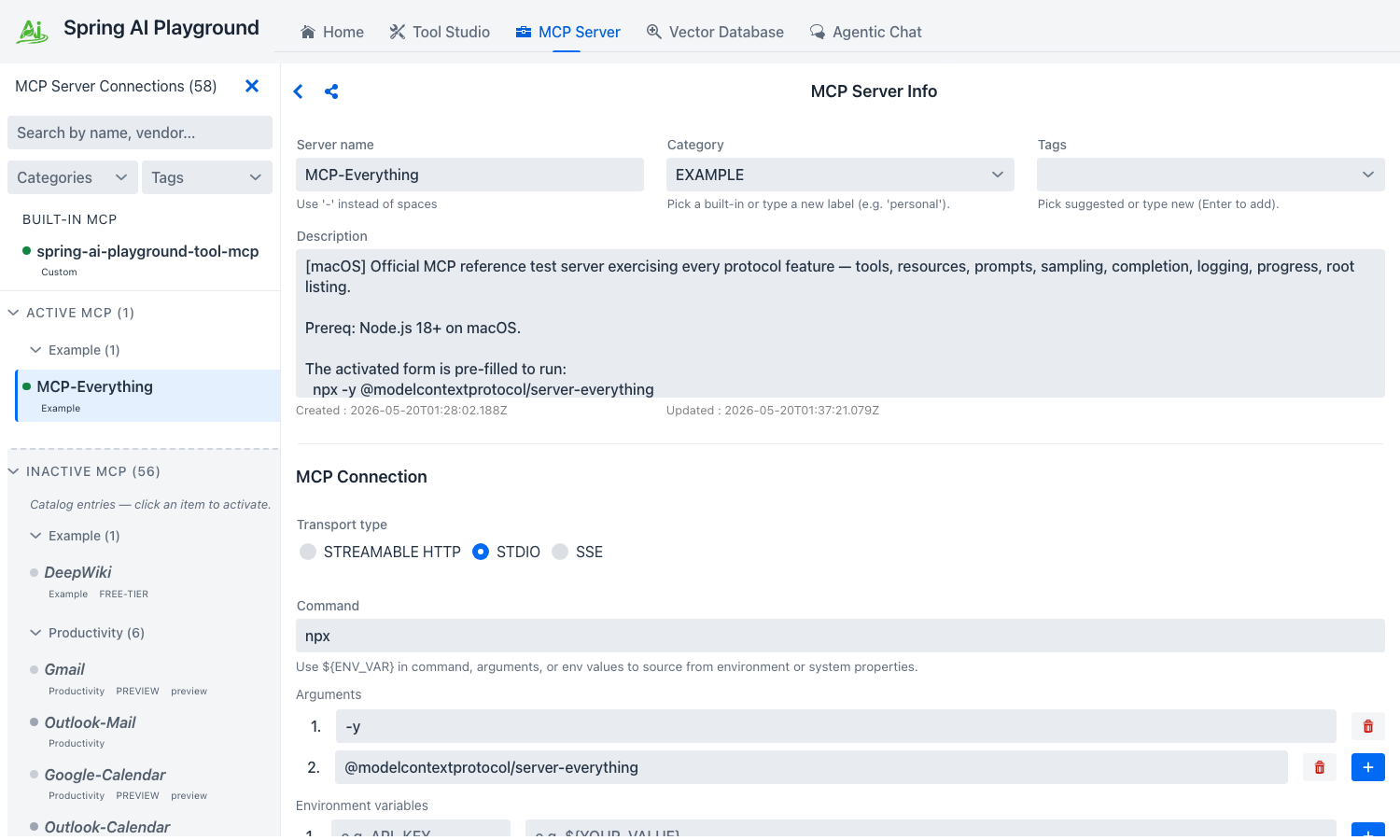 The configuration form opens already filled in with the host-OS variant -
 npx on macOS/Linux, npx.cmd on Windows - with the transport switched to STDIO so the URL/Endpoint pair is replaced by Command + numbered Arguments and an Environment variables row. The server risk chip reads Server: L1 - Safe (a catalogued community server, not an unverified one). Save & Connect then promotes the row into Active MCP under the Example group.
If the status dot stays gray or turns red
The most common causes are missing npx on PATH (Node not installed or shell not refreshed), or the host blocking the npm registry. Switch to the Docker variant on the same form and click Save & Connect again - that bypasses both.
2. Verify connectivity with Ping
The connection's right pane now exposes the MCP Inspector below the form. Eight tabs sit side by side; the default selection is Tools.
- Click the Ping tab.
- Click the single play button on the Ping card.
- The result lands inline - an
OKbadge, the method name, elapsed milliseconds, the local clock time of the call, and an emptyRESPONSEbody ({ }, which is what a successful ping returns). If it's an ERROR, the transport itself is unhealthy; everything else in this tutorial will fail until ping succeeds.
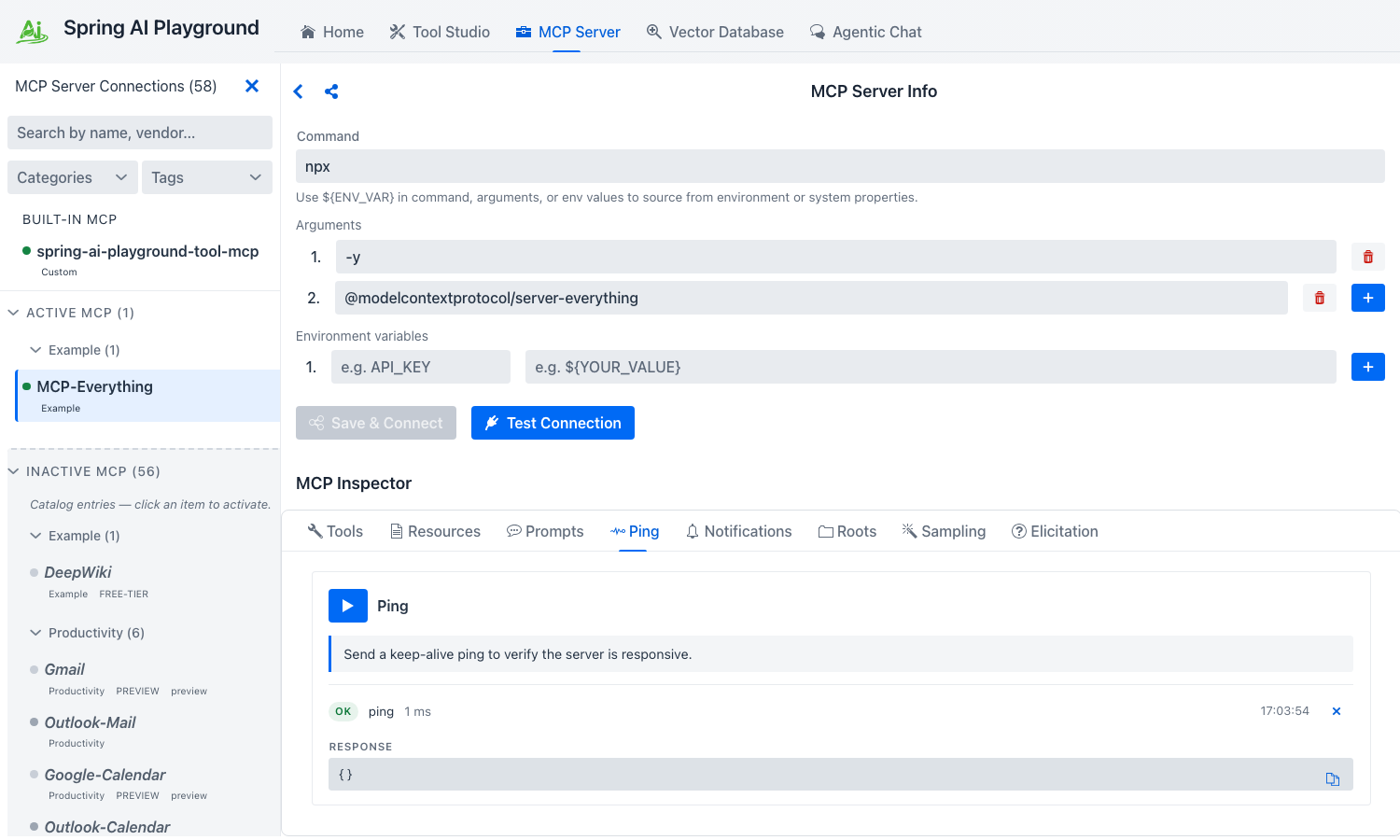 A single play button, an
 OK badge, the round-trip duration (2 ms here) and the time of the call - the smallest possible end-to-end JSON-RPC check.
Ping proves the JSON-RPC channel is alive end-to-end independent of any tool or resource call - which is why it's the right first signal after Save & Connect. See Inspector → Ping for the spec context.
3. Tools - call three representative tools
Switch to the Tools tab. Each tool the server publishes from tools/list renders as a full-width card: the display name, its risk chip, the raw MCP tool name underneath (echo, get-sum, ...), the server's behaviour hints as chips (read-only, idempotent, open-world), the schema-typed inputs, and a play button whose tooltip reads Run tool. The header counts 15 tools, two more than the transient Test Connection probe reported: MCP Everything states that its two callback triggers (trigger-sampling-request, trigger-elicitation-request) require a client that advertised the matching capability, and only the live connection does. You'll exercise three tools that demonstrate three different shapes of input and output.
Echo - the simplest possible round-trip
- Find the Echo Tool card.
- Type
hello from playgroundinto themessageinput. - Click the play button.
- The inline result panel shows OK, elapsed ms, the REQUEST block (the JSON-RPC args you sent), the RESPONSE block (the server's echo), and a Raw toggle that swaps in the full JSON-RPC envelope.
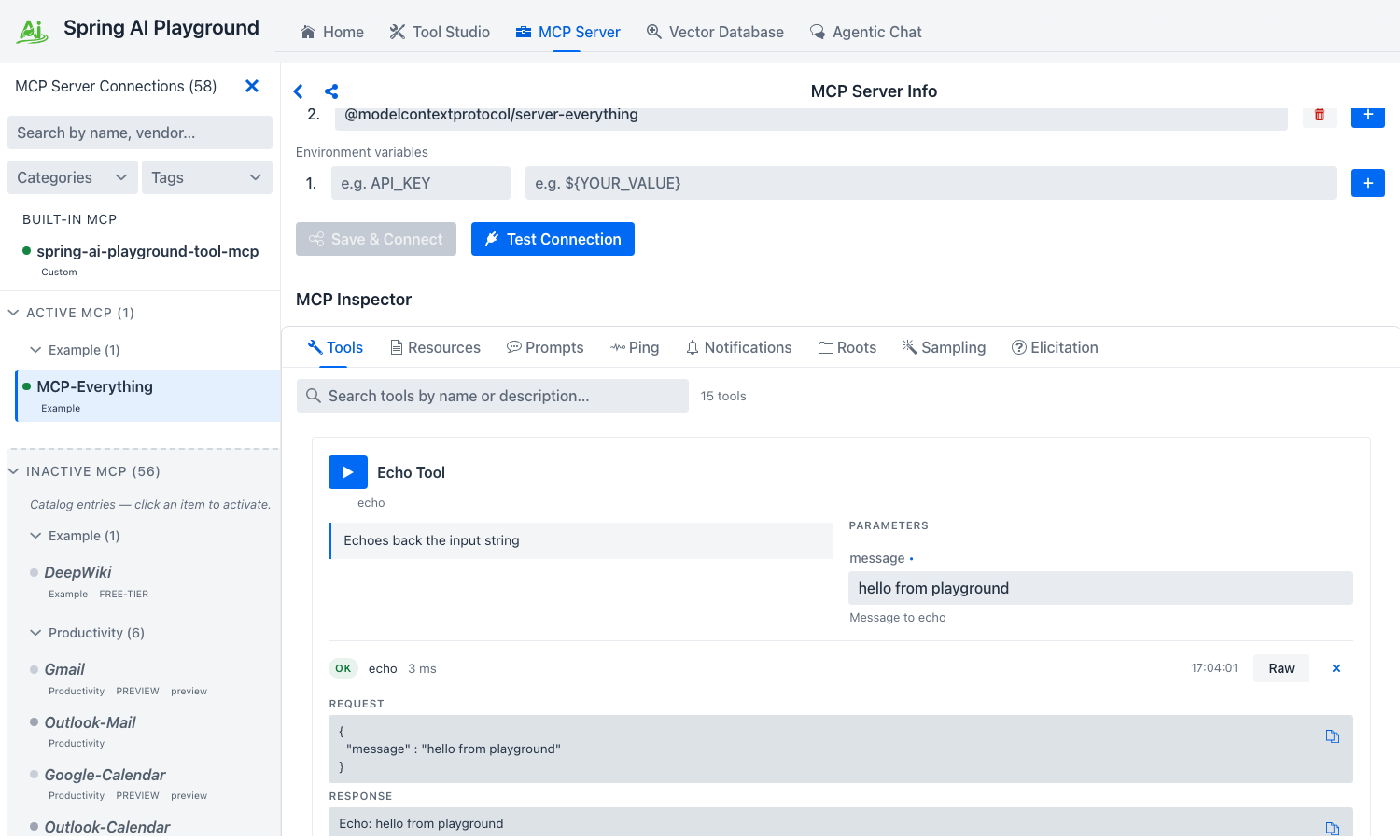 The same REQUEST / RESPONSE / Raw layout every Tools call uses - the round-trip envelope is one toggle away when you need to debug at the wire level.
Get Sum - typed numeric inputs
- Scroll to the Get Sum Tool card (raw name
get-sum; the playground shows the display name first). The twoa/bfields render as number inputs because the JSON Schema declares"type": "number". - Enter
2and3. - Click the play button. The response reads
The sum of 2 and 3 is 5.
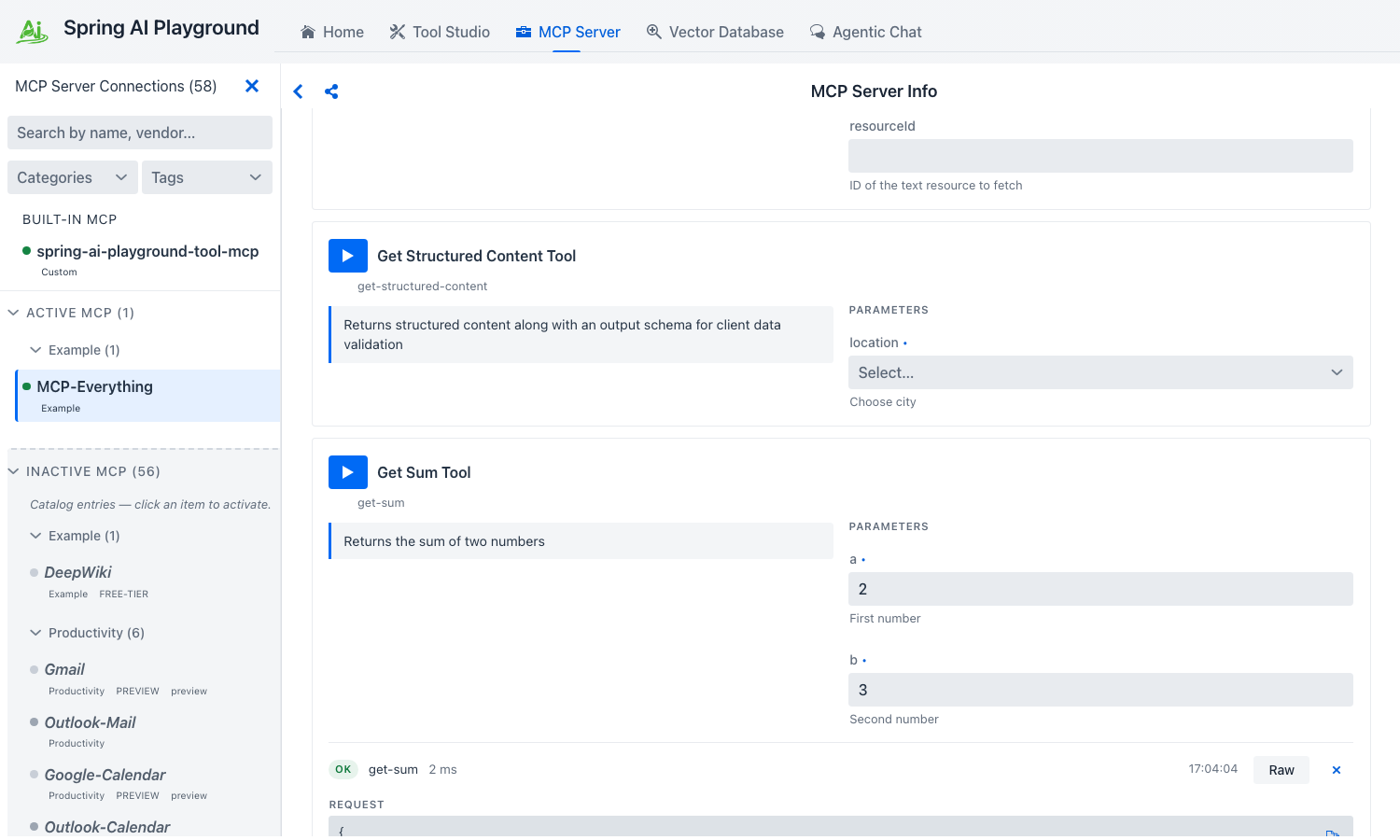 The schema declared
 "type": "number", so the Inspector renders proper numeric inputs - not free-text - and the REQUEST block echoes them typed: { "a" : 2.0, "b" : 3.0 }.
This is how the Inspector's input controls track JSON Schema - boolean → checkbox, enum → dropdown, array/object → JSON editor. See Inspector → Tools for the full mapping.
Get Annotated Message - content annotations + image content
- Find the Get Annotated Message Tool card. It exposes a
messageTypeSelect (enum:error·success·debug) and anincludeImagecheckbox. - Pick
success, check the box, click the play button. - The response is a structured
contentarray. The Inspector prints the text block (Operation completed successfully) and adds a second, attachment-style row for the base64 image block. Theannotationsthe server attaches to the text block (priority + audience hints a model can lean on) are not broken out in this view - open the Raw toggle to read them off the JSON-RPC envelope.
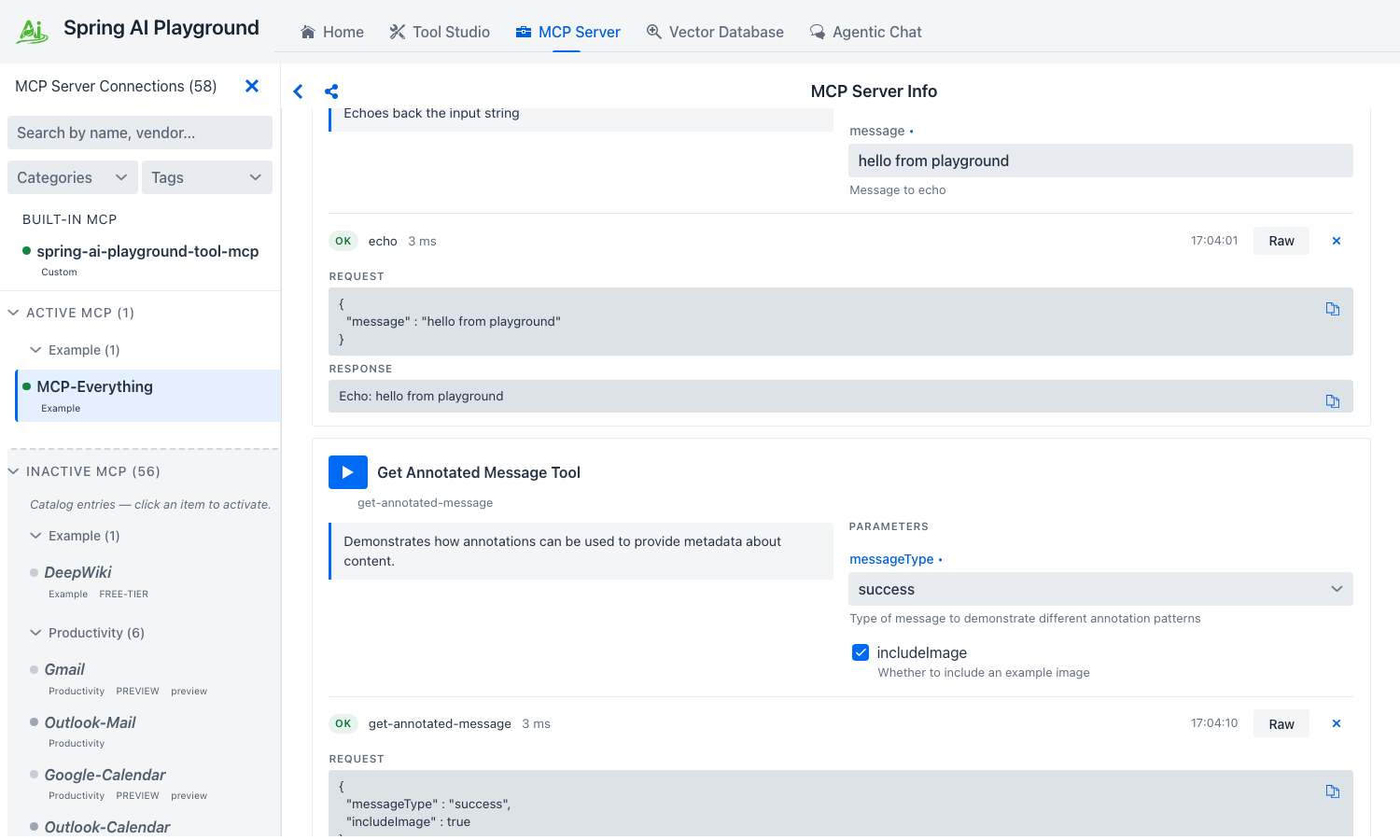 A
A success message with includeImage ticked: REQUEST shows the typed arguments, RESPONSE shows the text block, and the image block lands under it as its own row. Each block has its own copy button, and Raw swaps the whole panel for the JSON-RPC envelope.
Validate every new tool here first
Tools that fail in the Inspector fail in Agentic Chat too, but the chat error is wrapped in the agent's reasoning trace and harder to debug. Save yourself a turn - run every new tool here once before letting a model invoke it.
4. Resources - static URIs and templated URIs
Switch to the Resources tab. The Inspector splits the section into two sub-sections - RESOURCES (N) for the server's static URIs and RESOURCE TEMPLATES (N) for parameterised templates.
Read a static resource
- The
RESOURCES 7header reflects MCP Everything's synthetic static set - sevendemo://resource/static/document/*.mdentries (architecture.md,extension.md,features.md,how-it-works.md,instructions.md,startup.md,structure.md). - Pick any card (the first one,
architecture.md, is fine). The card shows the URI, the server-declaredmimeTypechip (text/markdown), and a server-supplied description. - Click the card's play button (tooltip: Read resource). The body lands inline as
CONTENTS- text content renders verbatim, binary content surfaces as a base64 preview.
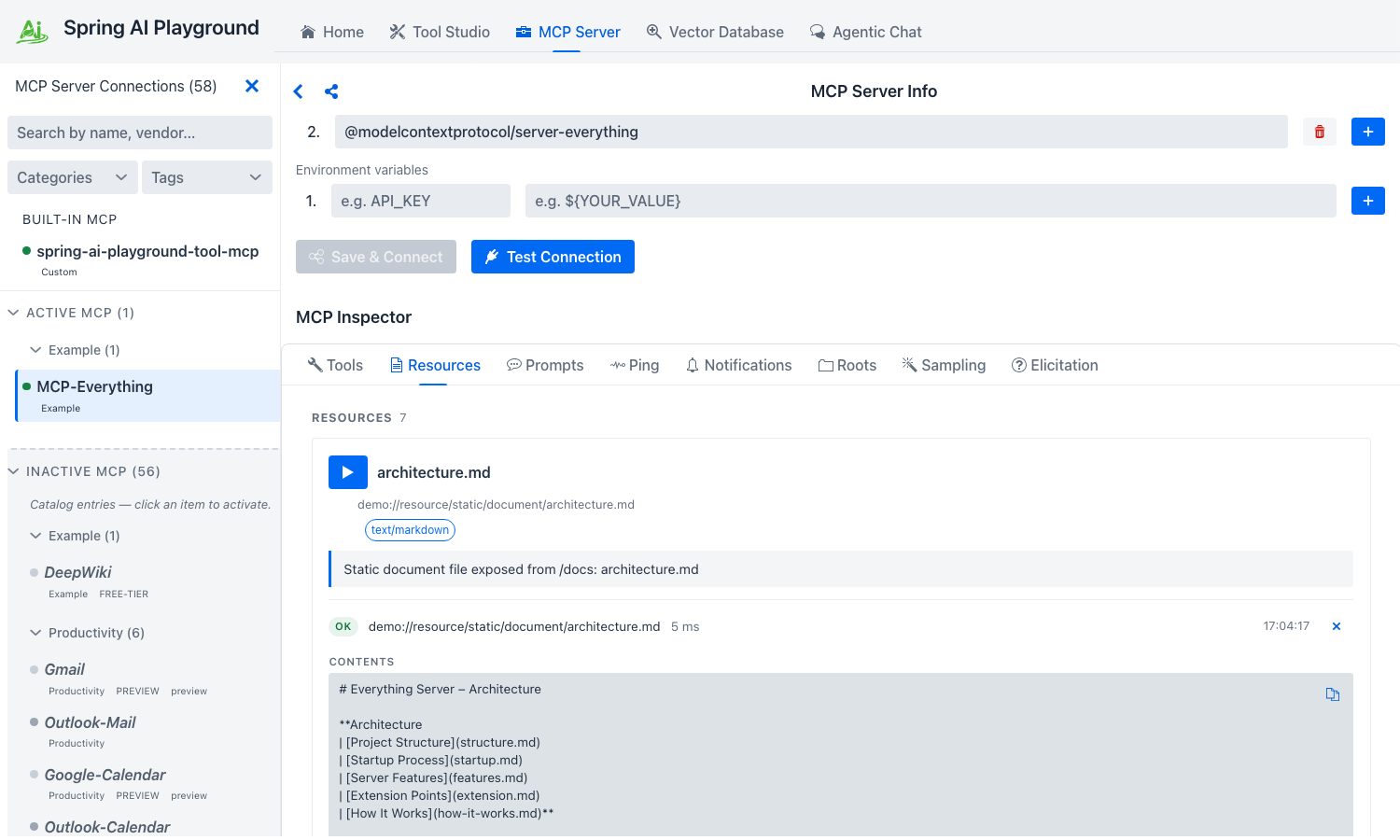 Each row reads its URI inline - no tab switch, no separate viewer. The
 text/markdown chip and the OK badge confirm the mimeType and round-trip duration the server reported.
Read a templated resource
- Below the static list, the
RESOURCE TEMPLATES 2section exposes two parameterised templates -demo://resource/dynamic/text/{resourceId}anddemo://resource/dynamic/blob/{resourceId}. - Pick the Dynamic Text Resource template. The card renders a
VARIABLESblock with a JSON-Schema-typed input forresourceId. The description warns that the variable must be an integer. - Type
42intoresourceIdand click the play button (tooltip: Expand template and read). The server substitutes the variable, resolves the URI todemo://resource/dynamic/text/42, and returns a body keyed on the variable -Resource 42: This is a plaintext resource created at ....
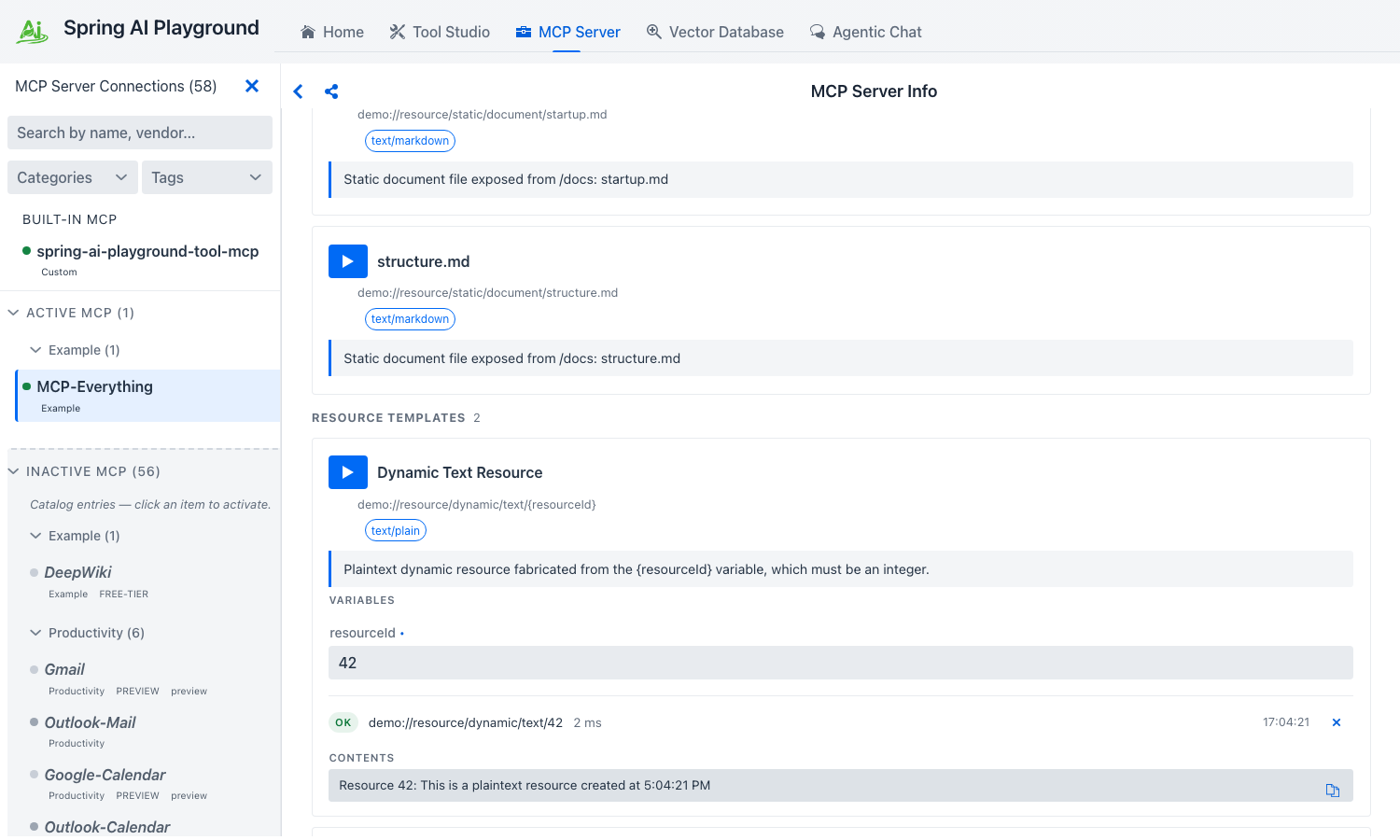 Templates declare their URI variables with JSON-Schema-typed inputs - same control pool the Tools tab draws from - and the resolved URI (
demo://resource/dynamic/text/42) lands above the body so you can confirm the substitution worked.
See Inspector → Resources for the static / template distinction in the MCP spec.
5. Prompts - simple, arguments, and completable
Switch to the Prompts tab. Prompts are named, parameterised message templates the server can render for the client. MCP Everything publishes four - simple-prompt, args-prompt, completable-prompt, and resource-prompt (which embeds a resource reference) - covering the shapes you'll meet in the wild.
simple-prompt - no arguments
- The
Simple Promptcard has only a name and a description. - Click its play button (tooltip: Get prompt). The server returns a rendered
MESSAGESlist ready to feed a model. There is nothing to fill in because the prompt takes no arguments.
args-prompt - required + optional arguments
- The
Arguments Promptcard requirescityand accepts an optionalstate. - Fill in
city: Seoul,state: South Korea. - Click the play button. The rendered
MESSAGESlist substitutes your values into the server's template - oneUSERmessage readingWhat's weather in Seoul, South Korea?
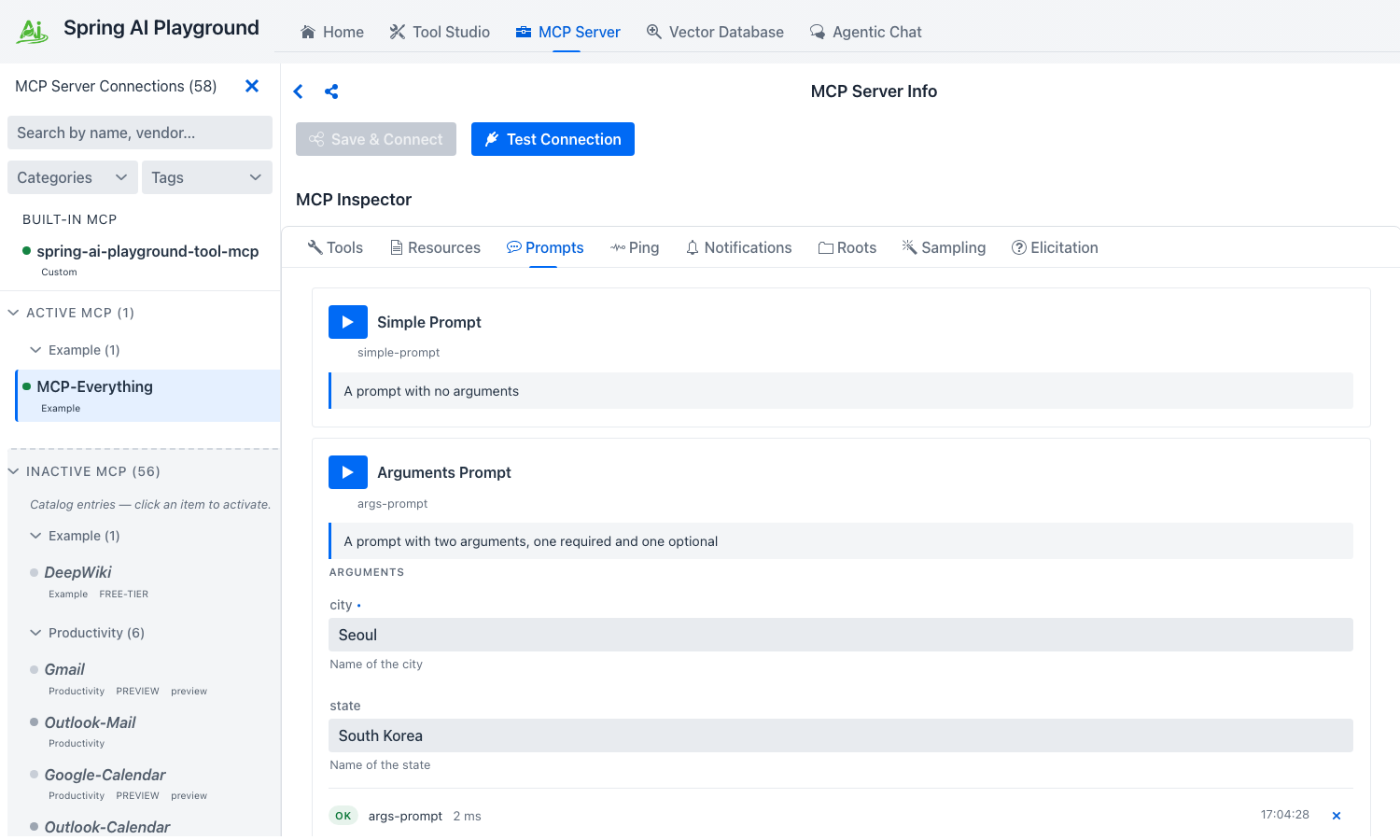 The
The MESSAGES list is what a chat client would feed straight into a model, each entry tagged with its role - the playground shows it verbatim so you can sanity-check the substitution before wiring it into Agentic Chat.
completable-prompt - two linked arguments
- The
Team Managementcard takes two required arguments, and its description states the contract: First argument choice narrows values for second argument.departmentis declared completable on the server side, andnameis meant to follow from it. - Type a value into
department, then one intoname, and click the play button to render the prompt.
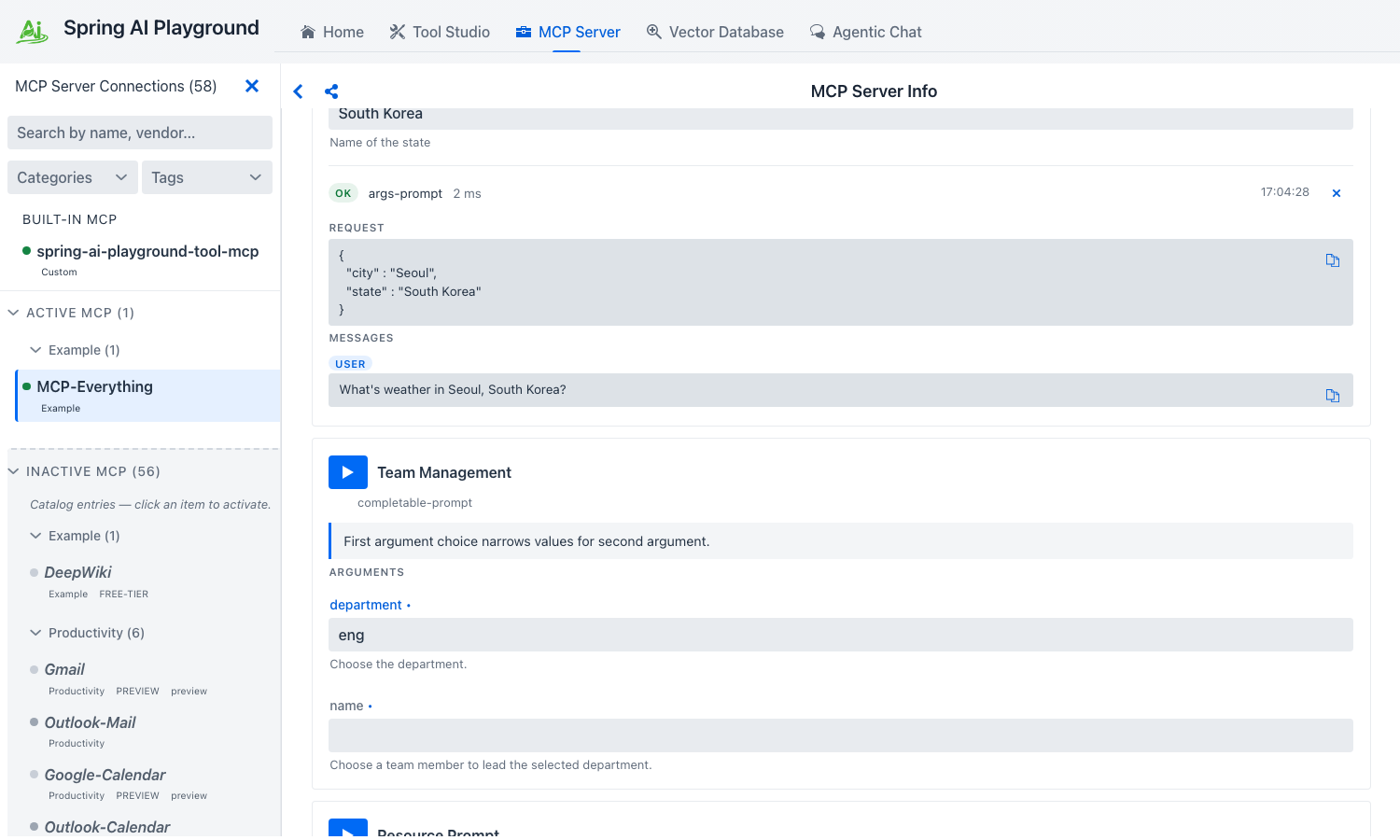 Both arguments are required (
•) and both render as plain text fields.
Argument completion is not wired yet
The server advertises the completions capability and declares department as completable, but the Inspector does not call completion/complete - typing into the field surfaces no suggestions. Type the value yourself. This is the one MCP primitive in this walkthrough that the playground does not exercise.
See Inspector → Prompts for the spec contract.
6. Notifications - turn on the live feed
Notifications are unsolicited messages from the server to the client - list-changed events, structured log records, progress updates. Switching to the Notifications tab right after connect already shows a few - MCP Everything emits a TOOLS_CHANGED notification on every reconnect so the client can re-fetch tools/list.
- Switch to Notifications. You'll already see a small set of
TOOLS_CHANGEDrows -Tools list changed (15), timestamped around when MCP Everything finished its initial handshake. Each row shows a topic chip, a one-line summary, and the clock time it arrived. - Anything the server pushes later joins the same feed. Triggering sampling (section 8) adds a red
SAMPLING_REQUESTrow -Sampling request received (1 messages)- the moment the server calls back into the client. - Set logging level... sends
logging/setLevelto the server, changing what it decides to push; it is not a client-side filter. Clear empties the local feed.
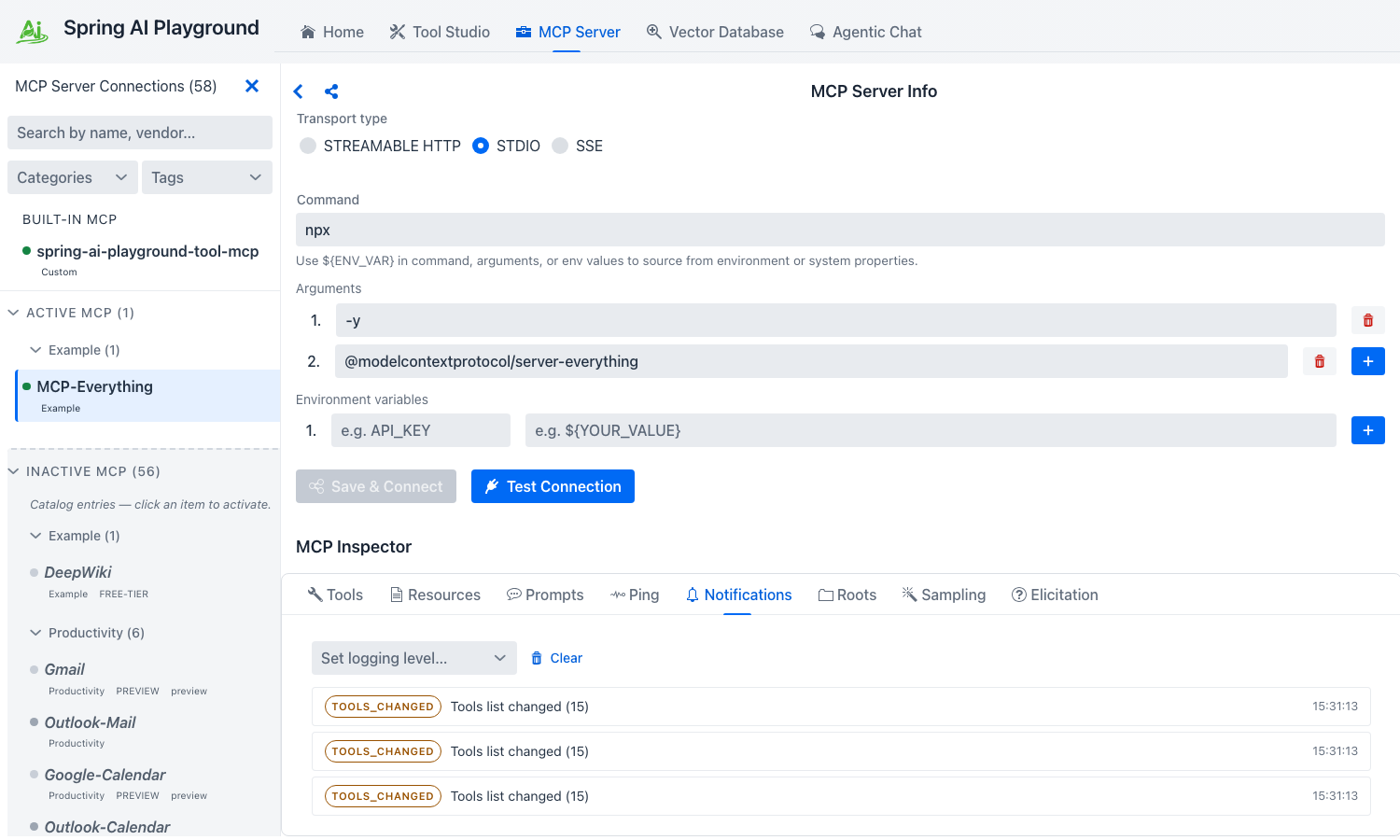 Server push notifications only surface here - chat will never show them, so this tab is the source of truth for what change events a server actually emits. The feed also models
 PROGRESS records; those arrive only when the caller supplies a progress token, which the Inspector's tool calls do not, so running Trigger Long Running Operation Tool adds nothing here.
Why this tab matters
The chat surface does not surface server push notifications - they only land here. This tab is the canonical way to verify that an external server actually emits the change events it claims to before you wire that behaviour into chat-side code.
7. Roots - advertise a directory to the server
A root is a file or URI the playground (acting as the MCP client) advertises to the server as something the server may operate on. MCP Everything calls roots/list on startup; you decide what it sees.
- Switch to the Roots tab. The default state is empty - "No roots advertised."
- Fill in the inline form:
- URI -
file:///tmp/mcp-demo(any URI you want the server to see) - Name -
mcp-demo(optional human-readable label)
- URI -
- Click Add Root. The root is stored locally and listed under CONFIGURED ROOTS, each row with a red
xto remove it, and the playground then attempts to pushnotifications/roots/list_changedto the server.
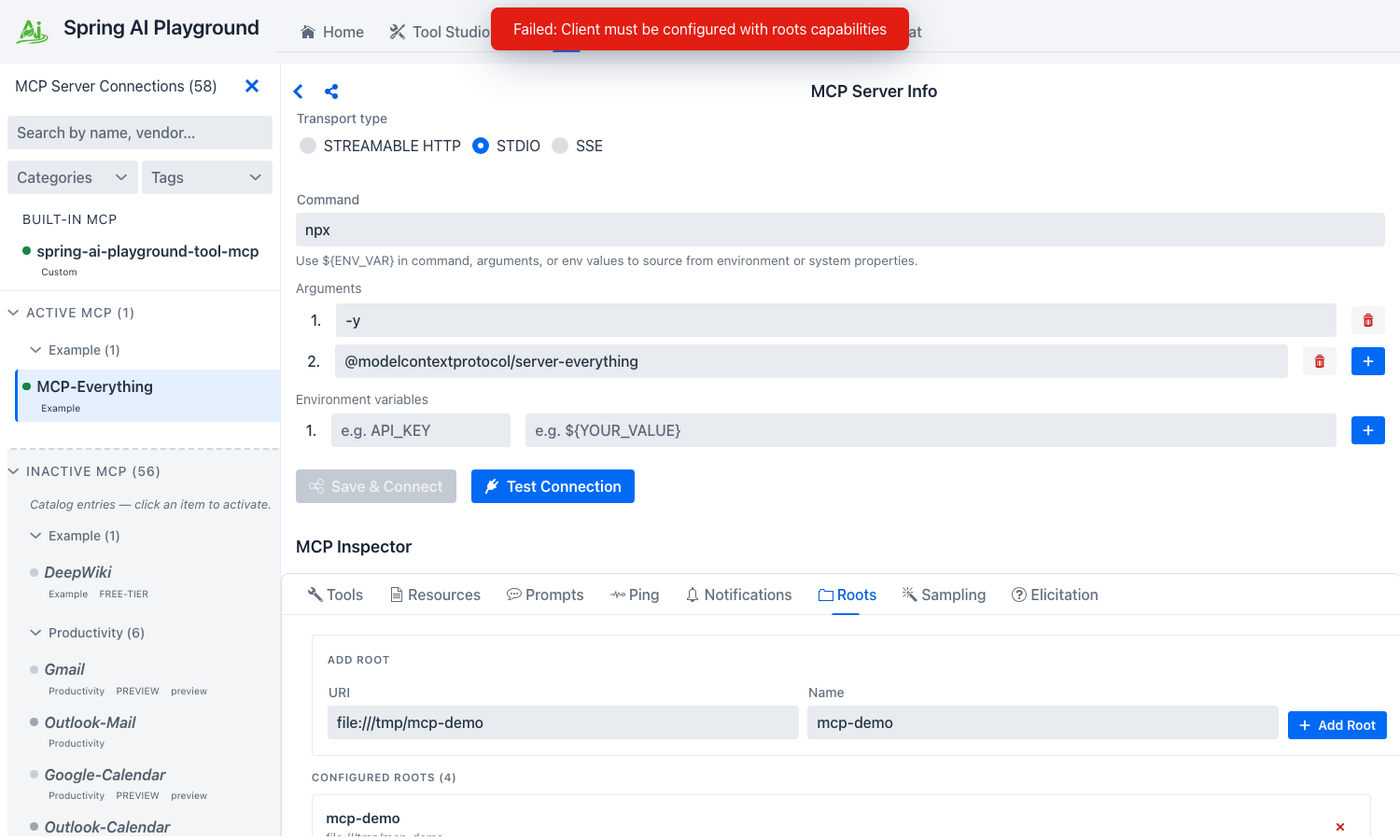 The ADD ROOT form takes a URI plus an optional human-readable label (its placeholders show the shape:
 file:///path/to/dir and project-source). Both are required - submitting an empty pair reports URI and Name are required. The added root lands under CONFIGURED ROOTS (1).
Roots capability negotiation
The root is added to the local list, but the push to the server fails with a Failed: Client must be configured with roots capabilities toast - the playground's MCP client does not declare the roots capability during initialize. So the server never learns about it. The form, the local list, and the protocol path are wired; the client-side capability advertisement is on the roadmap.
Roots are advisory, not enforcement
Adding a root does not grant the server filesystem access. It only tells the server "if you do filesystem-style operations, here are the URIs I've opted to expose." Enforcement lives in the playground's sandbox (safety.fs), not in the roots list. See Inspector → Roots for the spec context.
8. Sampling - let the server run a model turn through the playground
Sampling inverts the usual direction: the server asks the playground (the client) to run a model turn on its behalf, returning the assistant message back to the server. This is how a server-side agent loop can recurse into the user's model without bringing its own API credentials.
- Go back to Tools and find the Trigger Sampling Request Tool card. It takes a
prompt(the text the server will ask the client to complete) and an optionalmaxTokens. Fill the prompt -Say hello in one short sentence.- and click the play button. - Switch to the Sampling tab. A Sampling request card lands under
PENDING SAMPLING REQUESTS, itsREQUESTblock holding exactly what the server sent: themessagesarray, the server's ownsystemPrompt,temperature, andmaxTokens. - Type the assistant message into YOUR RESPONSE (TEXT) and click Send. The playground wraps your text as an
assistantmessage withstopReason: END_TURNand returns it to the server. - Decline answers instead with the fixed text
User declined.andstopReason: STOP_SEQUENCE- still a well-formed result, so the server can branch its agent loop on it.
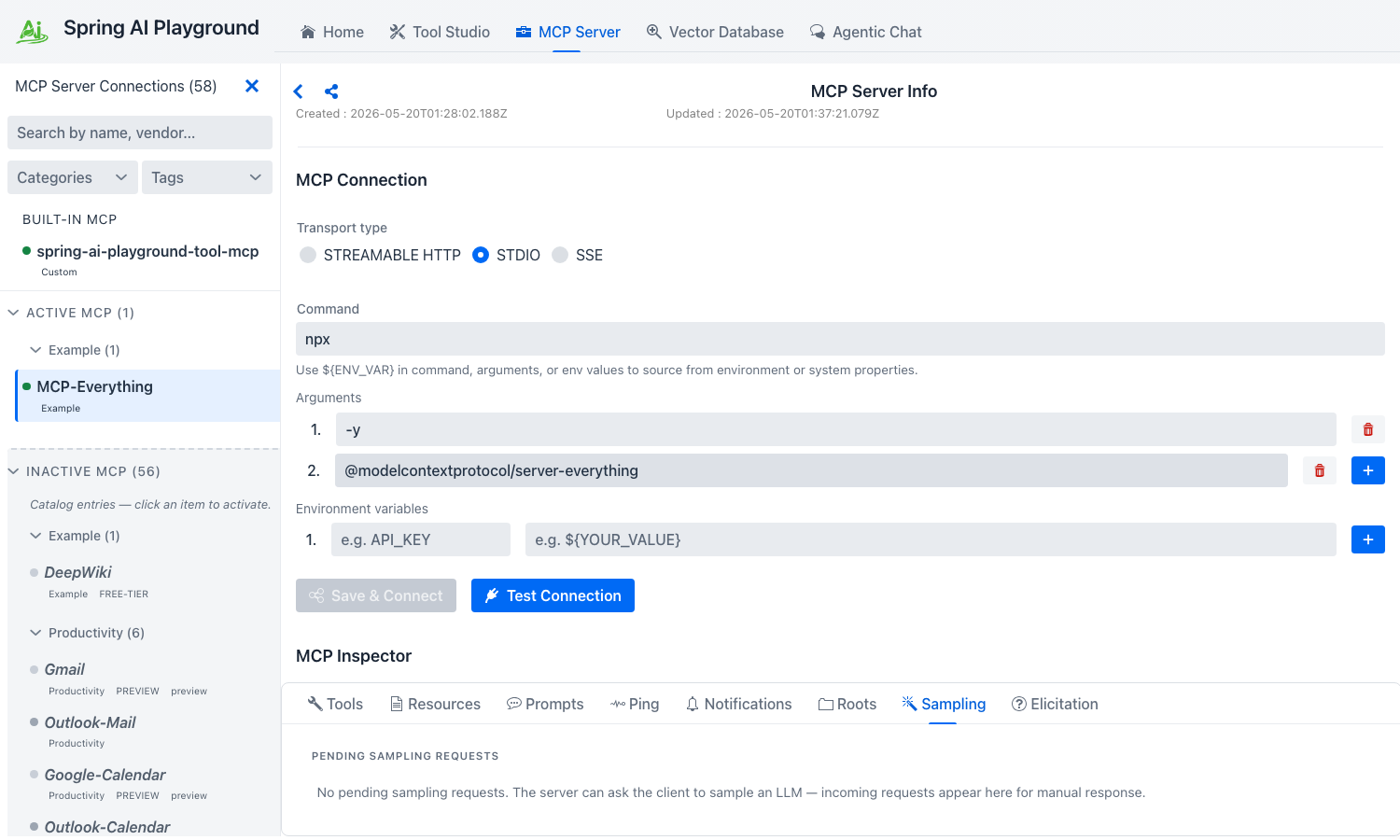 Incoming
 sampling/createMessage requests render as cards with the server's full request, a free-text response box, and Send / Decline.
You are the model here
This is a manual seam, not an automatic one: the playground does not run the server's prompt through a model. Whatever you type in the response box is what the server receives as the assistant turn. Nothing is sent to Ollama or OpenAI, and no tokens are spent.
The triggering tool call times out
The trigger-sampling-request call blocks on your answer and gives up after 20 seconds - the Tools card reports a crash (TimeoutException) even though the Sampling card is still sitting there waiting. Answer the card anyway; the timeout only ends the tool call, not the sampling request.
9. Elicitation - answer a question the server asks the user
Elicitation is the third inverted primitive - the server asks the user a question mid-conversation by sending an elicitation/create request with a prompt plus a requestedSchema describing what answer it expects. The playground renders the form, the human fills it, the answer goes back.
- From Tools, click the play button on the Trigger Elicitation Request Tool card (no inputs).
- Switch to the Elicitation tab. A card lands under
PENDING ELICITATION REQUESTScarrying the server's prompt -Please provide inputs for the following fields:- and a FORM rendered from itsrequestedSchema. MCP Everything asks for a deliberately wide spread of types: a requiredname, acheckcheckbox, free text, an email, a URL, a date, an integer, a number, and four enum fields (single- and multi-select, titled and untitled). - Fill the form and click Accept - the answers ship back as an
ElicitResultwith actionACCEPT. - Decline and Cancel send the other two spec-defined actions (
DECLINE,CANCEL) with an empty payload, so the server can tell "no thanks" apart from "not now".
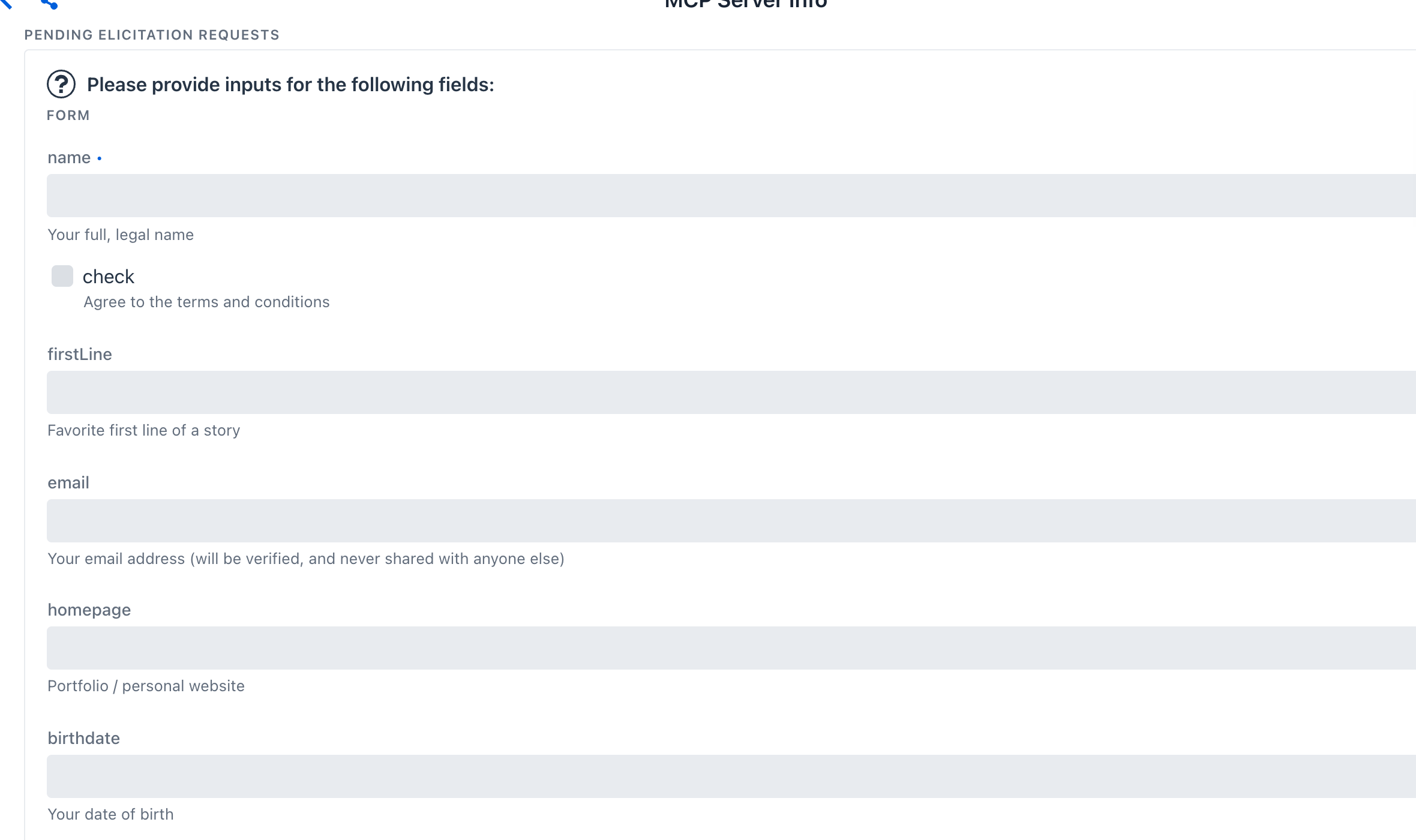 Same seam as Sampling, but the response area is a JSON-Schema-typed form instead of a text box - each field carries the server's own description, and required ones are marked with a
 •.
The same 20-second tool timeout applies: trigger-elicitation-request crashes while the card waits for you. Answer the card anyway.
Cleanup
You can leave MCP Everything activated - it is the right smoke test to keep around whenever you suspect the playground's MCP client wiring regressed. To remove it:
- Open MCP Server and select the MCP-Everything row in the Active MCP layer.
- Click the x icon in the sidebar header - its tooltip reads Delete Selected MCP Server. Confirm the
Are you sure you want to delete this MCP server connection permanently?dialog. - The activation is removed and the child
npxprocess goes with it. The catalog template is untouched, so the entry reappears under Inactive MCP ready to activate again. (There is no separate disconnect action - the built-in server and inactive catalog rows both refuse deletion, so the x only ever removes an activation you made.)
The persisted JSON for this connection lives under ~/spring-ai-playground/mcp/save/ and only stores the activation template + ${ENV_VAR} placeholders. No tokens, no live secrets.
Where to go next
- MCP Inspector reference - every primitive explained against the MCP spec, with the Spring AI MCP SDK entry points.
- Default MCP Servers → Examples - full catalog spec, including DeepWiki (the other Examples-category entry).
- Tutorial 2 - Connect an External MCP Server - the manual path for anything not in the catalog (custom URL, custom STDIO command, custom OAuth issuer).
- Default MCP Servers directory - browse all 58 preset connections across the six category cohorts.
- Tool Studio - once you trust the playground's MCP client wiring against MCP Everything, build your own server-side tools that other clients will consume the same way.