Tutorial 10 - Proxy an MCP Server
Time 8 min · Difficulty ★★☆ · Surfaces MCP Server
Goal
Re-publish the tools of the external MCP servers you've connected through the playground's own built-in MCP server - the MCP Server Proxy. Expose a whole server, a curated subset, or a combination of several servers on one governed endpoint (/mcp). Every proxied tool is wrapped with a risk level, optional human approval (HITL), logging, and secret masking, and becomes callable from Agentic Chat and any external /mcp client.
No-credential examples - DeepWiki + MCP Everything
This walkthrough connects two Default MCP Servers from the Example category: DeepWiki (free, no-auth Streamable HTTP; three read tools - read_wiki_structure, read_wiki_contents, ask_question) and MCP Everything (the reference test server; stdio). Any active connection proxies the same way - these two just need no credentials.
How the proxy works
The built-in server (spring-ai-playground-built-in-mcp, Streamable HTTP at /mcp) is the single endpoint your agent - and any external MCP client - connects to. The proxy lets that one server front the tools of the external servers you've connected: it serves your Tool Studio tools plus the upstream tools you select, each wrapped and governed per tool. You never expose a raw upstream connection to a client; you expose a curated, risk-capped slice of it through your own server.
Step 1 - Connect the upstream server(s)
In MCP Server, open the sidebar's Inactive MCP section and activate the servers you want to proxy - here DeepWiki and MCP Everything - each via Save & Connect. (For the manual / authenticated path, see Tutorial 2.) Confirm each server's tools in the Inspector; every tool carries its own risk chip (DeepWiki's read tools score L2 - Low).
Step 2 - Open the Composed Tools drawer
Click the gear icon at the top-right of the MCP Server Info header. The Built-in MCP Server Composed Tools drawer lists every active server.
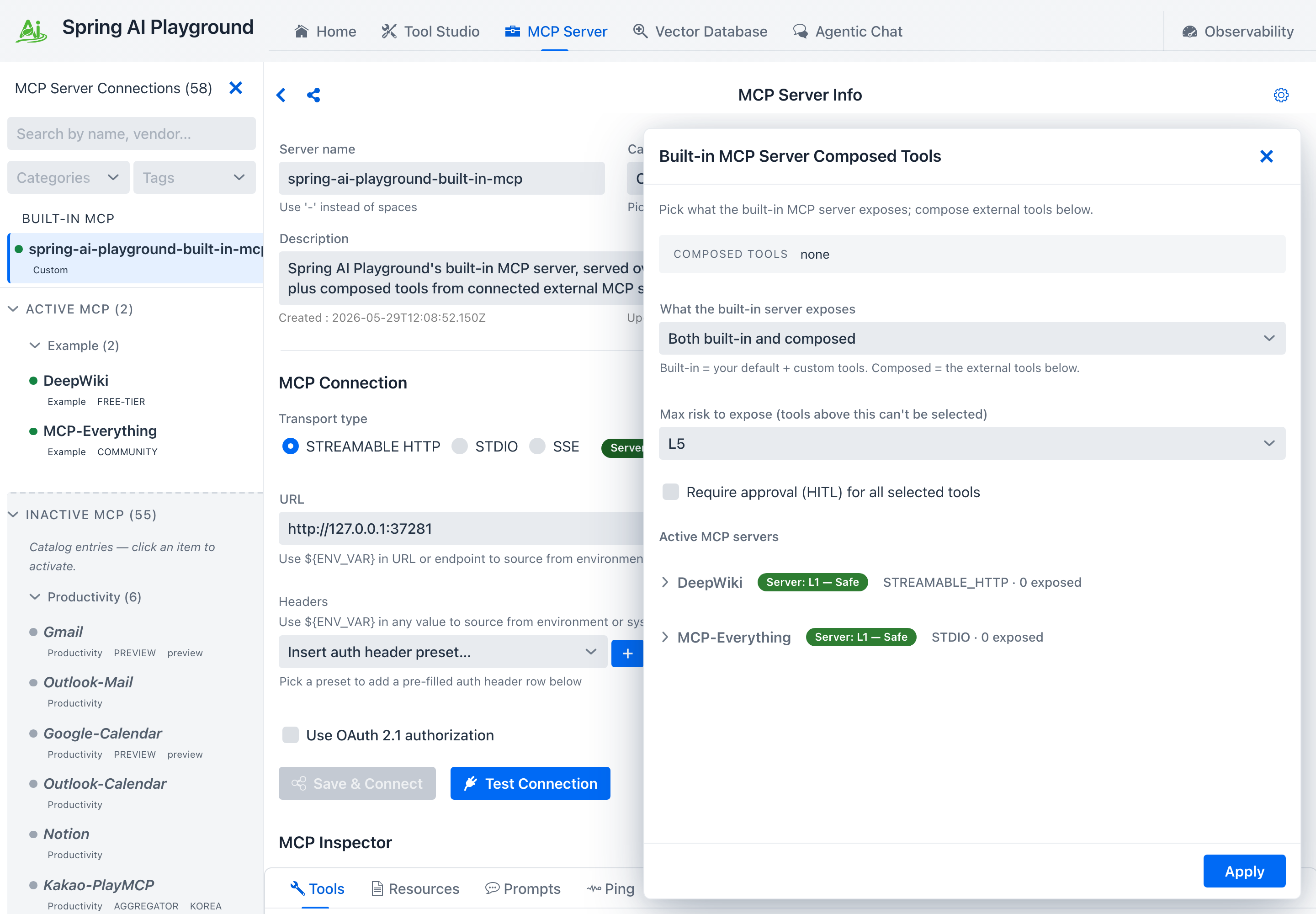
Step 3 - Set the proxy-wide options
The top of the drawer governs what the whole built-in server publishes:
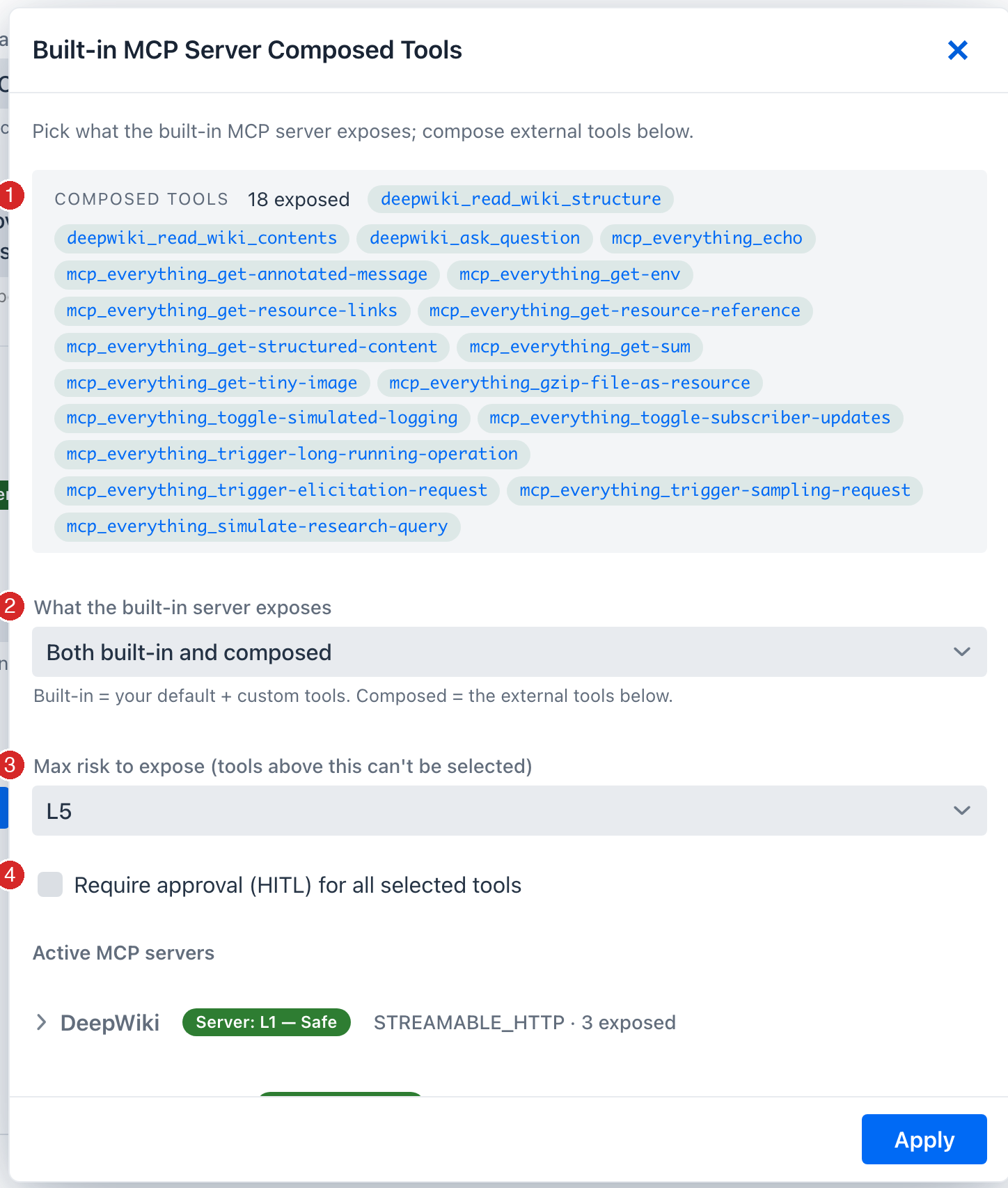
- COMPOSED TOOLS - a live summary of every tool currently selected across all servers, by exposed alias. This is the merged set the built-in server will publish.
- What the built-in server exposes -
Both built-in and composed(default),Built-in tools only, orComposed tools only. "Built-in" = your Tool Studio default + custom tools; "Composed" = the external tools you pick below. PickComposed tools onlyto turn the playground into a pure proxy for upstream servers. - Max risk to expose - a ceiling; any tool whose effective risk exceeds it is disabled in the list, so you can't accidentally publish something over your bar.
- Require approval (HITL) for all selected tools - gate every proxied tool at once (or do it per tool in Step 6).
Step 4 - Proxy a whole server
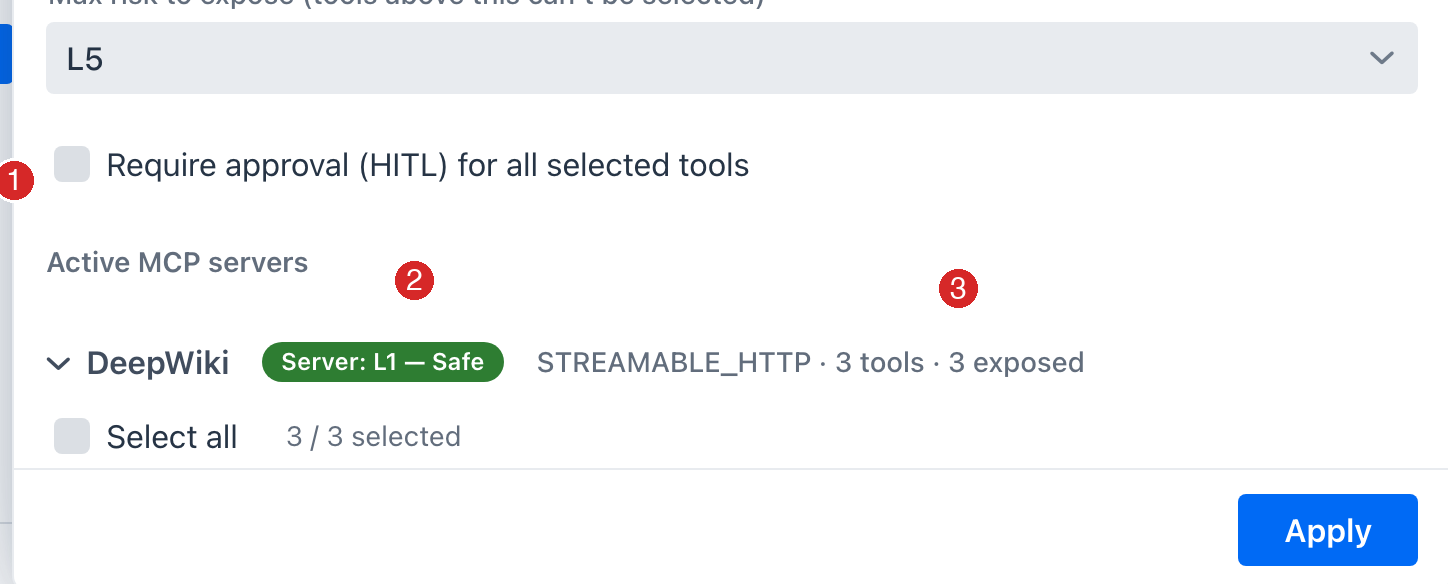
To front an entire server, expand its row and tick Select all (1). Every tool shows its own risk chip (2) and a per-tool HITL checkbox (3); any tool over the max-risk cap stays disabled.
Step 5 - ...or combine tools across several servers
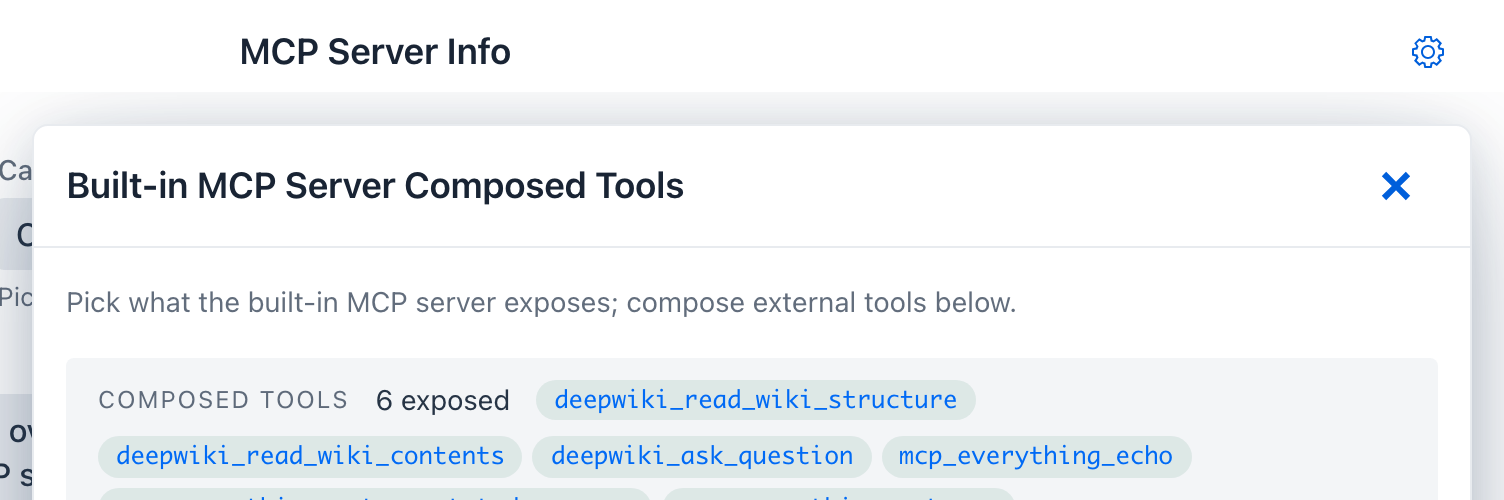
You don't have to take a whole server. Expand multiple servers and tick exactly the tools you want - the COMPOSED TOOLS summary at the top shows the merged set drawn from every server. Each exposed alias defaults to <server>_<tool> (normalized), e.g. deepwiki_read_wiki_structure from DeepWiki and mcp_everything_echo from MCP Everything, all served from your one endpoint.
Step 6 - (Optional) rename, re-describe, or gate per tool
Click a selected tool to edit its exposed alias or description (the input schema passes through unchanged), and tick its HITL box to require human approval before each call - which also lowers its effective risk by one band (shown as a HITL -1 badge).
Step 7 - Apply
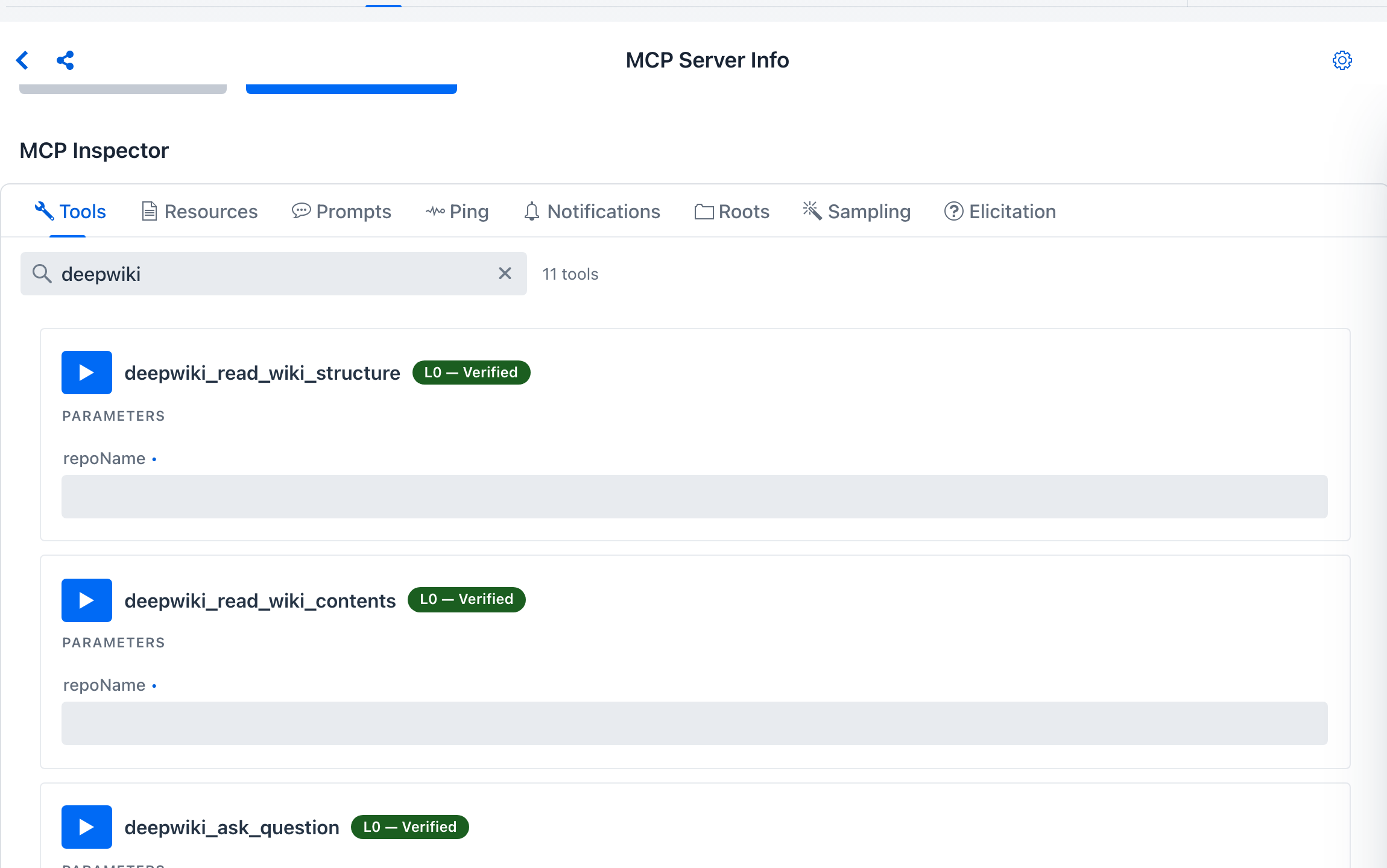
Click Apply. The selected tools join the built-in server immediately - no restart. Select the built-in server in the sidebar and its Inspector now lists the proxied tools alongside your native ones. (They show L0 - Verified here because the built-in server bypasses the risk model for its own tools; the upstream's real level still shows on its connection's Inspector.)
Step 8 - Name the proxy endpoint (what clients see)
External /mcp clients see your built-in server's name and description in their server list. These come from configuration, not the connection form - the built-in identity is sourced from your settings so it stays stable (and keeps matching the L0 - Verified bypass). The sidebar shows the current values:
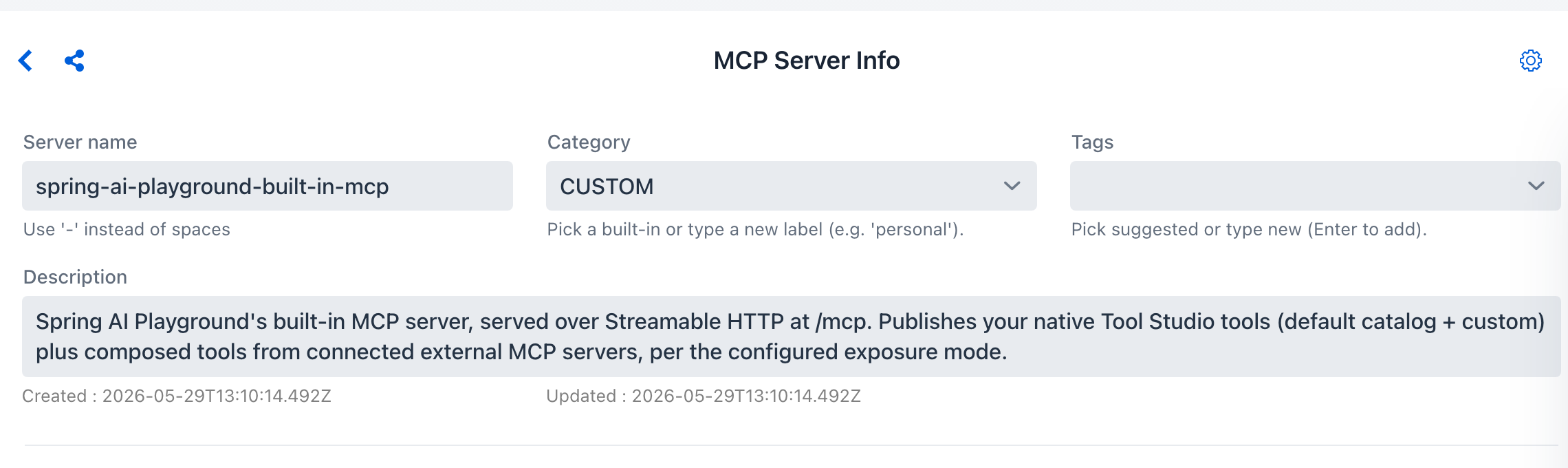
Set them in application.yaml (or via the matching env vars), alongside the exposure mode:
spring:
  ai:
    playground:
      built-in-mcp-server:
        name: my-team-tools                 # SPRING_AI_PLAYGROUND_BUILT_IN_MCP_SERVER_NAME
        description: Curated tools for my team   # SPRING_AI_PLAYGROUND_BUILT_IN_MCP_SERVER_DESCRIPTION
        exposure-mode: both                  # builtin-only | composed-only | both
Defaults are spring-ai-playground-built-in-mcp and a generated description. You can also pin the composed tool set declaratively - see Configuration → MCP built-in server & exposure and Proxy → Configure exposure via YAML.
Step 9 - Use it
- Agentic Chat - the proxied tools are now selectable alongside your Tool Studio tools. Ask "What does the spring-ai-community/spring-ai-playground repo's wiki cover?" and the model can call
deepwiki_read_wiki_structure. - Any external MCP client pointed at the playground's
/mcpendpoint sees the proxied tools intools/listunder their exposed aliases - your built-in server has become a governed front for several upstreams at once.
What the proxy guarantees
Each proxied tool is wrapped, not copied: it carries a composed risk level, emits mcp.tool.start / done / crash spans tagged with the upstream origin and risk, masks upstream secrets in errors, and (when marked HITL) persists the approval flag. Before it's published it also passes a description poisoning scan, a fingerprint ledger (so a silently-redefined upstream tool is flagged for re-review), and shadowing rules. See MCP Server Safety → The safe-wrapping contract.
Where to go next
- MCP Server Proxy - the full feature reference (caps, aliases, exposure modes, YAML config, external-client reach)
- MCP Server Safety - how the composed
L0-L5risk, poisoning scan, ledger, and shadowing rules are computed - Tutorial 4 - Chat With Tools - drive a tool from a chat turn end-to-end