Human-in-the-Loop Approval
Where: set it per tool in Tool Studio → Sandbox & Capabilities → Human-in-the-loop, or per re-exposed tool in the Composed Tools drawer's HITL column. It then takes effect in Agentic Chat and for any external MCP client.
Human-in-the-loop (HITL) pauses a tool call and waits for you to approve or decline before the tool runs. The risk level warns you how dangerous a tool is; the sandbox limits what it can touch; HITL is the gate that asks "run this exact call?" at the moment it would fire.
It is the final safety layer, on top of the tool sandbox and the MCP risk model. The design and internals are on the Human-in-the-Loop Approval architecture page; this page is the how-to.
flowchart LR
    CALL["Agent decides<br/>to call a tool"]
    GATE{"Tool requires<br/>approval?"}
    ASK["Ask the human<br/>Approve / Decline"]
    RUN["Run the tool"]
    SKIP["Tell the model<br/>it was declined"]
    CALL --> GATE
    GATE -- "no" --> RUN
    GATE -- "yes" --> ASK
    ASK -- "Approve" --> RUN
    ASK -- "Decline / timeout" --> SKIP
The two modes
Every tool has an approval mode:
| Mode | What it does |
|---|---|
| Required - ask every run | The call is gated every time, for both Agentic Chat and external MCP clients. |
| Disabled - no prompt | The tool runs without asking. |
The mode defaults to Required above L0 and to Disabled at L0 - the more capable a tool, the more it asks out of the box.
Set approval on a tool you author
- Open Tool Studio and select or create a tool.
- Expand Sandbox & Capabilities.
- Under Human-in-the-loop, pick Required or Disabled.
- (Optional) In Approval prompt (optional), write the question shown at approval time.
{toolName}and{args}are substituted at call time - e.g.Run tool '{toolName}' with arguments {args}? - Test & Publish (or Test & Update).
Reducing oversight asks for confirmation
Moving a tool from Required to Disabled opens a Reduce human oversight? confirmation, so you never lower the gate by accident. Disabled lets any client run the tool immediately, with no approval step beyond the sandbox.
Require approval on a re-exposed external tool
When you proxy an external tool through the built-in server, each row in the Composed Tools drawer has a HITL toggle:
- Ticking HITL means "require explicit human approval before this tool runs when called from an external MCP client. Chat on this device gates these tools too."
- It also lowers the tool's displayed risk by one band (a
HITL -1annotation), because a human now gates every call - see Composed risk and HITL mitigation. Built-in tools that ship with approval required (the filesystem write and destructive tools) carry the same credit, rendered as a dual chip such asL5 → L4.
You can toggle approval per tool, or for all selected tools at once. The same setting is available in YAML via the hitl: true key on a composed tool - see the Configuration reference.
Approve a call in Agentic Chat
When the agent calls a gated tool, a dialog appears titled Tool approval required with the tool's risk-level chip (hover it for the rationale), the rendered prompt, and two buttons:
- Approve → the tool runs, and the conversation continues with its result.
- Decline → the tool does not run. The model is told you declined so it won't silently retry; it either finds another way or tells you the action couldn't be completed.
The dialog escalates with the level, so the ask is proportional to what the tool can do:
| Level | What you see |
|---|---|
| L0-L3 | Chip + prompt; standard Approve |
| L4 (High) | Warning line ("can modify files, spend money, or change external state"); Approve turns red |
| L5 (Critical) | Critical warning line; Approve is red and stays disabled until you tick "I reviewed the arguments and accept the risk" |
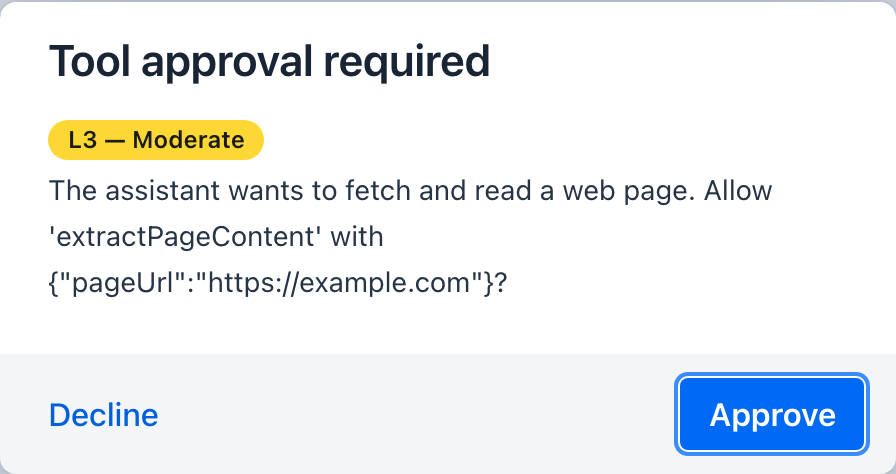
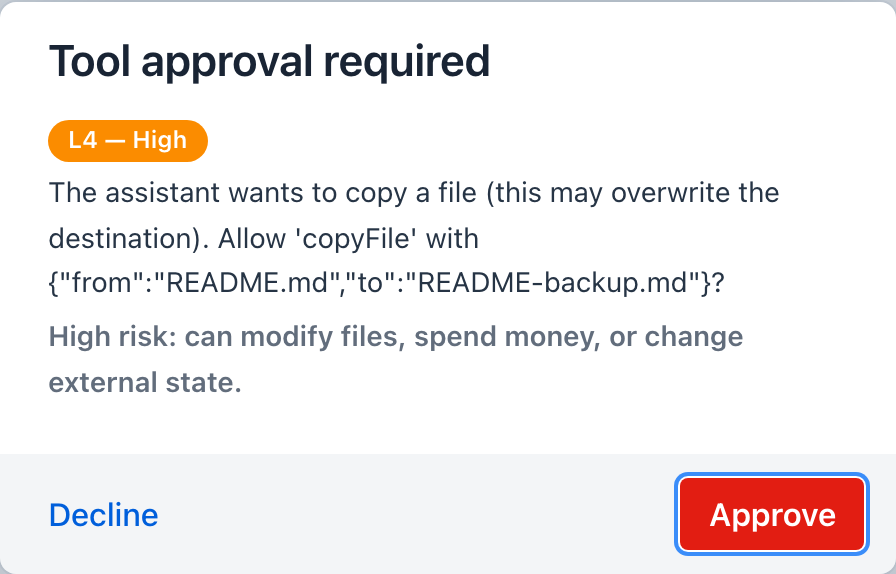
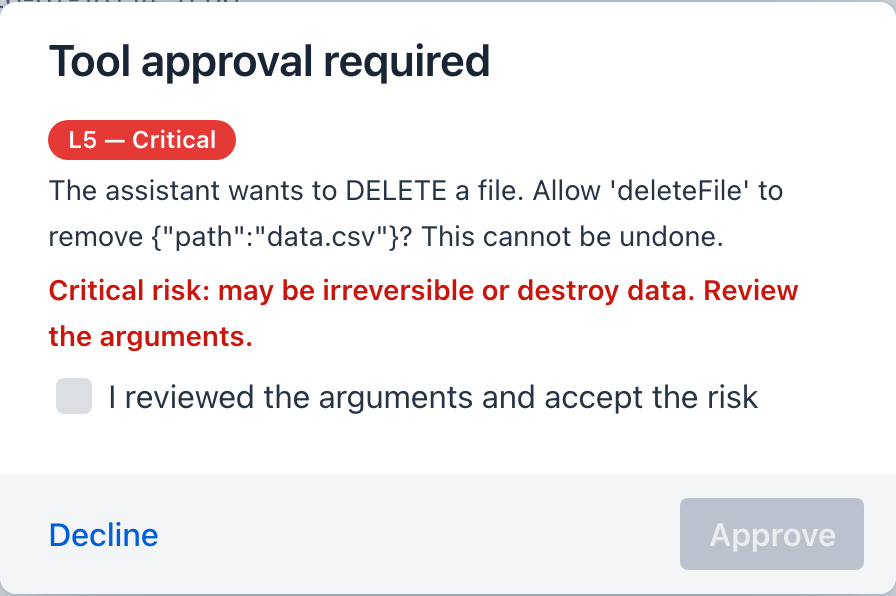
The level shown is the tool's inherent level (before the HITL -1 display credit) - the dialog itself is the mitigation, so it never discounts the risk it is asking you to accept.
If you don't answer within two minutes (configurable), or close the dialog, the call is declined automatically - approval fails safe. If the agent requested several gated tools in the same step, they appear together in one dialog with a chip-labeled row per call, so you answer them all at once; ungated calls run without interruption.
Walk through it end to end in Tutorial 11 - Approve a Tool in Chat.
What an external client sees
For an external MCP client (e.g. Claude Desktop) calling a Required tool on the built-in /mcp server, the built-in server issues an MCP elicitation request - a confirmation card the client renders before the call proceeds. The elicitation message is prefixed with the tool's risk level (for example [risk L5 Critical]), because the elicitation protocol has no severity field of its own. If the client does not support elicitation, the call is denied (it cannot be approved). The playground's own MCP Inspector → Elicitation shows elicitation requests the playground receives while acting as an MCP client; external clients render the built-in server's approval prompt in their own UI.
Good defaults
- Keep Required for anything that writes, deletes, sends, or spends - irreversible or outward-facing actions are exactly what a person should confirm.
- Leave read-only, local tools Disabled so routine calls don't nag you.
- Review-then-send action cards are a separate pattern. The built-in
sendEmailandaddToCalendartools ship at L0 and need no approval because they only draft - they never send mail or write a calendar. The outward action happens only when you click the button on the action card they render in chat, so that click is itself the human gate. Asend-named tool shipping without an approval prompt is therefore not an exception to the rule above.
Related
- Human-in-the-Loop Approval (architecture) - the two gates, loopback de-duplication, and fail-safe internals
- Agent Loop - the round governance this gate runs inside (round bounds, decline memory, dialog timeouts)
- MCP Server Proxy - re-expose external tools with per-tool approval
- Tool Studio - author tools and their sandbox + approval policy
- Agentic Chat - where approvals are answered
- Tutorial 11 - Approve a Tool in Chat