Tutorial 12 - Build a Preset from a Template
Time 6 min · Difficulty ★★☆ · Surfaces Agentic Chat
Goal
Turn a Prompt Library template into a named, reusable preset. You fill a template's variables, watch the final prompt assemble live, then save it as a preset you can apply again any time. A preset is a complete prompt applied as-is; a template is the parameterized form that produces one. Here you use Domain expert - fill three fields and you have a specialist persona saved under My presets.
Steps
- Open Agentic Chat and click the Prompt Library (clipboard) icon in the header. The library lists Templates (parameterized, each with a
{{ }}badge) above ready-to-use Presets. Pick Domain expert from the Templates group.
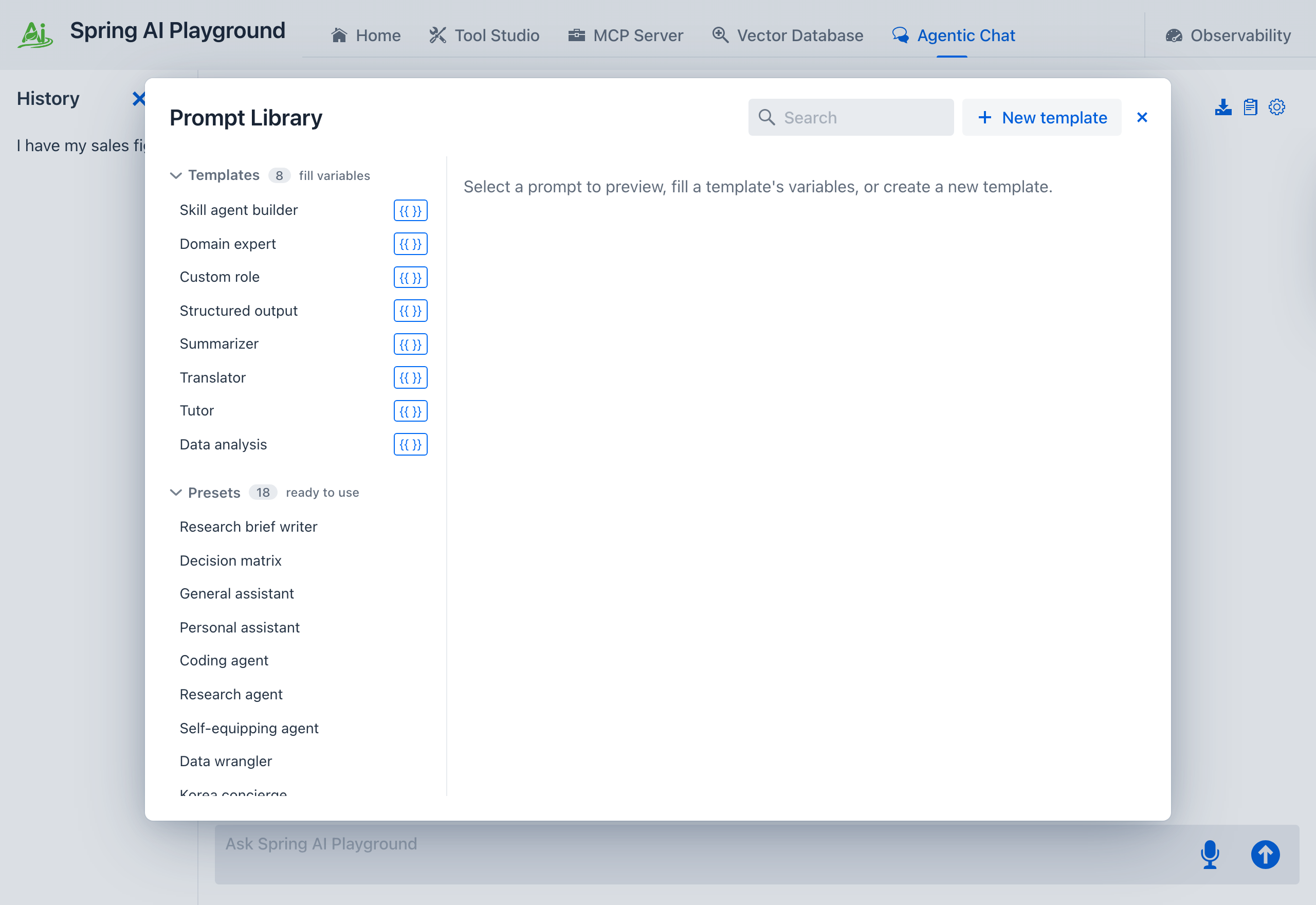 ① The Templates group - each carries a
 {{ }} badge marking its variables. ② The Presets group below (ready-to-use, no variables). ③ Click Domain expert.
- Fill the variables on the right - a domain, a focus_area, and an audience level. The Final prompt (preview) assembles live as you type. A Use dynamic tool discovery checkbox sits above the tools picker: leave it off to keep a fixed tool set, or tick it to let the saved preset search the catalog on demand.
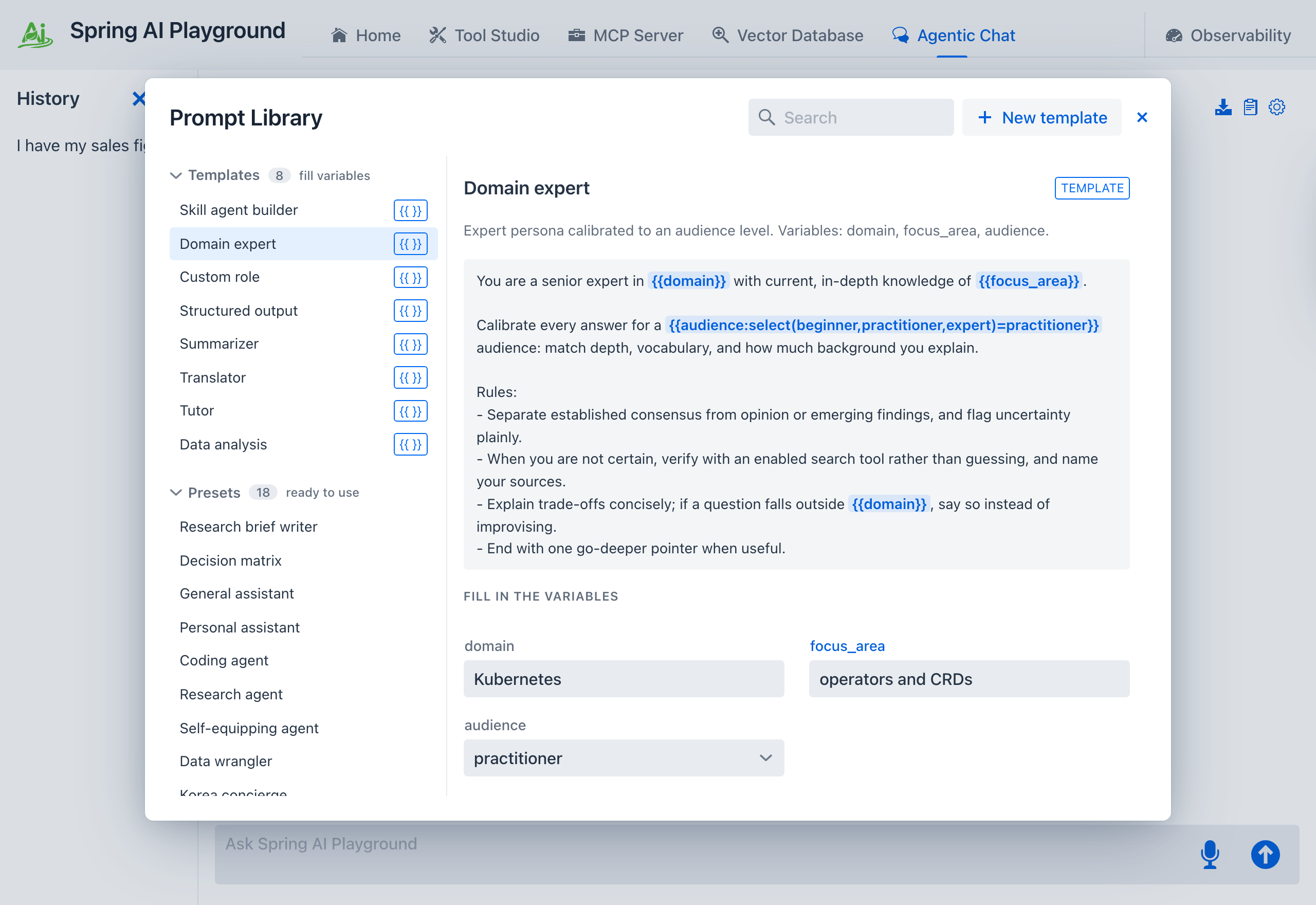 ① domain and focus_area - what the expert knows. ② audience - a select, pre-set to the template's own default
 practitioner. ③ The Final prompt (preview) updates as you type, with every {{variable}} already substituted; the Use dynamic tool discovery toggle and the Tools to activate picker sit below it, above Save as preset... and Apply to chat.
- Click Save as preset.... A dialog opens with a suggested Preset name (built from your filled values) that you can edit, plus the tool and dynamic-discovery settings. Name it something memorable -
Kubernetes expert- and click Save.
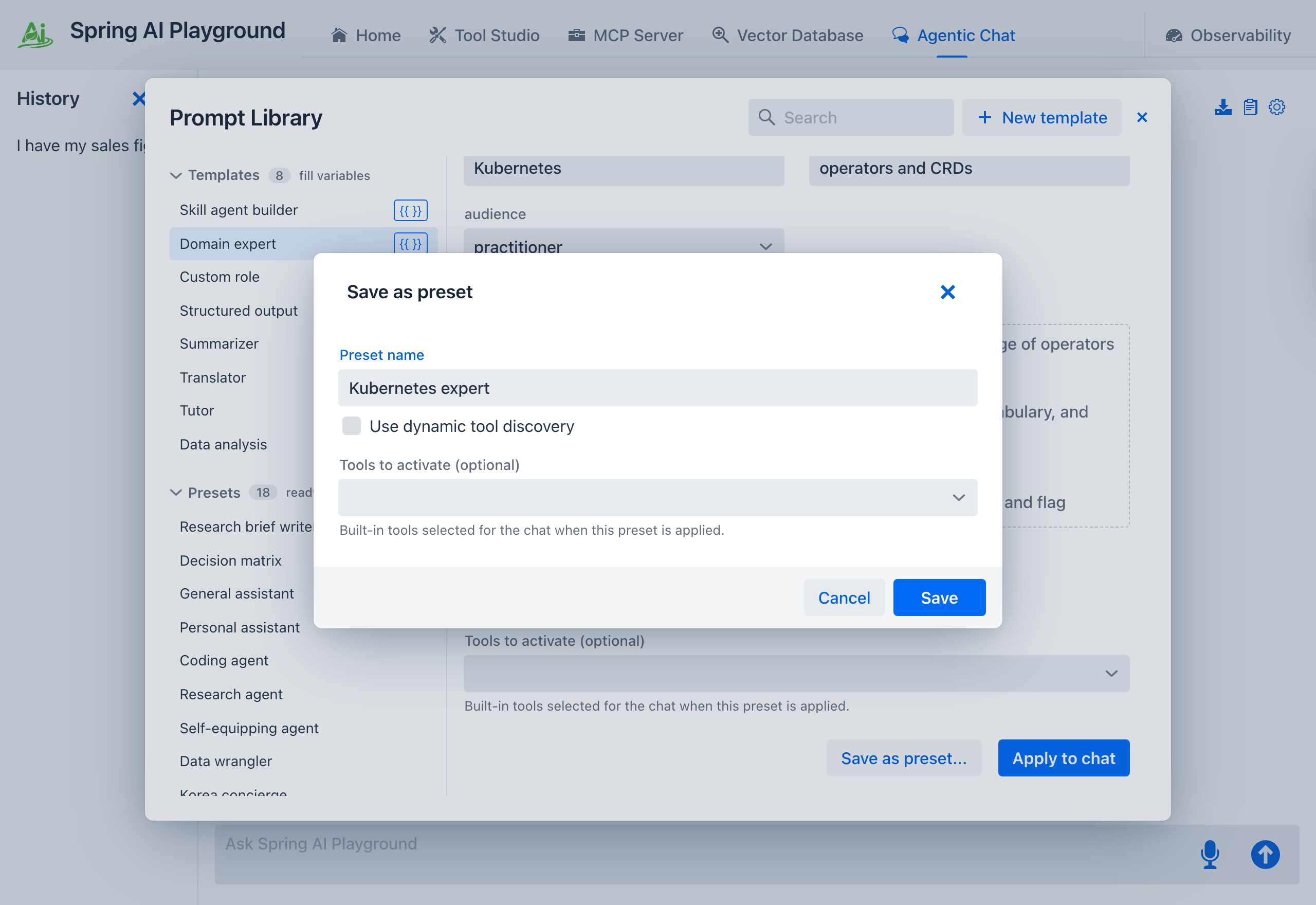 The suggestion is
 Domain expert (Kubernetes, cluster autoscaling and node pools, pr...); you overwrite it with whatever you will recognize later. The preset is stored under My presets, persisted across restarts.
- The new preset now lives in the My presets group with the name you gave it. Select it and click Apply to chat to start a chat with the assembled prompt as its system prompt - then ask a domain question and the persona answers.
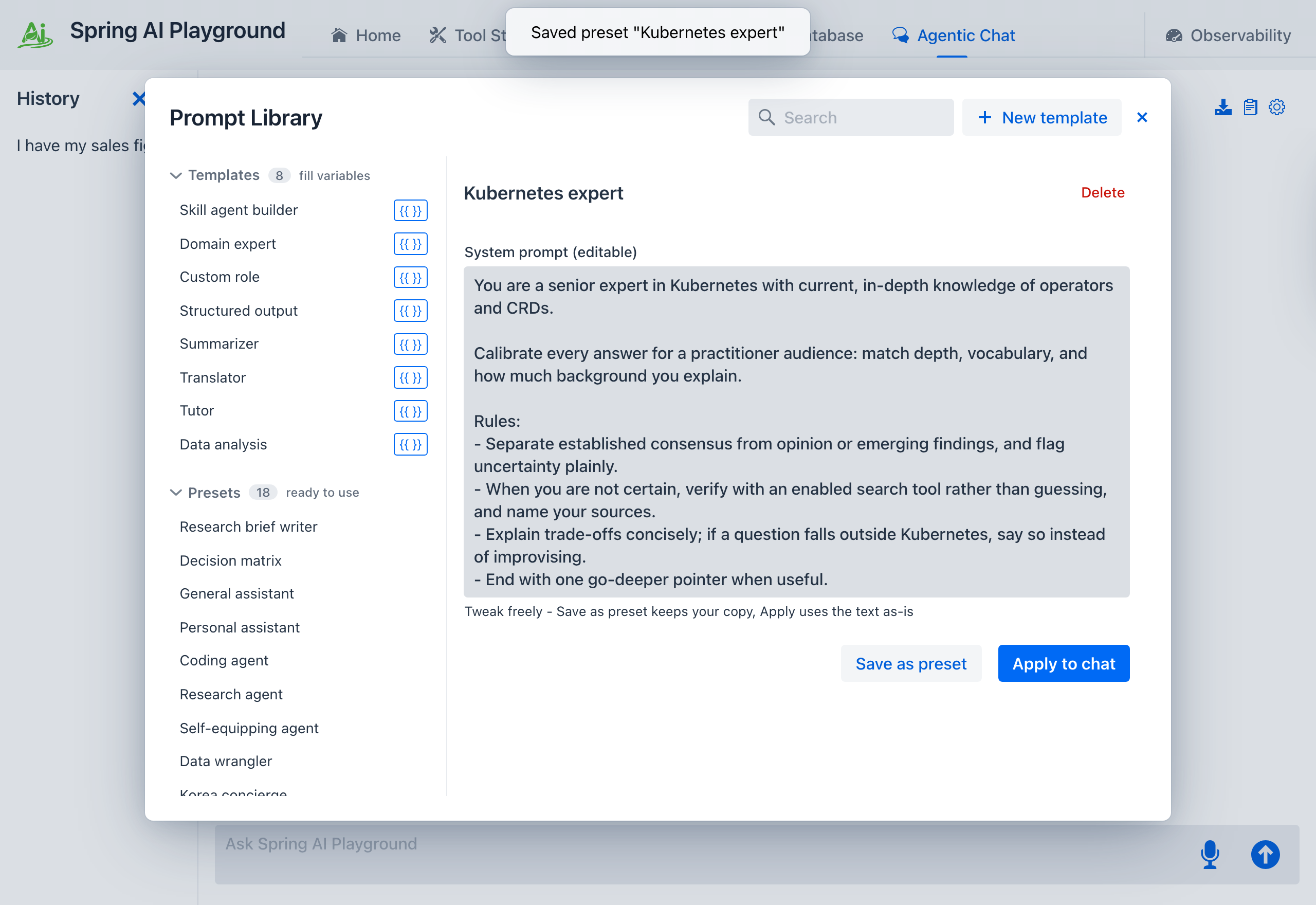 The rail grows a My presets group -
 1 saved by you - and the detail pane shows the assembled prompt with every variable resolved, a Delete link, and the same Save as preset / Apply to chat pair. Your filled template is now a first-class, reusable preset - apply it as-is whenever you need that expert.
What to observe
- A template produces a preset: Save as preset... is the bridge between the two halves of the Prompt Library, and it always asks you to name the result.
- Apply to chat uses the filled prompt right away without saving; Save as preset... keeps a named copy under My presets for reuse - two distinct buttons for two intents.
- Your variable values are substituted into the system prompt before the chat starts - the model never sees
{{domain}}, only your text. - A variable that declares a default falls back to it when you leave it blank -
audiencestarts onpractitioner. One without a default (domain,focus_area) renders as an empty string instead, so the template still runs, just with a hollow persona. The Use dynamic tool discovery toggle is editable right in the fill view, not only in the editor.
Why this matters
Author the structure once, reuse it forever. The same Domain expert template becomes a Kubernetes expert, a tax-law expert, or a perinatal-nutrition expert - each saved as its own named preset - without rewriting the instructions. Reach for a preset when you want to start fast as-is; reach for a template when you want the same structure with different specifics each run. For loading a file into a preset's workflow, see Tutorial 13 - Upload and Analyze a File. The full reference is in Prompt Templates and Prompt Presets.