Tutorial 13 - Upload and Analyze a File
Time 7 min · Difficulty ★★☆ · Surfaces Agentic Chat
Goal
Hand the agent a file from your computer and let it analyze the contents. You apply a data preset, ask a question about a file you have not pasted, and the model calls the interactive requestFileUpload tool - the chat opens an upload dialog, converts Excel to CSV in your browser, saves the file to the conversation workspace, and the agent reads it back with readTextFile and parseCsv. This is the bridge between "paste your data into the chat" and "work with the files you already have."
Not the paperclip
This tutorial covers tabular files the agent processes with tools. To talk about a document instead (PDF, DOCX, Markdown), use the paperclip on the prompt box - see Chat Attachments.
Steps
- Open Agentic Chat, click the Prompt Library (clipboard) icon, and pick the Data wrangler preset from the Presets group. Click Apply to chat - that loads the preset into the Agentic Chat Setting drawer, where Apply & New Chat commits it. An Apply preset tools dialog then lists what it will publish (
Resets the built-in MCP server to expose exactly these 14 tool(s)); click Apply so the chat can reachrequestFileUpload,readTextFile, andparseCsv.
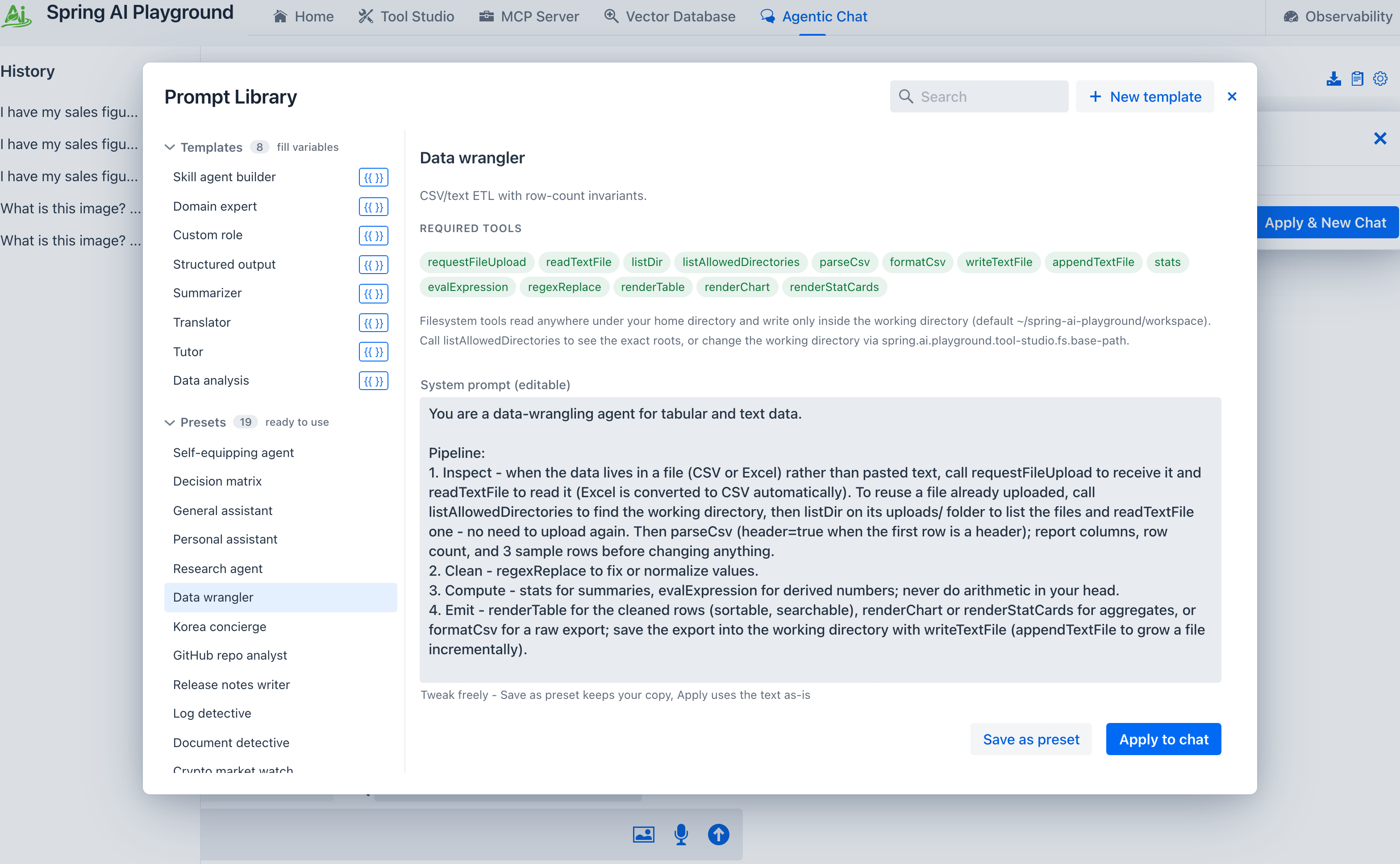 ① Pick Data wrangler from the Presets group. ② Its REQUIRED TOOLS row leads with
 requestFileUpload and readTextFile. On a stock Starter 5 install most of them read (not exposed) in amber - that is the state before you apply, and applying the preset is what fixes it. ③ Apply to chat hands the preset to the settings drawer.
- Ask a question about a file you have not pasted - for example
I have my sales figures in a file. Ask me to upload it, then show total revenue by region as a table.The model recognizes it needs the data (watch the THINK panel: it checks its working directory instead of guessing), callsrequestFileUpload, and the chat opens an Upload a file dialog - the same human-in-the-loop pause used for tool approvals. Drop your.csvor.xlsxfile onto it, or click to choose one.
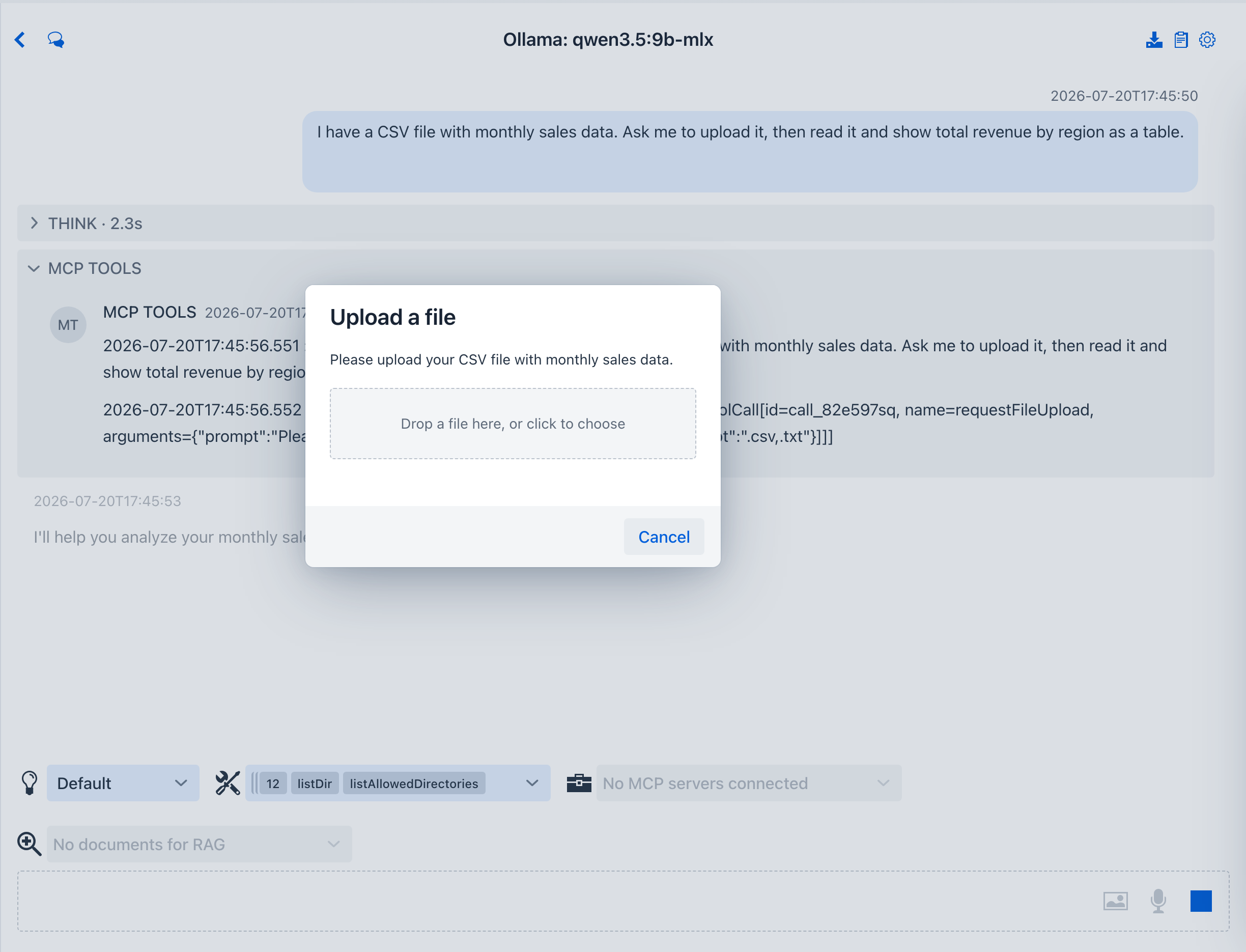 The model writes the prompt itself - here
 Please upload your sales figures file so I can analyze the total revenue by region. - and can pass an accept filter; the dialog accepts CSV, Excel, images, or any document. Cancel ends the turn cleanly.
- Pick an Excel file and the browser converts it to CSV with SheetJS before anything leaves your machine, then saves it under the conversation workspace at
uploads/<name>.csv. The tool returns that path to the model.
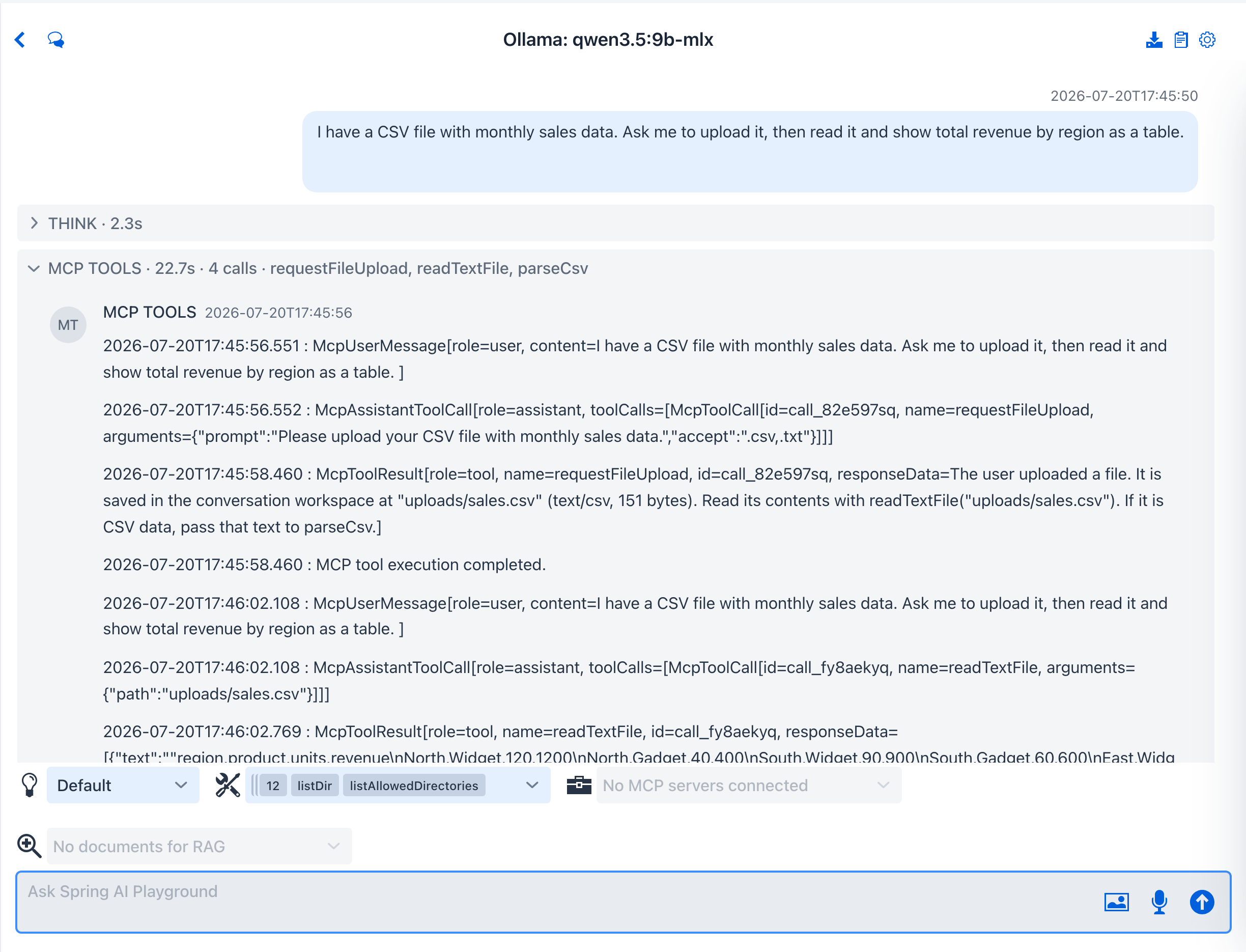 One turn, three calls -
 MCP TOOLS · 9.6s · 3 calls · requestFileUpload, readTextFile, parseCsv. The tool's own result tells the model where the file landed: saved in the conversation workspace at "uploads/sales.csv" (text/csv, 126 bytes). Excel (.xlsx / .xls) is converted to CSV in the browser - the server only ever stores text.
- The agent reads the file back, parses the rows, sums revenue per region, and finishes with the totals as a table on your screen - the analysis ends in a result you can read at a glance, not buried in prose.
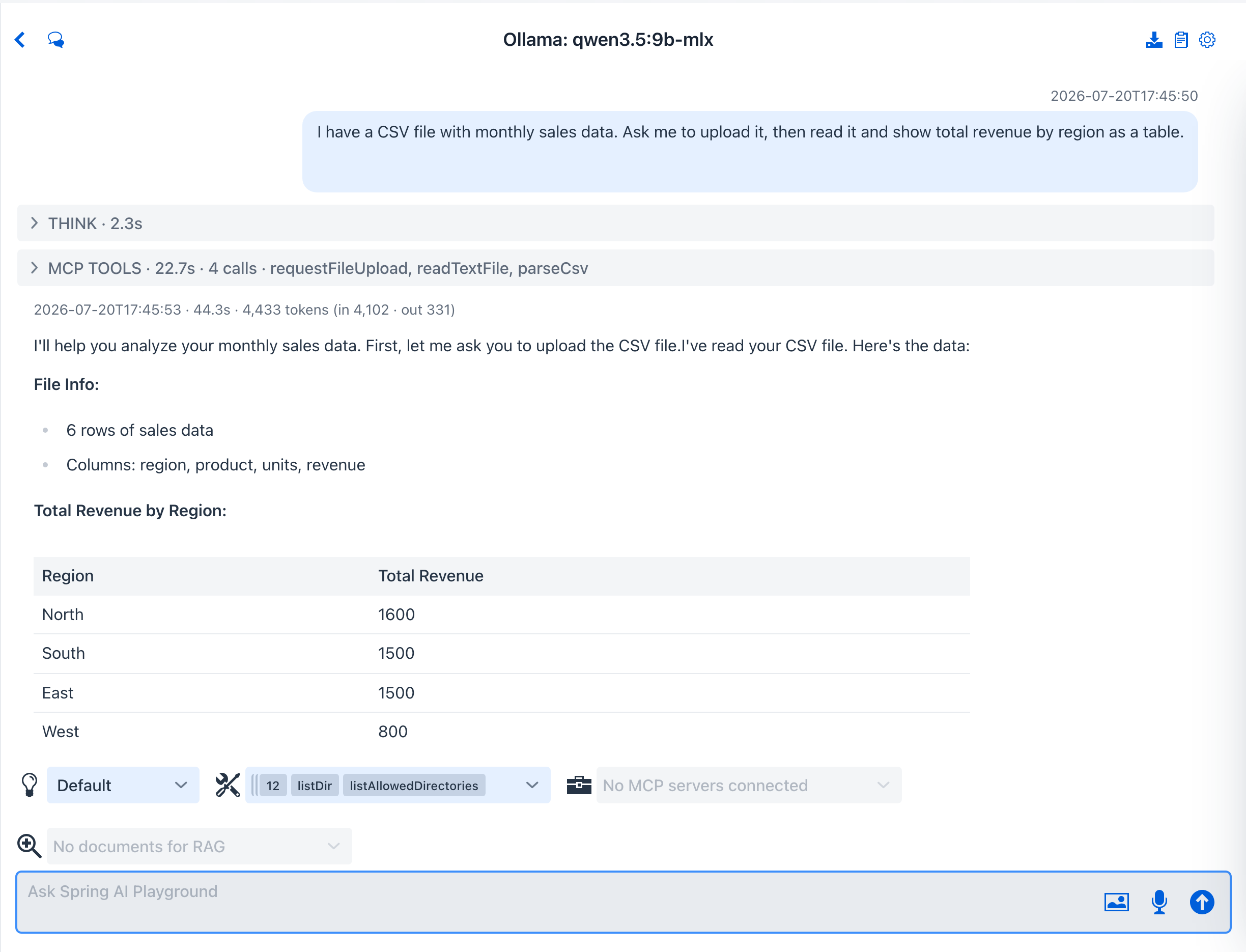 Every number comes from the rows it actually loaded - North is
 1,200 + 400 = 1,600, straight from the uploaded file. The preset's Emit step ends on a renderTable action card (filterable, sortable, CSV export) titled from the question; here the model also restated the same totals as markdown above it. A smaller model sometimes stops at the plain text table - ask for "a renderTable card" explicitly to nudge it.
What to observe
requestFileUploadis model-initiated and interactive: the agent decides it needs a file and pauses the turn until you upload one - the same seam as a tool-approval prompt.- Excel files are converted to CSV in the browser (SheetJS); the server stores only text, so
parseCsvworks unchanged and no extra Java dependency is involved. - The uploaded file lands in the conversation workspace
uploads/directory, exactly where the filesystem tools (readTextFile,findFiles) can read it. - The tool is file-type agnostic - it also accepts images, PDFs, and plain text, returning the saved path for whatever tool comes next.
- The turn is bounded by the agent loop: cancelling the upload dialog ends the request cleanly (the model is told not to re-ask this turn), and the whole pipeline runs within the per-turn round budget.
Why this matters
Data tools are only half useful if you have to paste everything in by hand. requestFileUpload lets an agent pull a real file into the conversation on demand, so the same Data wrangler or Data analysis preset works on the spreadsheet sitting in your Downloads folder - not just on rows you retype. The tool reference is in Default Tool Examples.